45
Network Status
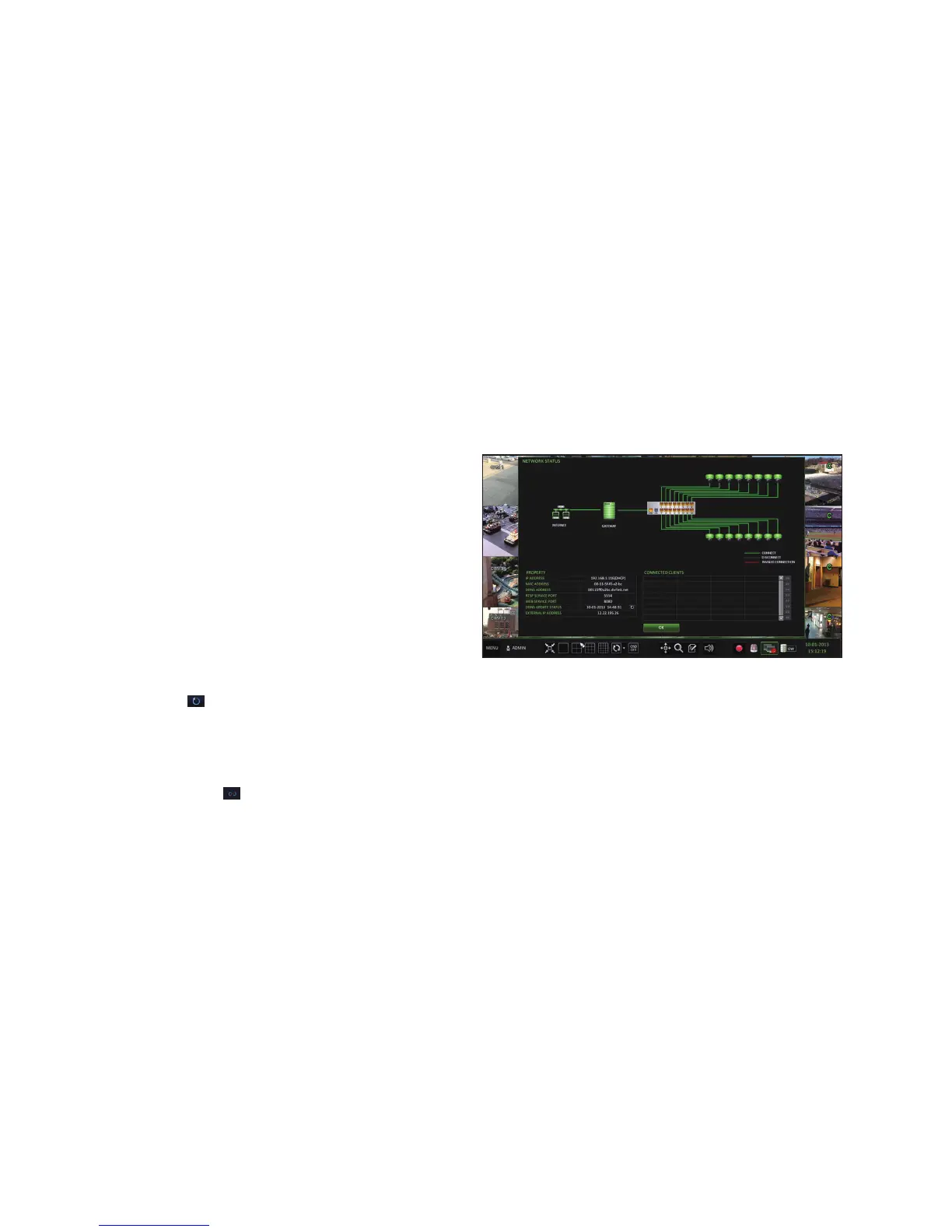
From the network status screen, you can check the status of the network connection, as well as all connected cameras.
1.
From <SYSTEM SETUP> - <NETWORK>, select <NETWORK STATUS>.
2.
Use the [▲▼◀ ▶/ENTER] buttons on the remote control or use the mouse to select one between <NETWORK MAP> and
<DETAIL STATUS>.
3.
When done, press the [EXIT] button on the remote control or click <CLOSE> in the lower screen. The confirmation
message appears and you will return to the previous menu.
Network Map
IP ADDRESS : Indicates the internal IP address of the DVR.
MAC ADDRESS : Indicates the internal MAC
address of the DVR.
DDNS ADDRESS : Indicates the DDNS address of
the DVR.
RTSP SERVICE PORT : Indicates RTSP port used
for remote access. For remote access, the RTSP
port must be port forwarded in the router.
WEB SERVICE PORT : Indicates the web service
port used for remote access.
For remote access, the web service port must be
port forwarded in the router.
DDNS UPDATE STATUS : Shows if the DDNS
address was successfully registered to the DDNS server. Press
< > to try to register the DDNS address forcibly.
EXTERNAL IP ADDRESS : Indicates the public IP address of the DVR, which can be used to access the DVR from a
remote network. For example: "http://<External IP Address>:<Web Service Port>".
NOTE: The IP address can vary in a dynamic IP environment.
CONNECTED CLIENTS : Shows the list of clients that are currently connected.
Press < > to terminate the connection of an unwanted client.
Termination is limited to only users in a lower group than the current user.


 To Next Page