OnWingtraPilotwelcomemenu,createanewFlightPlanandselect"MicasenseRedEdge"as
camera.
PlanyourflightasdescribedinCreateanewFlightPlan.
Followthepreflightchecklist:
Onpreflightchecknr.7(ConfigureRedEdge),youhavetoconfiguretheRedEdgecamera
byconnectingtoitfromawebbrowserlikeChrome(seebelow).
Onpreflightchecknr.11(CalibrateRedEdge),takeatleastonecalibrationimage(see
below).
Flythemission
AfterlandingperformthefollowingtwostepsbeforedepoweringWingtraOne:
TakeagainacalibrationimagebyholdingWingtraOneoverthereflectancetagandclicking
thesmallbuttononfrontsideofRedEdge.
DepowerRedEdgebyholdingthebuttononfrontsideofRedEdgefor3seconds.
RetrieveSD-cardfromRedEdgeandaccessyourflightimages
ConfigureRedEdgeCamera
OperationofWingtraOneRedEdgerequirestoconfigurethecameratothedesiredflightplan
parametersinaseparatecamerauserinterface.ThisuserinterfacecanbeaccessedviaWifiand
webbrowser(Chrome).Youcanusethetabletitselforanyotherdeviceasyoursmartphone.
ToconfigureRedEdgecamera:
1. PoweronWingtraOne
2. ConnectviaWifitotheRedEdgecamera(SSID=rededge//passwort=micasense)
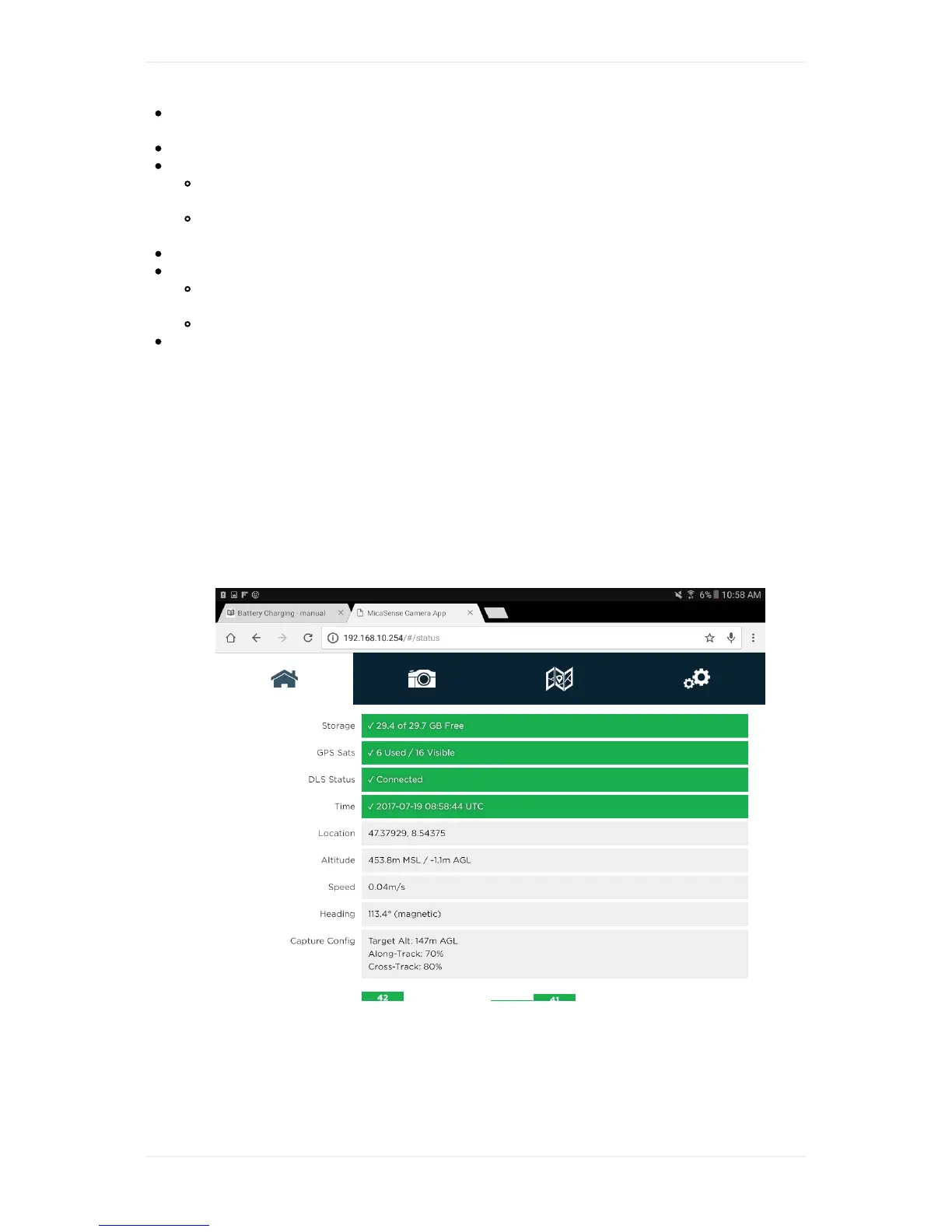
3. Openthebrowserapp(Chrome)andaccessthepagehttp://192.168.10.254
4. Gotostatustab(housetab).CheckfreespaceonSDcard,GPSsignalreceptionandtime
5. Gotoconfiguretab(geartab).SetAuto-CaptureModetoOverlap.Settargetaltitudetoflight
altitudeofyourplannedFlightPlan.SetAlong-TrackOverlaptofrontaloverlapofyourplanned
FlightPlan.Presssave



 To Next Page