Step2:SetHomeforTakeoffandLanding
AddHomebyclickingonthefirstbuttonontheleft(A).Ifyouareonthefieldwith
WingtraOnepoweredonandconnectedtothetablet,HomeissettoWingtraOne'scurrentposition
automatically.Ifyouplantheflightbeforehandinoffice,youcanmoveittotheplacewhereyouintend
totakeoff—itwillbeadjustedtoWingtraOne'slocationonceyouareonthefield.Adjust"transition
altitude"and"transitiondirection"ontherightside(B)suchthatWingtraOnewillnotcollidewithany
obstacle.
WingtraOnewilltakeoff,risetoyour"transitionaltitude"aboveHome,transitionintoforwardflight,fly
tothedrawnloitercircle,loiteruptotheareaaltitudeandstartdatacollection.Afterfinishingdata
collection,itwillflybacktotheloitercircleatthealtitudeofthelastarea,loiterdownto"transition
altitude",flybacktotheHomepoint,transitionaboveHome,andland.
Step3:AddArea(s)
Tomaparegionofinterest,youhavetoaddoneorseveralarea(s)toyourFlight
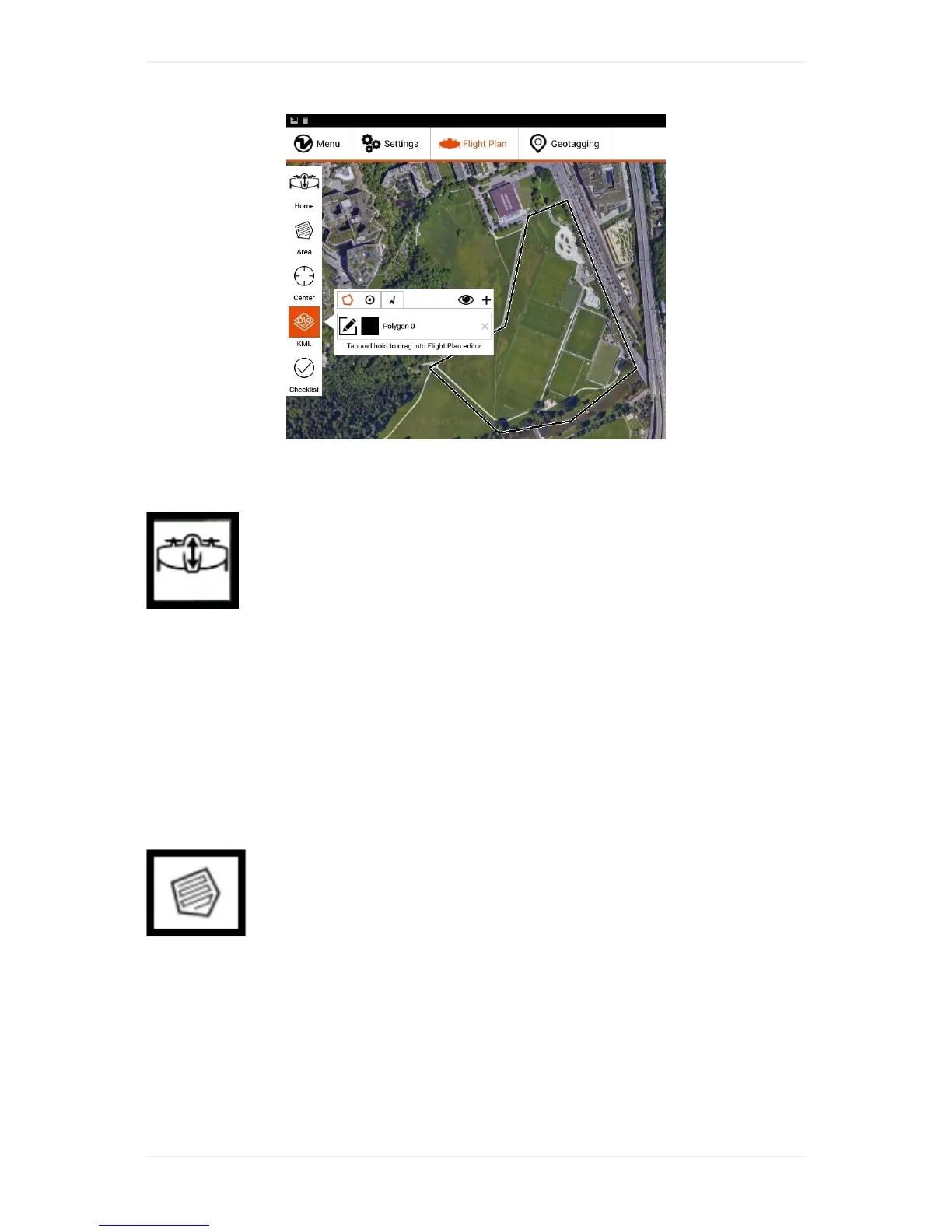
Plan.YoucanaddthemmanuallyorbyimportingaKMLfileandtransformingpolygonsoftheKML
fileintoareas.Afteraddinganarea,defineifyouwanttoenableterrainfollowing,setthedesiredGSD
andoverlaps,anddefinetheconnectionbetweendifferentareas.
AddArea(s)manually:Youcanaddoneorseveralarea(s)manuallybyclickingontheareaitem(A).
Movethecornersuntilyoudrawthearea(s)thatyouwanttomap.Additionalcornerscanbeaddedby
clickingonpointsinbetweenanytwocorners.Byclickingonacorneryouwillremoveit.Areascanbe
removedbypressingthecrossinthetoprightcorneroftheareadialogbox.



 To Next Page