AdvancedFlightPlanning
1. FlyingLargeFlightPlans
2. FlyinginDifficultTerrain
3. FlightDirection
4. FlyinginHighWinds
FlyingLargeFlightPlans
Coveringverylargeareasrequiresthesplittingintomultipleflights.WingtraPilotoffersthefeatureto
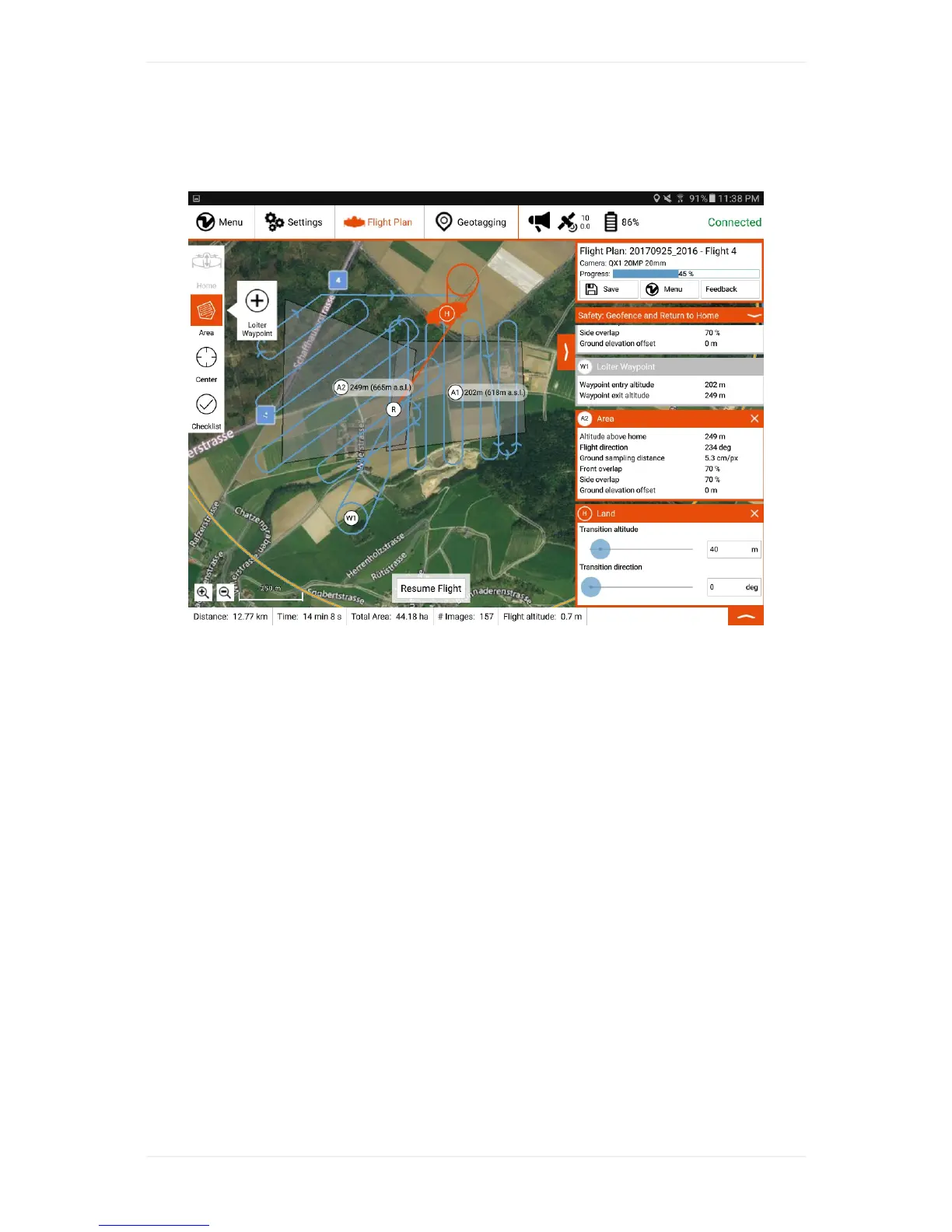
resumeaFlightPlanafterlandingtoswapthebatteries.WhenReturn-to-Homeistriggeredeither
manuallyorbylowbattery,theplanereturnstoland.AtthispointthepartoftheFlightPlanthatwas
notflownyetcanstillbeadapted.Socanbethegeofenceandothersafetysettings.
ToresumetheFlightPlansimplygothroughthepreflightchecklistagainandlaunchtheflight.The
resumepointisshownonthemapasdisplayedabove(R).
FlyinginDifficultTerrain
Formappingindifficultterraintherearesomeoptionstofacilitatepathplanning.Normally,youwill
enableterrainfollowingindifficultterrain.Seebelowforadviceforsafeflyinginspecificchallenging
situation(mines,obstacles,steepterrain,BVLOSbehindmountainsorbuildings).
LoiterWaypoints:Inordertocircumnavigatecertainregions,youcanmakeuseofloiterwaypoints.
Thoseareautomaticallyinsertedbetweentwoareas.Moreofthemcanbeinsertedmanuallyby
pressingandholdingtheareabuttonandthentappingtheloiterwaypointbuttondisplayedinthe
figureabove.Notethattheentryandexitaltitudesareusuallylinkedtotheareas,butwhenthe
adjacentelementisnotanarea,itcanbeadjustedtosuitthepathplanningneeds.



 To Next Page