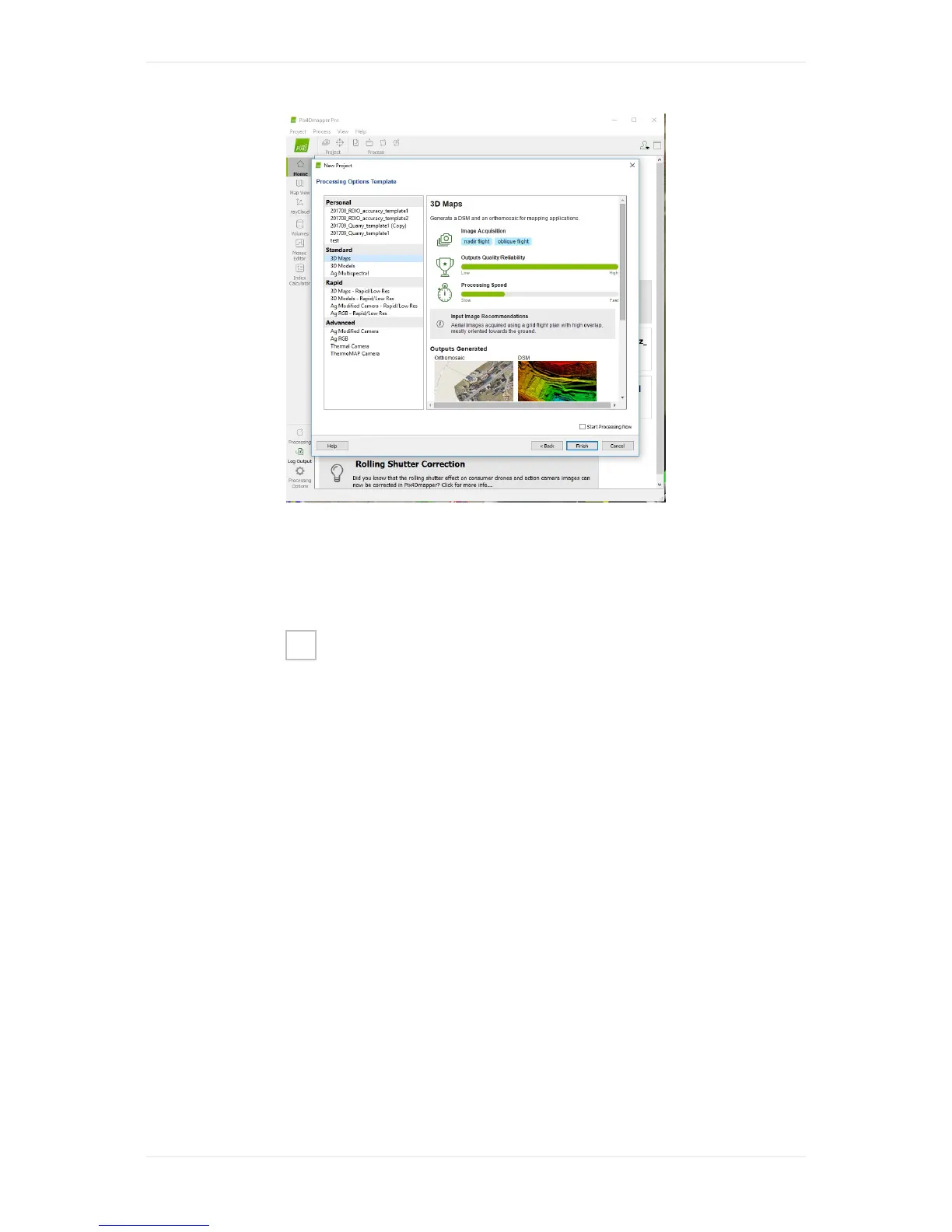
Step7-Option1-Generatebasicoutput
Nowyoucanstarttheprocessing.Makesuretohaveallthreeprocessstepsselectedandstartthe
processingoftheprojectbyclickingon"Start"orcontinuewithStep8
Step7-Option2-Generateoutputincludingcheckpointsor
groundcontrolpoints(GCPs)
Startthetheprocessingstep1ofPix4dmapper.Aftercompletionoftheinitialprocessingimportand
markyourGCPs(formoredetailspleasecheckoutPix4dSupport-HowtoaddandmarkGCPs).
MakesureyouselectthecorrectcoordinatesystemforyourGCPs.Dependingonthepurposeofyour
GCPsyoumayaddthemascheckpointsonly.Checkpointswillnotaffecttheprocessingresultbut
enableyoutochecktheaccuracyofyourresults.AfterimportingandmarkingyourGCPsre-optimize
theresultsandrunprocessingstep2and3ofPix4Dmapperbyclicking"Start".
Step8(optional)-ProcessinPix4Dcloud
Tosavecomputingresourcesorprocessmultipleprojectsinparallelyoucanuploadtheprojectsfrom
Pix4Dmappertothecloudandprocessthemthere.IfyoudefinedtheprojectcorrectlyinStep7itwill
consideryourcustomoutputsandGCPsevenwhenprocessinginthecloud.Clickon"Project/Upload
ProjectFiles"andselect"StartProcessing"beforeclicking"Upload".Note,uploadspeedsare
considerablyhighercomparedtouploadinthebrowserinterfaceofpix4dcloud.



 To Next Page