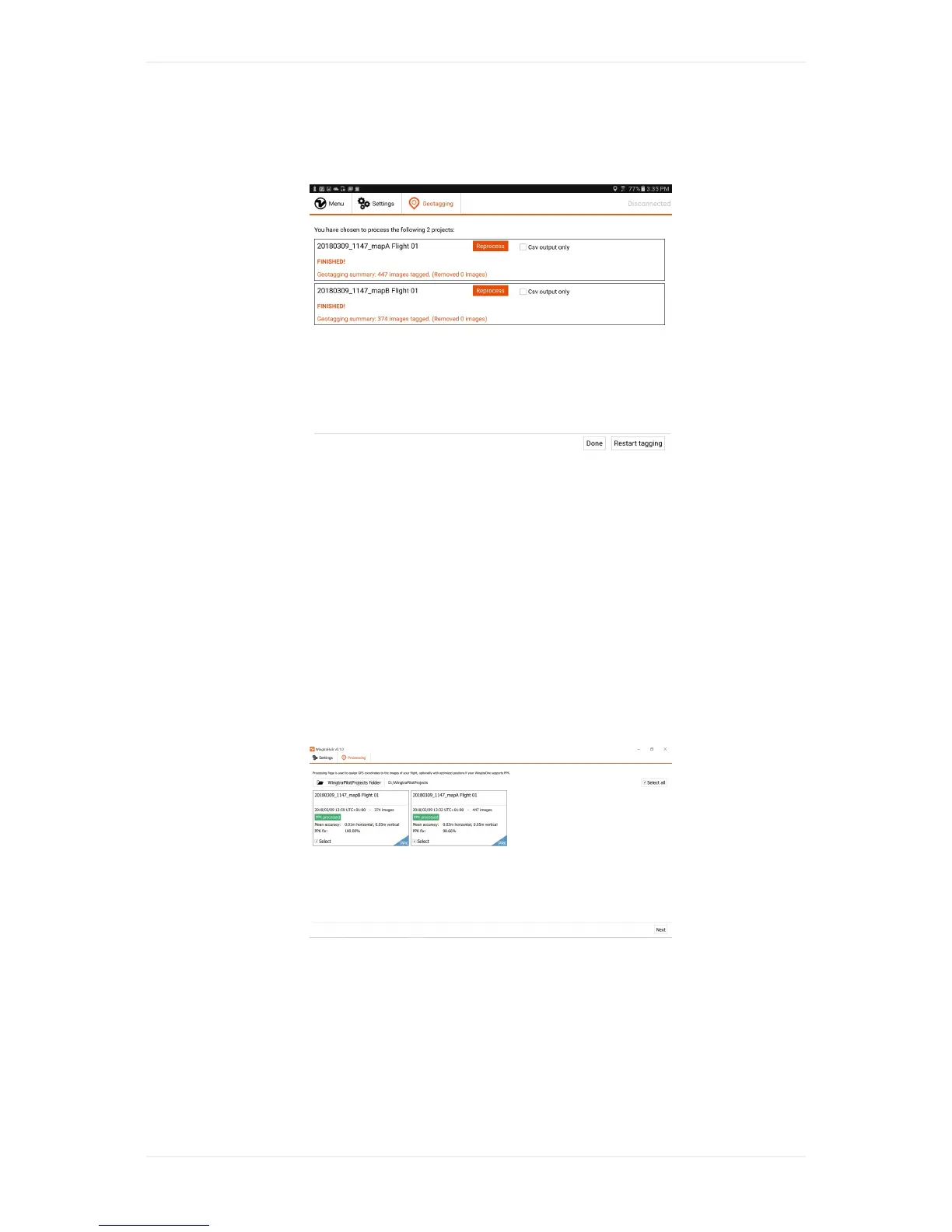
3. Ifyouwantafastertaggingprocessanddonotneedthecoordinatesembeddedintoimages,you
cancheckthe"Csvoutputonly"boxtogetonlythecoordinatesoftheimagesinasinglecsvfile.
4. Click"Starttagging"tostarttheprocess.
5. Oncethegeotaggingisdone,WingtraPilotwillinformyouiftheprocesswassuccessful.
Theresultsofthegeotaggingprocessaredescribedatthebottomofthisarticle.
PPKGeotagging
ForPPKgeotagging,youcanonlydoitonaWindows10computerbyusingWingtraHub.Checkout
thePPKChapterforinformationabouthowtoinstallandsetupWingtraHub.
ThePPKgeotaggingprocessissimilartothenon-PPKgeotaggingprocess,butwithsomeextradata
neededfromtheuser'sside.JusttakeouttheSDcardfromthecameraaftertheflight(s),putitinto
thecomputer,andstartthegeotaggingprocedureasfollows.
1. Gotothe"Geotagging"tabinWingtraHubandselectthe"WingtraPilotProjects"folderonyourSD
card.
2. ProjectswithPPKenabledarelabelledwith"PPK"onthebottomrightcorneroftheproject
boxes.
3. Selecttheproject(s)whichyouwouldliketogeotag,thenclick"Next".
4. Checkthe"PPKprocessing"checkboxtoenablePPKgeotagging.
5. Ifyouwantafastertaggingprocessanddonotneedthecoordinatesembeddedintoimages,you
cancheckthe"Csvoutputonly"boxtogetonlythecoordinatesoftheimagesinasinglecsvfile.
6. Selectyourbasefileandprovidethebaselocationofthebasestationforeachproject.



 To Next Page