CreateaNewFlightPlan
Tostartplanningaflight,youhaveto"CreateanewFlightPlan"fromthewelcomemenuof
WingtraPilot.YoucanopenthewelcomemenubyclickingontheMenubuttononthetopleft.Follow
thewizardtosetupthehigh-levelsettingsoftheFlightPlan—Doyouwanttostartfromscratchor
basedonanexistingFlightPlan?Whatcameradoyouuse?Clickon"Finish"andyouwillenterthe
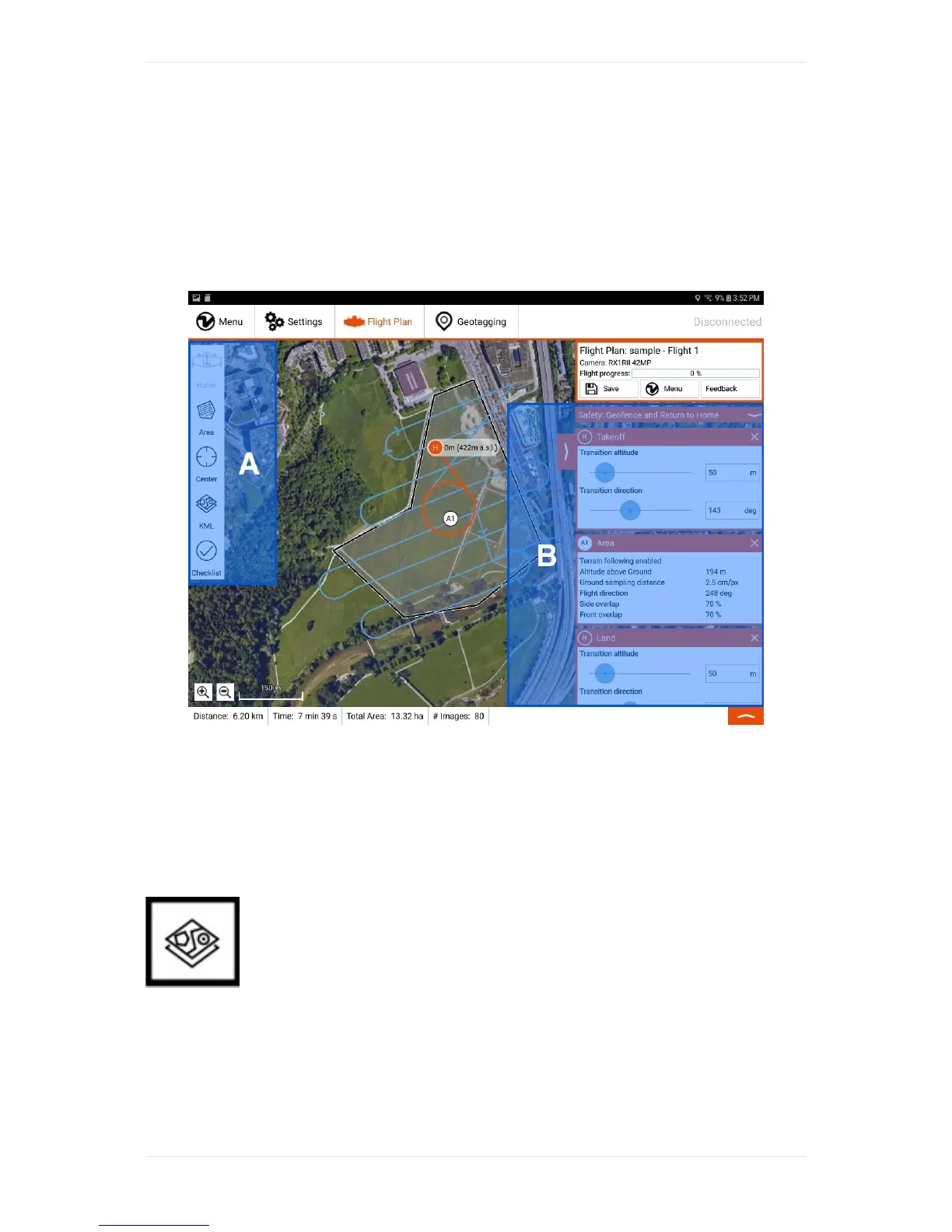
flightplanningdisplayofWingtraPilot:
Theflightplanningprocedureitselfcontainsthesesteps:
1. (Optional)ImportKML
2. SetHome
3. AddArea(s)
4. (Optional)AdjustGeofence
Step1:(Optional)ImportKML
YoucanplanyourflightbasedonKMLfilesyouimportintoWingtraPilot.CopyaKML
tothetablet(getitviaemail,downloadfromanycloud,ortransferittothetabletwithanSDcard).
WithinWingtraPilot,clickontheKMLitem(A),andpressthe+signonthetopright.Navigatetoyour
KMLfileandselectit.WingtraPilotisabletodisplaypoints,lines,andpolygonsfromyourKMLfile.If
youdonotseetheobjectsofyourKMLfile,centertheviewontheKMLusingthecenteroptiononthe
left(A).YoucantransformeverypolygonoftheKMLintoanareaoftheflightplanindividually(see
step3).CheckouttheWingtraPilotTroubleshootingsectionifthekmlimportdoesnotwork.



 To Next Page