EasyManua.ls Logo

Yealink VC110 - User Manual

Yealink VC110
179 pages
Print Icon
To Next Page IconTo Next Page
Loading...

Table of Contents

Other manuals for Yealink VC110

Questions and Answers

  • J
    Jeffrey GilbertSep 5, 2025
    Why can’t I adjust the remote camera during an active call on my Yealink VC110?
    • J
      Jonathan SandersSep 5, 2025
      If you can’t adjust the remote camera during a call, use the remote control to control the local camera to check whether the remote control can be used normally. Ensure that the far site has enabled the far-end camera control feature. Ensure that what you are controlling is the remote camera. Ensure that the far site supports the same call protocol as the local site.
  • A
    arodriguezAug 25, 2025
    What to do if I can’t hear audio during a call on my Yealink VC110 Conference System?
    • R
      Reginald DixonAug 25, 2025
      If you can't hear audio during a call, ensure the local audio output device is correctly connected. Use audio diagnostics to check if the audio device is working normally. Make sure the ringer volume isn't set to the minimum. Also, check if the far site is muted.
  • A
    Amanda BarajasAug 25, 2025
    Why does my Yealink Conference System network keep losing packets?
    • C
      copelandshannonAug 26, 2025
      If the network keeps losing packets, check the network availability and ensure the LED indicator on the Internet port illuminates green. Try using a low-speed connection to check for packet loss. Also, check the configuration of the network speed and duplex mode on the endpoint, switch, and router.
  • C
    Chad WoodSep 14, 2025
    How to troubleshoot remote control issues with my Yealink Conference System?
    • J
      James MillerSep 14, 2025
      If you're experiencing remote control issues with your Yealink Conference System, make sure the batteries are working and correctly installed. Aim the remote at the sensor, ensuring nothing blocks it. Check if the LED on the camera's front flashes green when using the remote. If problems persist, try rebooting the endpoint. If none of this works, the remote might be broken, and you should contact your administrator.
  • C
    Charles SmithSep 23, 2025
    How to resolve encryption issues on my Yealink Conference System?
    • D
      David SmithSep 23, 2025
      If you are experiencing encryption issues with your Yealink Conference System, and the near site is forced to use encryption, ensure that the far site enables encryption too.
  • J
    Jacqueline JohnsonSep 9, 2025
    Why can't I hear the audio during a call on my Yealink Conference System?
    • M
      markburnsSep 10, 2025
      If you can't hear audio during a call on your Yealink Conference System, here are a few things to check: Make sure the endpoint has selected an available audio output device and that the volume level on the endpoint is set appropriately. Also, verify that the microphone on the remote endpoint is not muted.
  • A
    Anthony Williamson Jr.Sep 1, 2025
    What to do if the Yealink VC110 display device is black?
    • B
      Brenda BennettSep 1, 2025
      If the display device is black, verify the connection to the VC110 unit. Ensure the endpoint isn't in sleep mode by pressing any key on the phone or remote. Also, check if the display device is in sleep mode or turned off, and try changing the video input source.
  • T
    tiffanymcphersonSep 23, 2025
    How to resolve call protocol mismatch issues on my Yealink Conference System?
    • N
      Nancy SimpsonSep 23, 2025
      If you're experiencing call protocol mismatch issues with your Yealink Conference System, ensure that the far site supports the same call protocol as the near site and that at least one call protocol is enabled on both sites.
  • S
    Sean CombsSep 18, 2025
    Why is the audio reception muffled on my Yealink Conference System?
    • M
      Martha YoungSep 18, 2025
      If you're experiencing muffled audio reception on your Yealink Conference System, it could be due to highly reverberant rooms. Try speaking closer to the phone.
  • R
    Robert DavisAug 28, 2025
    Why doesn't the Yealink VC110 Conference System display IP address?
    • L
      Laura NolanAug 28, 2025
      If the status bar of your Yealink Conference System's display device isn't showing the IP address, check if the network is available. Ensure the LAN property is configured correctly and verify if the endpoint has enabled the hide IP address feature. Also, check if the endpoint has configured the firewall and NAT correctly.

Summary

Overview

Packaging Contents

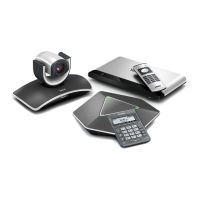
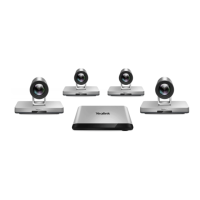
Details the items included in the VC110 all-in-one package.

Getting Started

Endpoint Connection and Installation

Provides basic instructions for connecting and installing the VC110.

Powering the Endpoint On or Off

Explains how to power the VC110 endpoint on and off.

Setup Wizard

Guides through the initial configuration of the endpoint.

Customizing the VC110 Video Conferencing Endpoint

General Settings

Covers settings like sleep time, backlight, site name, language, date/time.

Bandwidth Settings

Configuring uplink and downlink bandwidth for calls.

Far-end Camera Control

Allowing the remote site to control the local camera.

Using the VC110 Video Conferencing Endpoint

Placing Calls

Methods for placing calls using remote control, phone, or web UI.

Answering or Rejecting Calls

How to answer or reject incoming calls.

Call Management

Features like mute, video recording, layout change during a call.

Ending Calls

Procedures for ending two-way and multi-way calls.

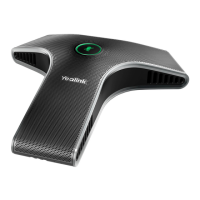
Using the VCM60 Video Conferencing Wireless Microphone

Connecting VCM60 to the Video Conferencing Endpoint

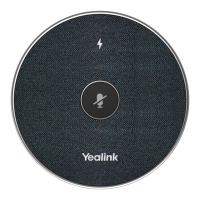
How to connect the VCM60 to the VC110 endpoint.

Using VCP41 with the PC or Mobile Device

Connecting a PC or Mobile Device to the VCP41

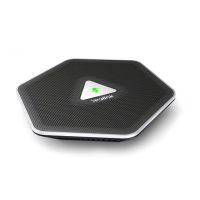
Connecting a PC/mobile device to VCP41 for audio input/output.

Troubleshooting

Endpoint Diagnostics

Performing audio and camera diagnostics on the endpoint.

General Issues

Troubleshooting common call placement and reception problems.

Camera Issues

Solutions for camera angle, focus, and video quality problems.

Display Issues

Troubleshooting issues related to the display device.

Yealink VC110 Specifications

General IconGeneral
Digital zoom4 x
Focus adjustmentAuto
Video codecsH.264, H.263
Maximum frame rate30 fps
Supported video modes720p, 1080p
Video formats supportedH.263, H.264
Supported graphics resolutions352 x 288, 704 x 576, 1280 x 720 (HD 720), 1920 x 1080 (HD 1080)
Voice codecsG.711a, G.722, G.722.1, G.722.1C
Line-inYes
USB 2.0 ports quantityUSB 2.0 ports have a data transmission speed of 480 Mbps, and are backwards compatible with USB 1.1 ports. You can connect all kinds of peripheral devices to them.
Pan range-100 - 100 °
Tilt angle range-30 - 30 °
Security algorithms128-bit AES, HTTPS, SRTP, SSL/TLS
Ethernet LAN data rates10, 100 Mbit/s
Supported network protocolsTCP/IP (IPv4), DHCP/ stastic IP, HTTP/ HTTPS, SRTP/TLS, IEEE802.1X, LLDP-MED, VLAN
Current2 A
Power consumption (max)30 W
Power consumption (typical)24 W
Storage temperature (T-T)-20 - 50 °C
Operating temperature (T-T)10 - 40 °C
Operating relative humidity (H-H)10 - 95 %
Weight and Dimensions IconWeight and Dimensions
Depth151.5 mm
Width234.6 mm
Height161 mm
Package depth318 mm
Package width432 mm
Package height274 mm
Package weight5900 g

Related product manuals