
 Need help?
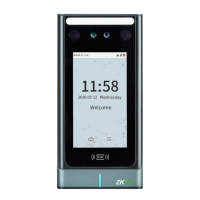
Do you have a question about the ZKTeco SpeedFace-V5L Series and is the answer not in the manual?
Conventions for software and device interface elements and navigation.
Explanation of icons used in the manual for notes, warnings, and information.
Proper finger placement for fingerprint reader accuracy.
Guidelines for optimal facial image capture during verification.
Instructions for capturing and registering facial data.
Description of the device's idle screen and navigation options.
How to use the on-screen keyboard for data input.
Details on 1:N and 1:1 fingerprint verification processes.
Procedures for verifying users using RFID cards.
Steps for facial recognition and temperature screening.
How to perform user authentication using PIN codes.
Setting up multi-factor authentication for enhanced security.
Steps to add new users, including ID, name, and biometrics.
Assigning user privileges as Normal User or Super Admin.
Guide to enrolling fingerprint templates on the device.
Process for capturing and saving facial data for recognition.
Instructions for enrolling RFID card information.
Steps for setting up user passwords for authentication.
How to find existing user records on the device.
Modifying user information after initial registration.
Procedures for removing user data from the device.
Configuring IP address, subnet mask, and gateway.
Setting up serial port communication for the device.
Establishing a secure connection between the device and PC.
Connecting the device to a Wi-Fi network.
Configuring connection parameters for cloud services.
Setting Wiegand input and output parameters.
Setting the device's date, time, and time zone.
Configuring how access logs and photos are managed.
Adjusting settings for facial recognition accuracy and performance.
Configuring fingerprint matching thresholds and sensitivity.
Settings for the device's video intercom functionality.
Enhancing device security and data protection.
Restoring device settings to default factory values.
Managing temperature, mask, and other detection features.
Customizing wallpaper, language, and screen timeouts.
Adjusting voice prompts and touch sounds.
Setting up scheduled bell notifications.
Configuring different modes for attendance punch states.
Assigning functions to hardware shortcut keys.
Procedures for deleting various types of data from the device.
Configuring gate control, lock delays, and sensor types.
Setting time periods for door access and unlock schedules.
Configuring special access times for holidays.
Arranging access groups for multiple verification methods.
Implementing security to prevent unauthorized entry.
Configuring duress verification and alarm settings.
Installing the necessary software plugin for video intercom.
Setting up connection parameters for video intercom software.
Viewing live video streams from connected devices.
Initiating video calls from the device.
Configuring device and software communication settings.
Adding the device to the ZKBioAccess MTD software.
Registering new users within the ZKBioAccess MTD software.
Monitoring device events and status in real-time.
Pairing the device with the ZSmart mobile application.
Establishing video calls between the app and the device.
Using SIP over a local network for intercom.
Configuring SIP server parameters for device connection.
Pairing the device with a Bluetooth lock.
Modifying the lock password via the device.
Removing the lock password.
Disconnecting the device from the Bluetooth lock.
Unlocking the Bluetooth lock using the device or password.
 General
| Face Capacity | 50, 000 |
|---|---|
| Card Capacity | 50, 000 |
| Display | 5-inch Touch Screen |
| Operating System | Linux |
| Certifications | CE, FCC |
| Communication | TCP/IP, Wi-Fi |
| Power Supply | DC 12V/3A |
| Operating Temperature | -10°C to 45°C |
| Operating Humidity | 20% to 80% |
| Standard Functions | Anti-Passback, Tamper Alarm |
| Access Control Interface | Exit Button, Door Sensor |
| Face Recognition Speed | < 1s |
| Face Recognition Distance | 0.3m-2m |
| Processor | 1GHz Dual-Core CPU |
| Camera | 2MP Binocular Camera |





 To Next Page
