105 Ag Leader PN 4003964-ENG Rev. P
G
UIDANCE
O
N
T
RAC
2+
GUIDANCE
ONTRAC2+
To ensure proper AutoSteer Operation make sure your GPS source is setup properly.
Complete the following steps to access AutoSteer setup screen:
1. Start the Display.
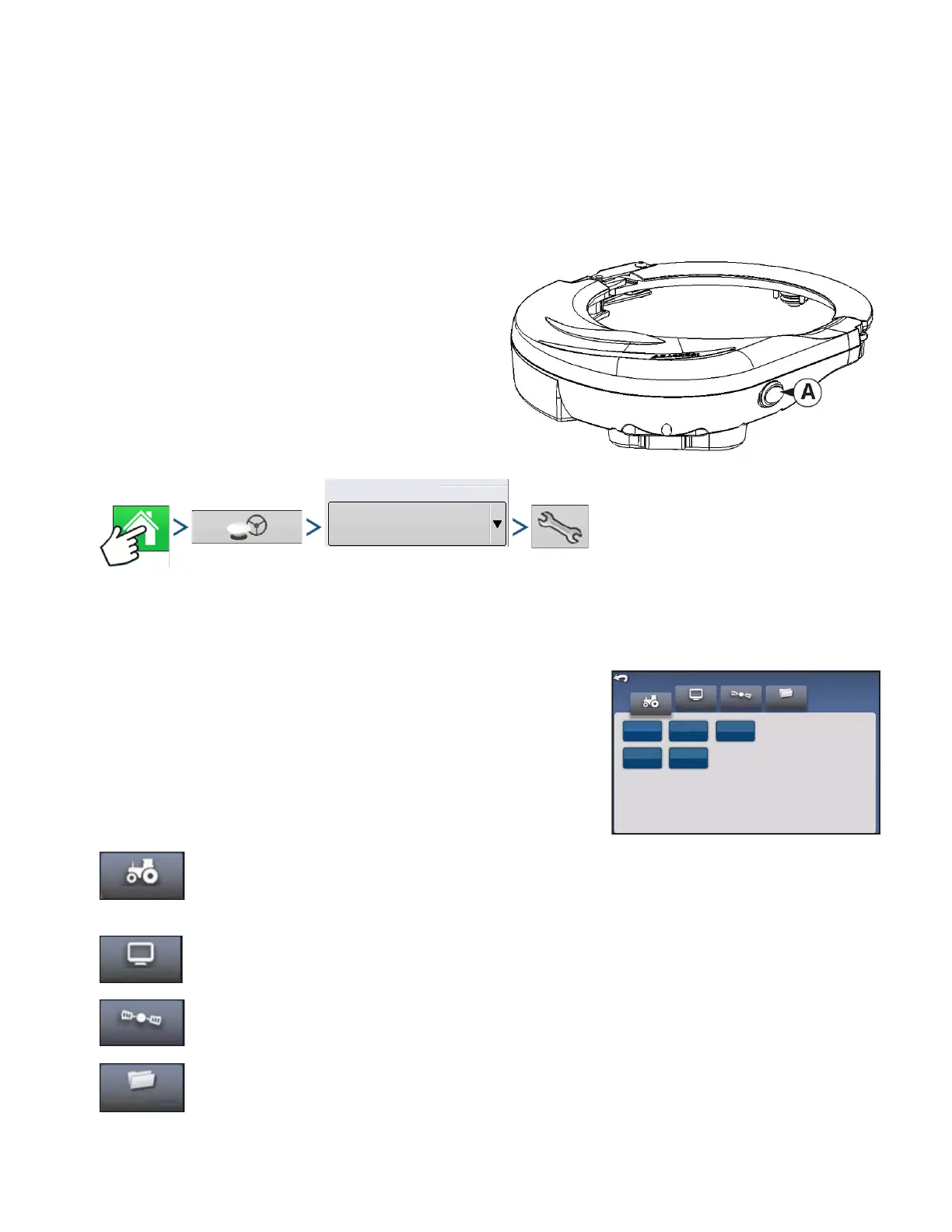
2. Turn on the Mechanical Drive Unit (MDU) with
On/Off switch (A).
3. Press: Home button > GPS Guidance button > OnTrac2 Steering drop-down > Setup (wrench) button
AUTOSTEER SETUP SCREEN
All instructions for the calibration and setup of the OnTrac2+ start
from the AutoSteer Setup screen.
<<<Instructions start from this screen
The AutoSteer Setup screen gives you access to the following
functions:
configure a vehicle, set up a new vehicle, manage existing vehicles, perform the auto
calibration of a vehicle, perform the steering adjustments, and manage steering
components.
configure and monitor system parameters.
status of your GPS corrections. For more information, refer to the Display or GPS operators
manual.
configure and monitor account parameters.
To return to the previous screen, press the Back icon. Press the Back icon from the
AutoSteer Setup screen to return to your Display menus.
Guidance/Steering
OnTrac 2 Steering
My Account
GPSSystem
Vehicle
Setup Wizard
Auto Calibrate
AutoSteer Setup
Manage
Vehicle
Steering
Components
Steering
Adjust



 To Next Page