91 Ag Leader PN 4003964-ENG Rev. P
G
UIDANCE
Select Pattern
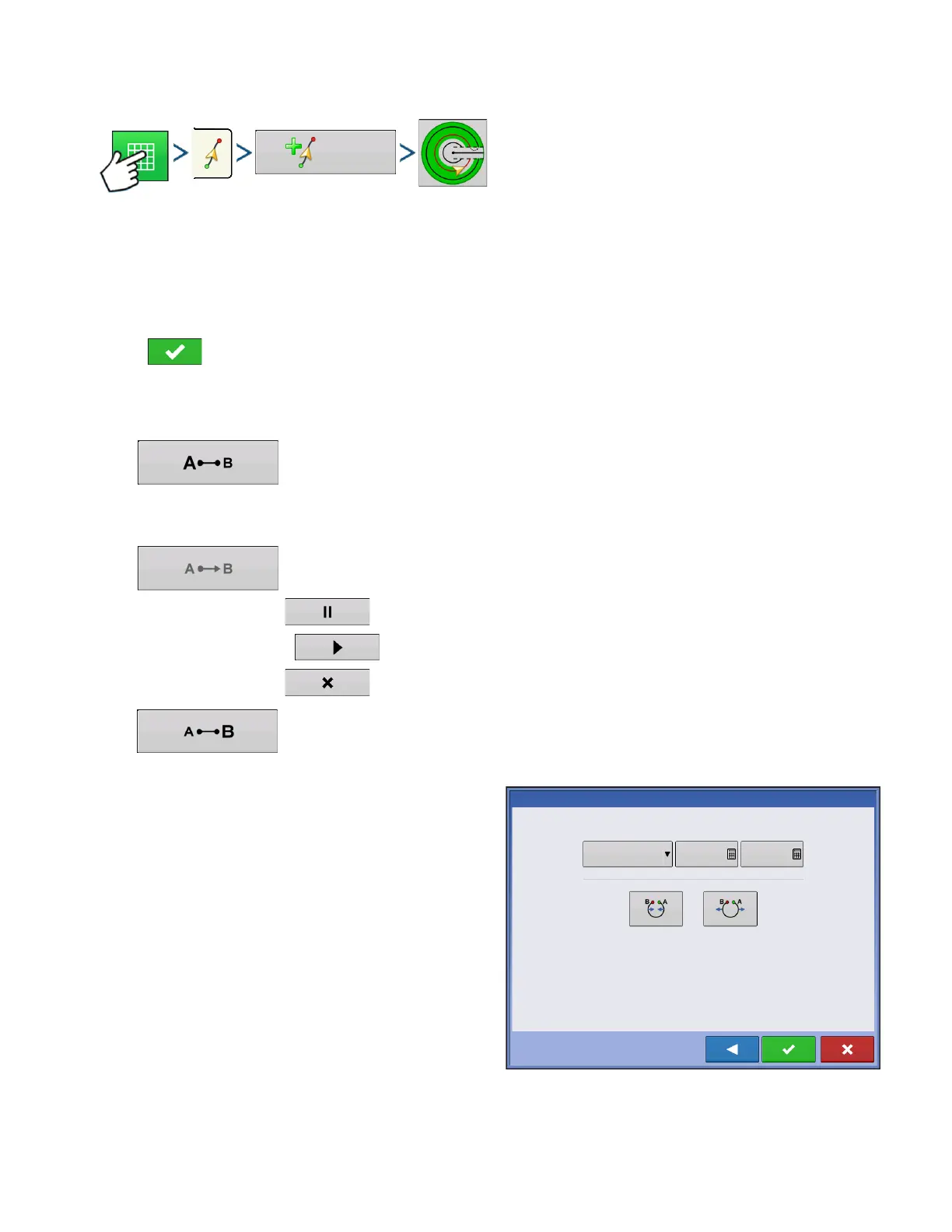
Press: Map button > Guidance tab (in Mapping Toolbox) > New Pattern button > Pivot Pattern Selection
System defaults pattern type to last used. Press the pattern icon to select a different pattern.
- Implement Width (from Implement Setup)
- Guidance Width input box
- Manual Entry checkbox and Latitude and Longitude input boxes
Press . You will automatically return to the Map screen.
Create AB line using driven path
• Position one wheel of the vehicle in a pivot wheel rut, with the rear of the vehicle to the pivot arm.
• Press to mark point A. A green ball appears on the map screen where point was
placed.
•
Drive around the field. Keep the vehicle wheel in the rut.
• Button is greyed out until you drive a minimum of 160 feet.
- Pause - Press to pause path during path creation
- Resume - Press to resume path during path creation
- Cancel - Press to cancel path during path creation
•
When you are almost back to the pivot arm or the edge of the field, p
ress to mark
point B., the AB line appears on the map screen and point B is marked with a red ball.
1. Next, you must set the Field Edge. You may do this
when the Pivot Field Edge window appears on your
display.
From here, you may choose one of three options:
Inches
Shift By
Distance
Outward
Pivot Field Edge
Feet
0 ft
30 in
Inward



 To Next Page