37 Ag Leader PN 4003964-ENG Rev. P
S
ETUP
F
IELD
O
PERATIONS
ON
OFF
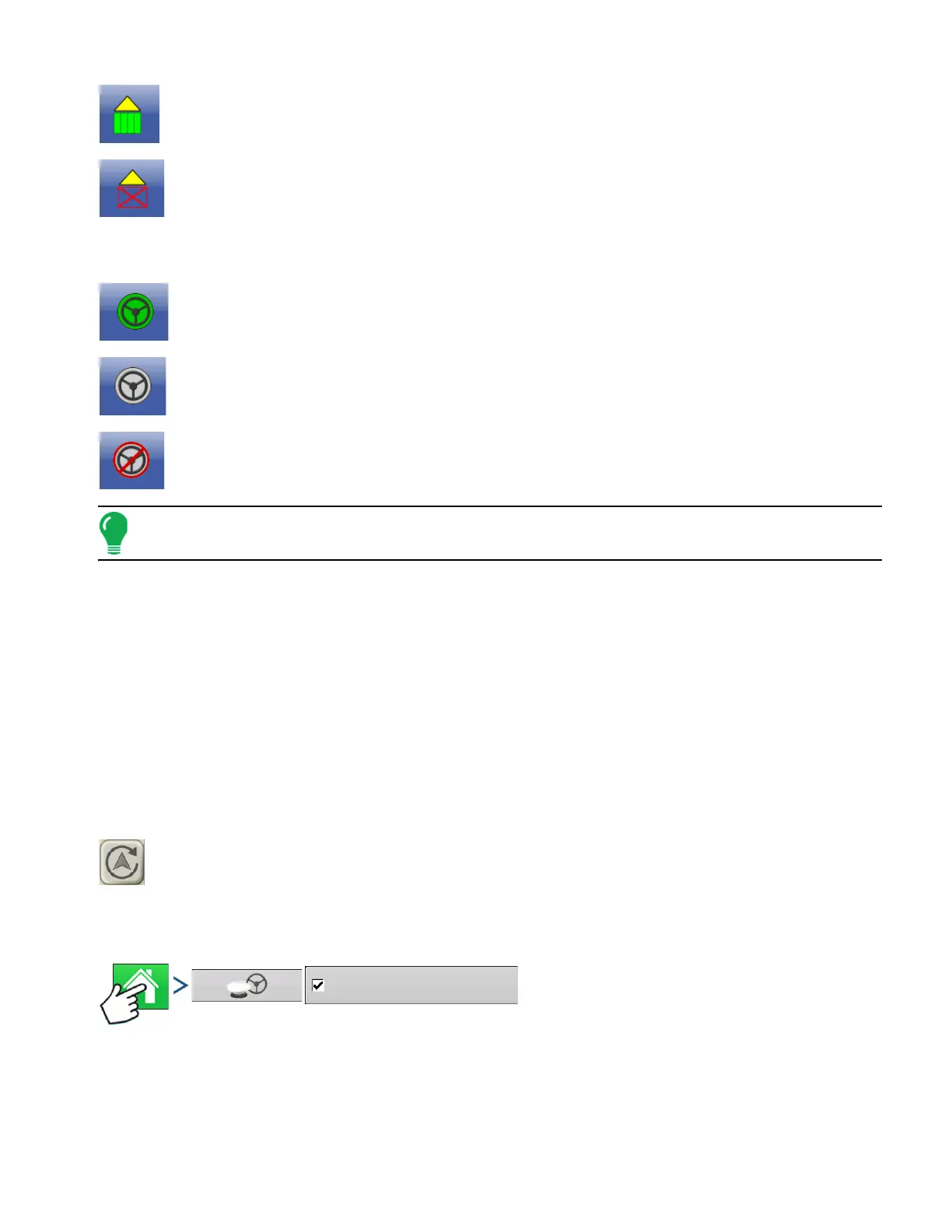
The Engage icon shows that the autosteer system is on, off, or off but ready to engage. The appearance
of this icon displays the following:
Engage - ON
Green if the autosteer system is on.
Engage - Ready
Grey if the autosteer system off but ready to engage.
Engage - Not Ready
Grey with a red circle and slash if the autosteer system is off and unable to engage.
Note: For more information, see “Guidance” on page 85.
HEADING DETECTION
InCommand displays have built in functionality to establish and keep the correct direction of travel when
using GPS receivers that do not have a trusted heading source from an internal compass or steering
controller. For this functionality to work the user must first establish a forward direction of travel. The
direction of travel is set automatically in the background, after acquiring GPS, based on the vehicles first
movement after starting an event.
Any time the vehicle or icon is in the reverse direction and data is being logged, an audible alarm will
sound until the vehicle/icon is driving in the forward direction again.
Heading Change Button
Any instance in which the vehicle icon appears to be upside down or rotated 180 degrees, it can
be fixed with the Heading Change button. The Heading Change button can be accessed by
tapping anywhere on the center of the mapping screen and pressing the icon on the lower left
corner of the screen. Data logging must be turned off for the Heading Change button to work.
Disable/Enable Heading Detection
Press: Home button > GPS button > Use Heading Dections



 To Next Page