63 Ag Leader PN 4003964-ENG Rev. P
GPS
GPS
GPS
GPS BUTTON
During your field operation, the GPS (satellite) button in the upper left-hand side of the
Status Bar should appear green, which means you are receiving a differential GPS signal. If
this icon appears yellow, you are still receiving GPS but are not receiving a differential
signal; and if it appears gray then you have lost GPS. In either case, you should check your GPS
settings.
SETUP
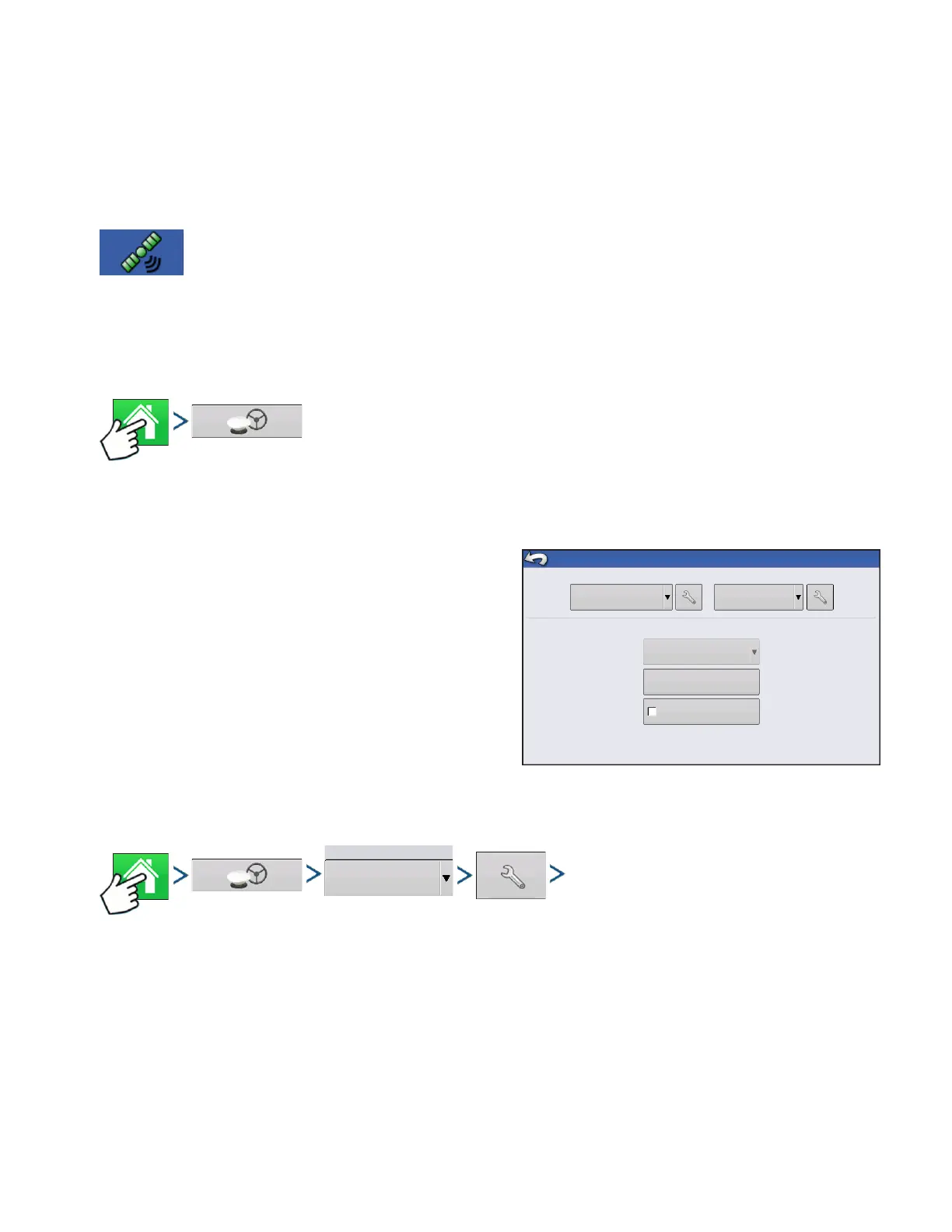
Press: Home button > GPS button
Guidance/Steering, Lightbar Settings, and Required
Differential Correction for Guidance
For more information, see the Guidance chapter at
“Guidance” on page 85
.
SERIAL GPS SETTINGS
Press: Home button > GPS button > Serial (from Receiver drop-down box) > Receiver Setup (wrench)
button > General tab
• Break Detection
Opens force GPS connection. This allows force connection in the display when a receiver is set to a
higher baud rate than supported by the display. After selecting “force GPS6000/6500 connect”, user
must select reset to defaults in order to configure and use the receiver.
Require Differential
Correction for Guidance
Steering
Manual Guidance
Operator Presence Alarm
15 Minutes
(Autodetect)
Receiver
GPS/Guidance Setup
Lightbar
Settings



 To Next Page