47 Ag Leader PN 4003964-ENG Rev. P
S
ETUP
F
IELD
O
PERATIONS
Map Screen with Headlands
Topography
The display allows you to record points that can be used to make a reference layer
that is relative to the elevation throughout the field. This requires that you have an
RTK GPS signal to collect the accurate elevation data.
You can also import data from mapping software such as SMS Advanced via
.agsetup files.
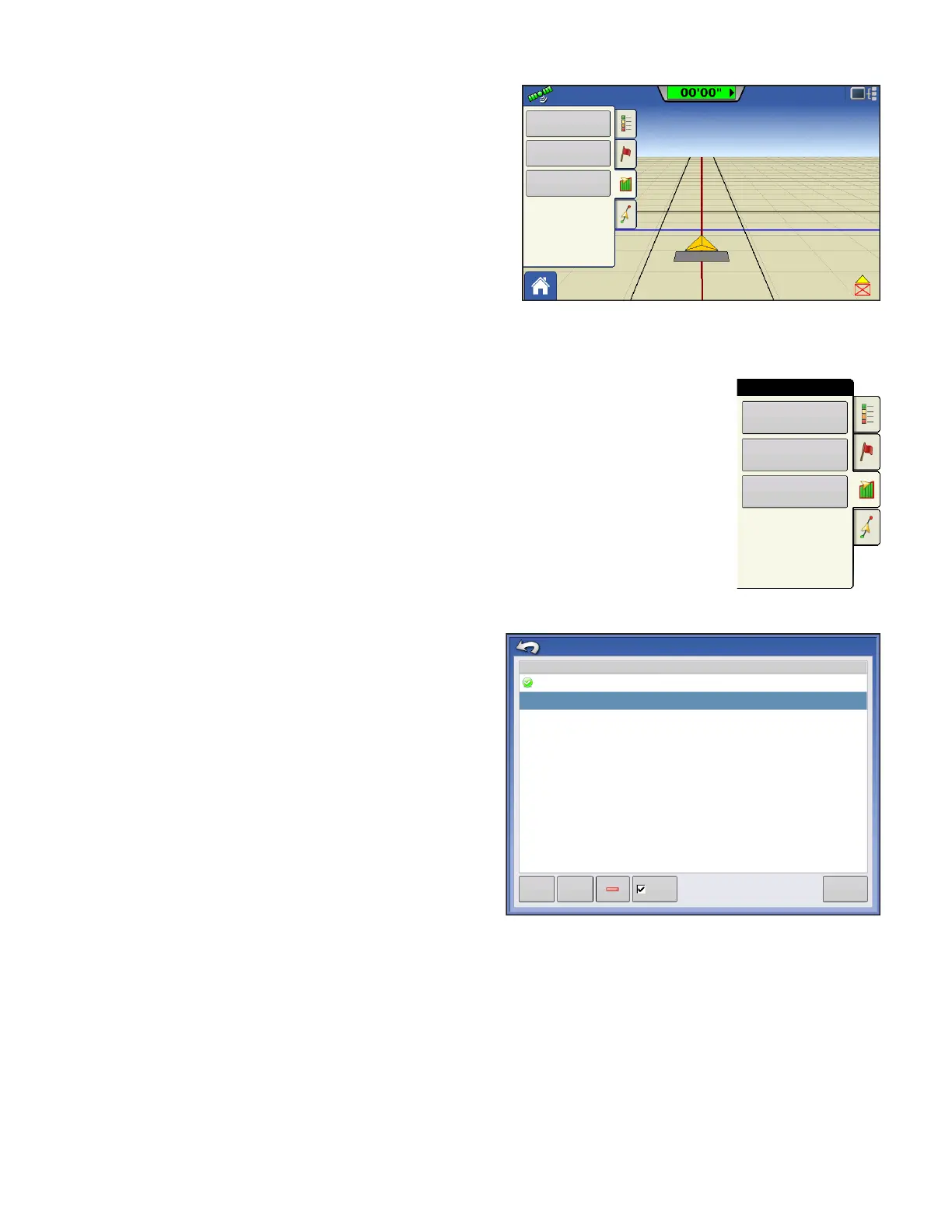
Pressing the Topography button takes you to the Topography screen which allows
user to setup Topography functionality.
Setup Map Screen
Topography screen
New Survey button - press to create a new elevation
survey
Add to Selected button - press to add to an
elevation survey
Minus (-) button - press to delete a topographical
survey
Enable checkbox - press to turn elevation reference
layer on/off (Enable checkbox functions the same as
Topography checkbox in Map Options screen -
shown below.)
Set Active - select the desired survey from list and
use button to set as active.
You are allowed to have multiple elevation surveys for the same field. This can be useful for different
applications. For example, if you have a survey that is for the entire field this will give you a greater
perspective of the whole field, in addition, you could also drive a very dedicated portion of the field that
would allow you to have greater elevation detail in certain areas if you needed it. By default the naming
that is generated in the display will be Date/Time based. You can export surface elevation data from
software packages like SMS Advanced into the display, and those will be tagged with the field name and
the date exported (both examples are in the above screen shot. You can also add points to existing
elevations surveys and save them. Only one elevation survey can be active at a time, when exported as
0.67 ac
4.5 mph
Boundary
Pass: 2 R
Headland: 113 ft
Headlands
Topography
Boundary
Field
Headlands
Topography
Topography
Elevation Surveys
West 160_20130820
Tue Sep 2 08:00:00 2013
New
Survey
Add to
Selected
Enable
Set Active



 To Next Page