39 Ag Leader PN 4003964-ENG Rev. P
S
ETUP
F
IELD
O
PERATIONS
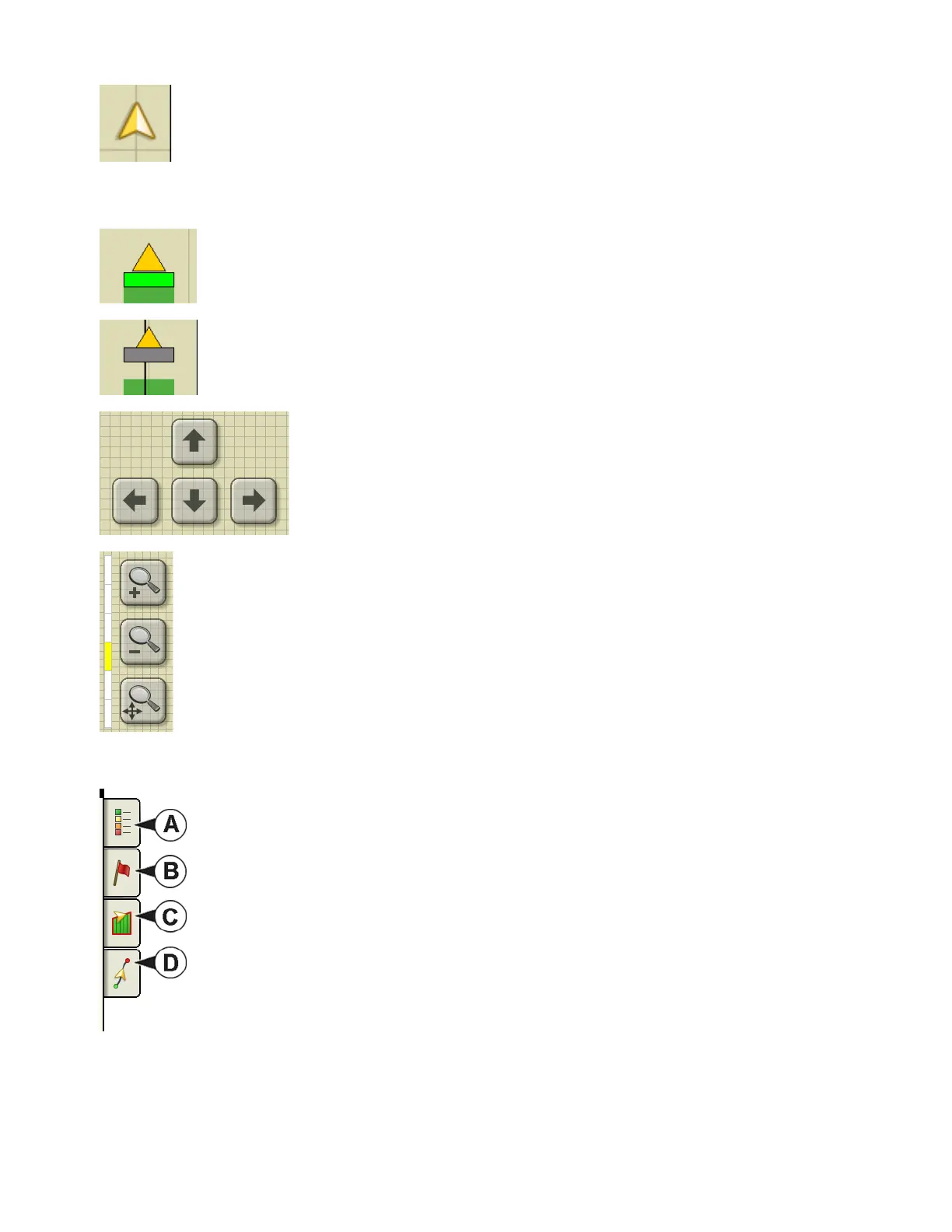
Vehicle Icon - Zoom to Extent
The Vehicle Icon is shown by an arrow inside a circle if the Map screen is viewed in Zoom to
Extent.
The vehicle appears as a gold-colored triangle if the Map screen is viewed in Zoom Detail. The
appearance of the zoomed-in icon changes depending upon the data being logged in the field.
Vehicle Icon - logging
If the vehicle is logging, the implement icon appears as a green bar behind it.
Vehicle Icon - not logging
If the vehicle is not logging data, then the implement icon appears as a gray bar.
Press the grid area of the Map screen, and four arrow icons appear at the
bottom right of the Map screen. An example showing these arrow buttons is
at left. Pressing these arrow icons will move the center of the Map screen in
the direction of the arrow button.
The Zoom Tool icons, which resemble a magnifying glass, are shown at the right-hand side
of the Map screen.
Pressing the zoom tool with the plus sign increases the scale of the Map screen.
Pressing the zoom tool with the minus sign decreases the scale of the Map screen.
Pressing the zoom tool with the four arrows underneath re-centers the Map screen and
brings its scale back to the default.
MAPPING TOOLBOX
At the upper left hand side of the Map screen is the Mapping Toolbox. Press any of the
four buttons on the toolbox and it expands. The toolbox consists of the following buttons:
• (A) Map Legend
• (B) Map Markers
• (C) Field
• (D) Guidance
The Map Legend, Map Markers and Field buttons are explained in the rest of this chapter.
The Guidance button is described in
“Guidance” on page 85.



 To Next Page