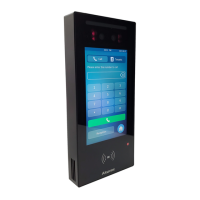
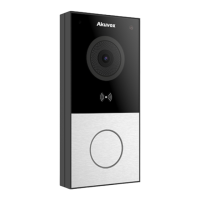
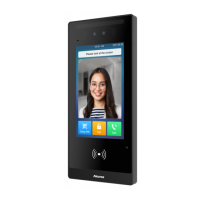
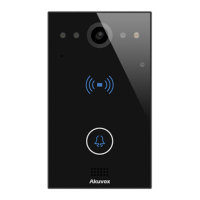
E16 Door Phone Administrator Guide
•
If you want to select between a QR code and an access card with customized
features, select Customize.
•
HTTP URL:
•
For General mode: enter the HTTP command format provided by the third-party
service provider. After scanning the QR code, the HTTP command will carry the
dynamic QR code information automatically before its being sent to the QR
code server for verification. See the example below: http://
wxqapi.kerryprops.com.cn:8090/api/vistor/scan?codeKey={QRCode}
&deviceId={DeviceID}
•
For Customize mode: select the QR code or Card verification.
•
For QR code verification: enter the QR code HTTP command provided by the
third-party service provider. See the example below: /hs/ACS/checking/QR"
>http://www.server.com/<base>/hs/ACS/checking/QRCode/{DeviceID}/{Card}
•
For Card verification: enter the access card HTTP command, provided by the
third-party service provider. See the examplebelow: http://www.server.com/
<base>/hs/ACS/checking/{QRCode}/{DeviceID}/Card
•
Prompt On LCD: select Default, if you want to adopt the Akuvox door phone prompt
for the door access. Select Return value, if you want to use the return value from the
third-party server as the prompt.
•
Remote Verification: select QR code or Card verification.
•
Device ID: enter your device ID, which will be added to the HTTP command
automatically when you use a QR code or card foraccess.


 To Next Page
 Loading...