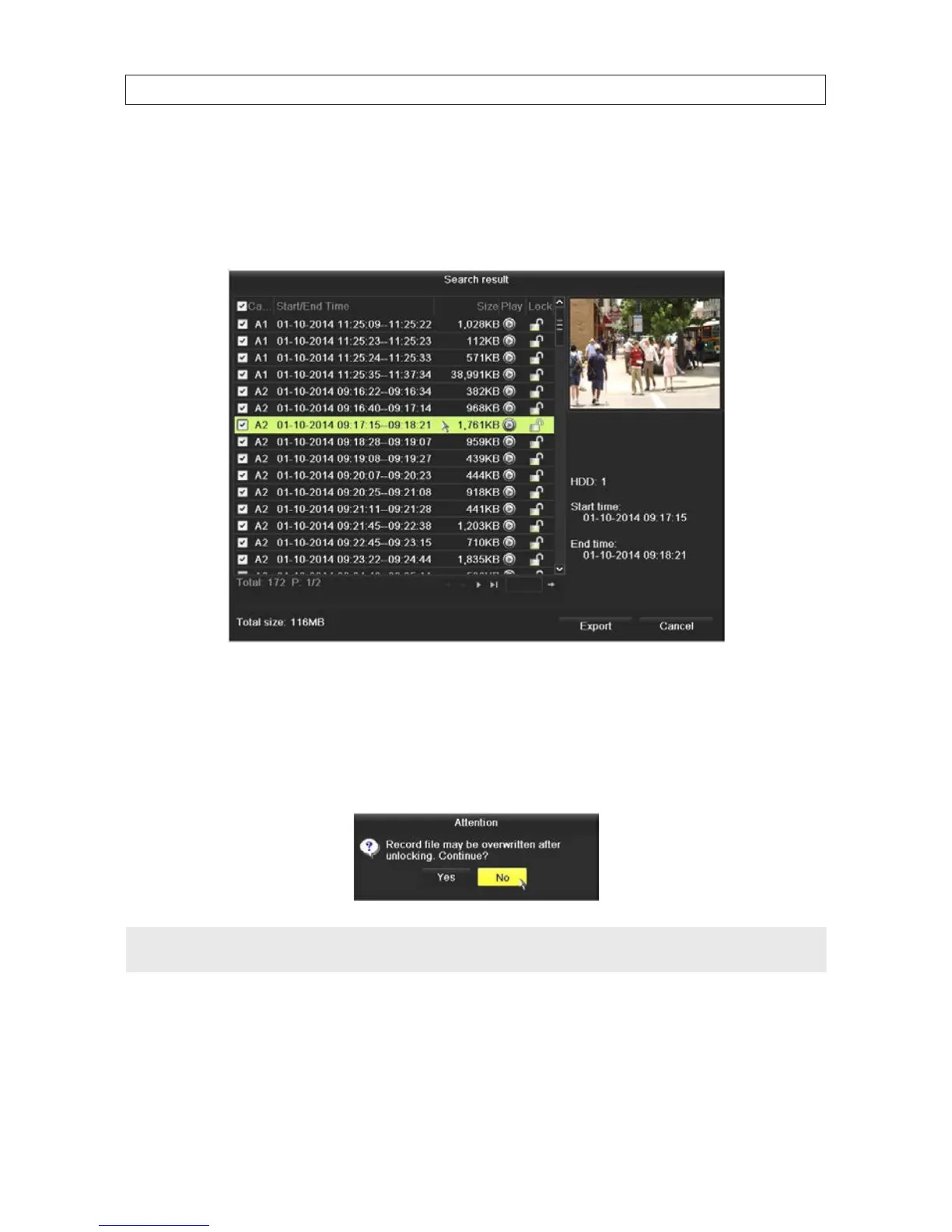
2. Check the box(es) for the channel(s) you want to investigate.
3. Congure the record type, File Type (locked or unlocked), and Start Time and End Time.
4. Click Search to show the results.
5. To protect the record les:
a. Determine which les you want to protect, and then click the icon in the Lock column to show a “locked” padlock
(indicating that the le is locked). Similarly, unlock les by clicking on the “locked” icon to show an “unlocked” padlock.
b. Respond appropriately to the Attention pop-up window.
NOTE
File of recording in progress cannot be locked.
SECTION 5: RECORD, PLAYBACK AND VIDEO BACKUP







 To Next Page