84
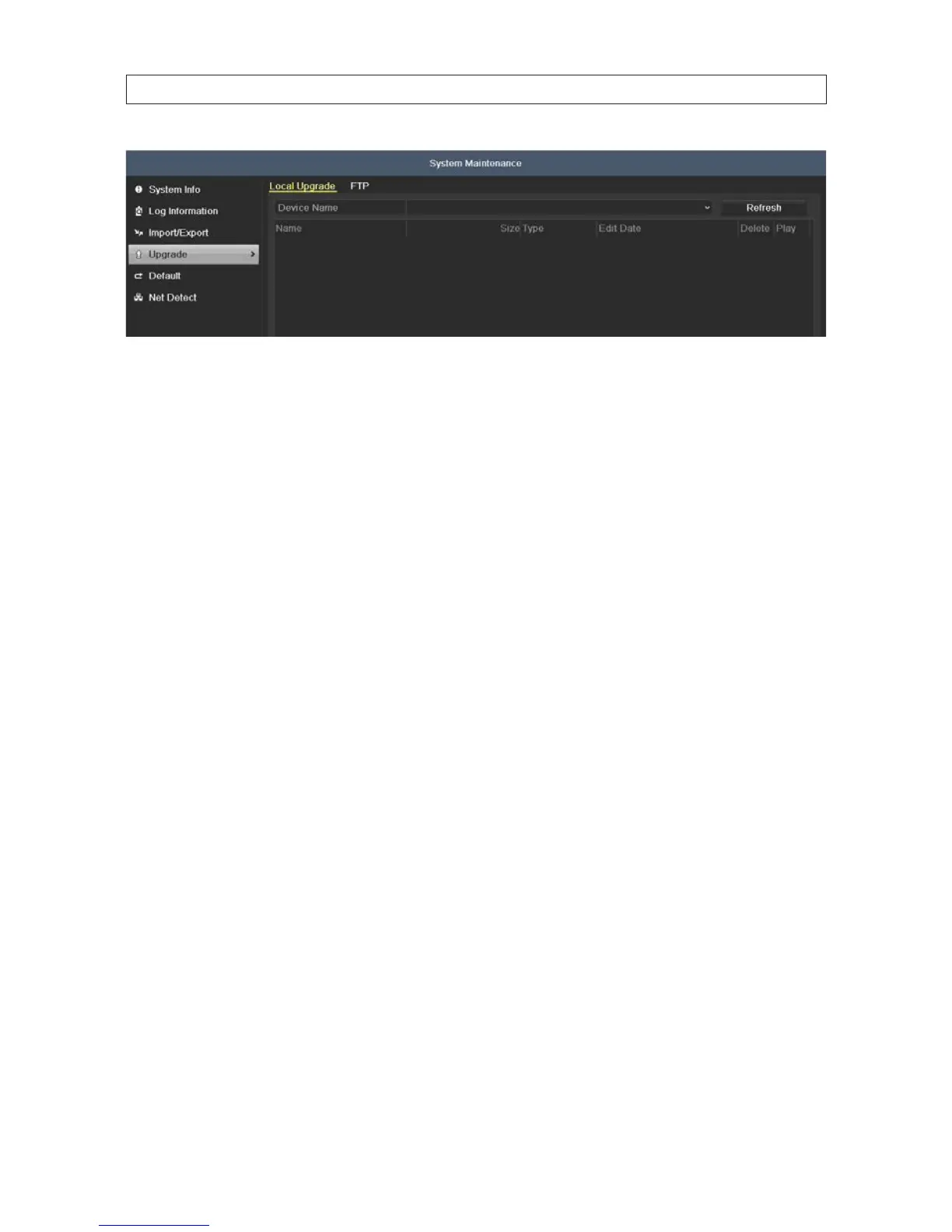
3. If installing rmware from a local device such as a USB ash drive or disk:
a. Connect the local device to the DVR, if necessary.
b. Open the Device Name drop down list and select the device that contains the rmware.
c. Click the rmware le you want to load.
d. Click the Upgrade button, the follow the on-screen instructions for completing the upgrade.
4. If installing rmware from a FTP server:
a. Click the FTP upgrade tab at the top of the menu.
b. Click the rmware le you want to load.
c. Click the Upgrade button, the follow the on-screen instructions for completing the upgrade.
5. Open the System Information screen and verify that the new rmware version is installed.
6. Perform a DVR Shutdown, then power it o.
7. Power the DVR on.
8.5 Default
The default option will reset the DVR to its factory settings. Except the network parameters (including IP address, subnet mask,
gateway, MTU, NIC working mode, default route and server port), all other conguration parameters are restored to factory default
settings.
To restore the factory default conguration:
1. Open the Log Information menu. Go to Menu | Maintenance | Default.
SECTION 8: SYSTEM MAINTENANCE



 To Next Page