2.7 Conguring HDD settings
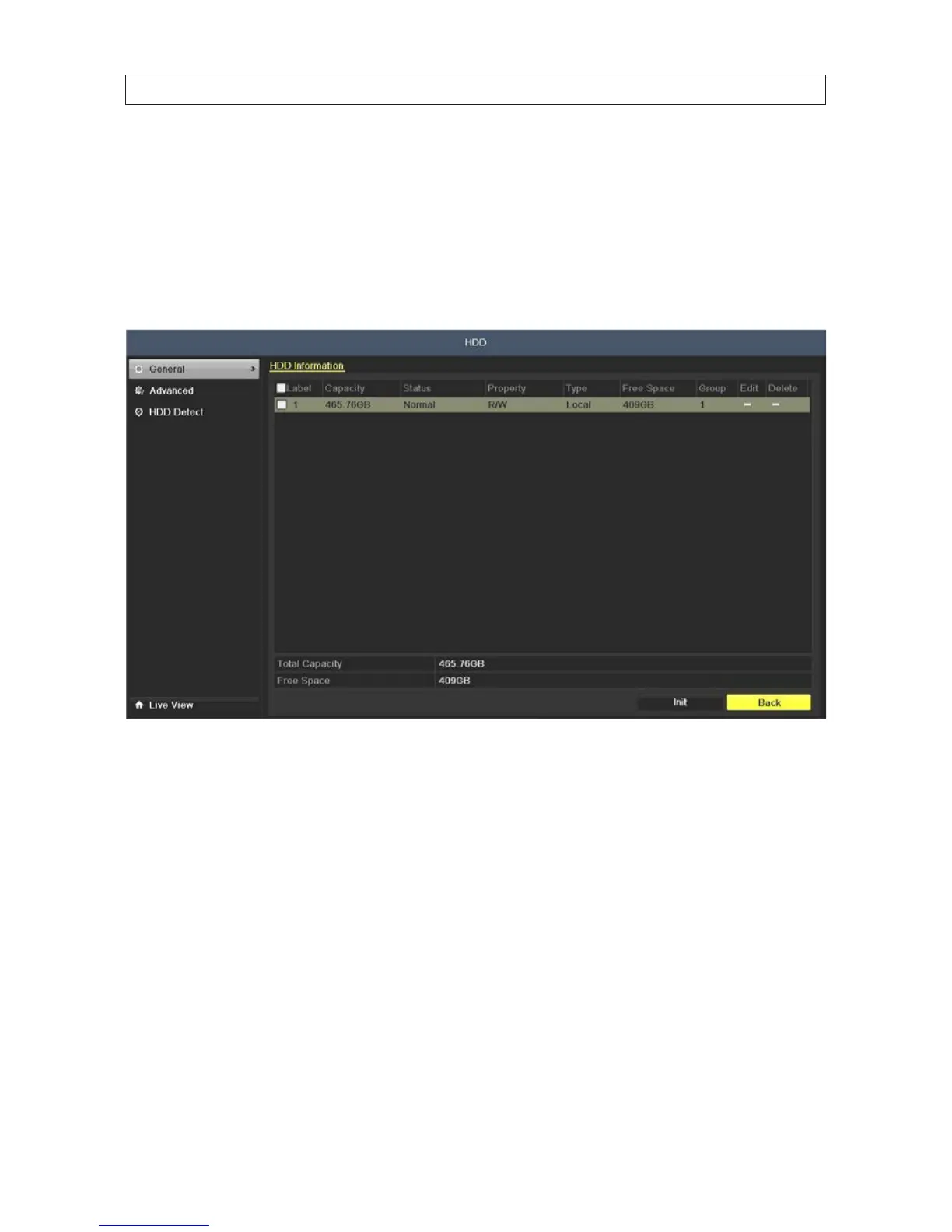
2.7.1 CheckingHDDstatus
Check the status of the HDD installed in the DVR to assure it is functioning normally.
1. Open the HDD Information display. Go to Menu | HDD |General
2. Check the status of the HDD. If the status is:
— Normal or Sleeping - The HDD is working normally.
— Uninitialized or Abnormal - Initialize the HDD before continuing. Check the select box of the HDD to initialize, then
click the Init button at the bottom of the screen.
— Failed - If the HDD failed during or after initialization, replace the HDD.
2.7.2 ConguringtheHDDcamerachannelquotas
By default, all cameras will record to the one partition of the internal HDD. However, the HDD Quota feature allows you to allocate a
storage size quota to each camera on your DVR. For instance, the Analog 1 can be allotted 150 GB of video storage, while the Analog
2 camera can be limited to 100 GB of video storage. To use the quota feature, do the following:
1. To recapture the storage capacity of your HDD (erases all data on the HDD), do the following:
a. go to Menu | HDD | General.
SECTION 2: INSTALLING THE SYSTEM



 To Next Page