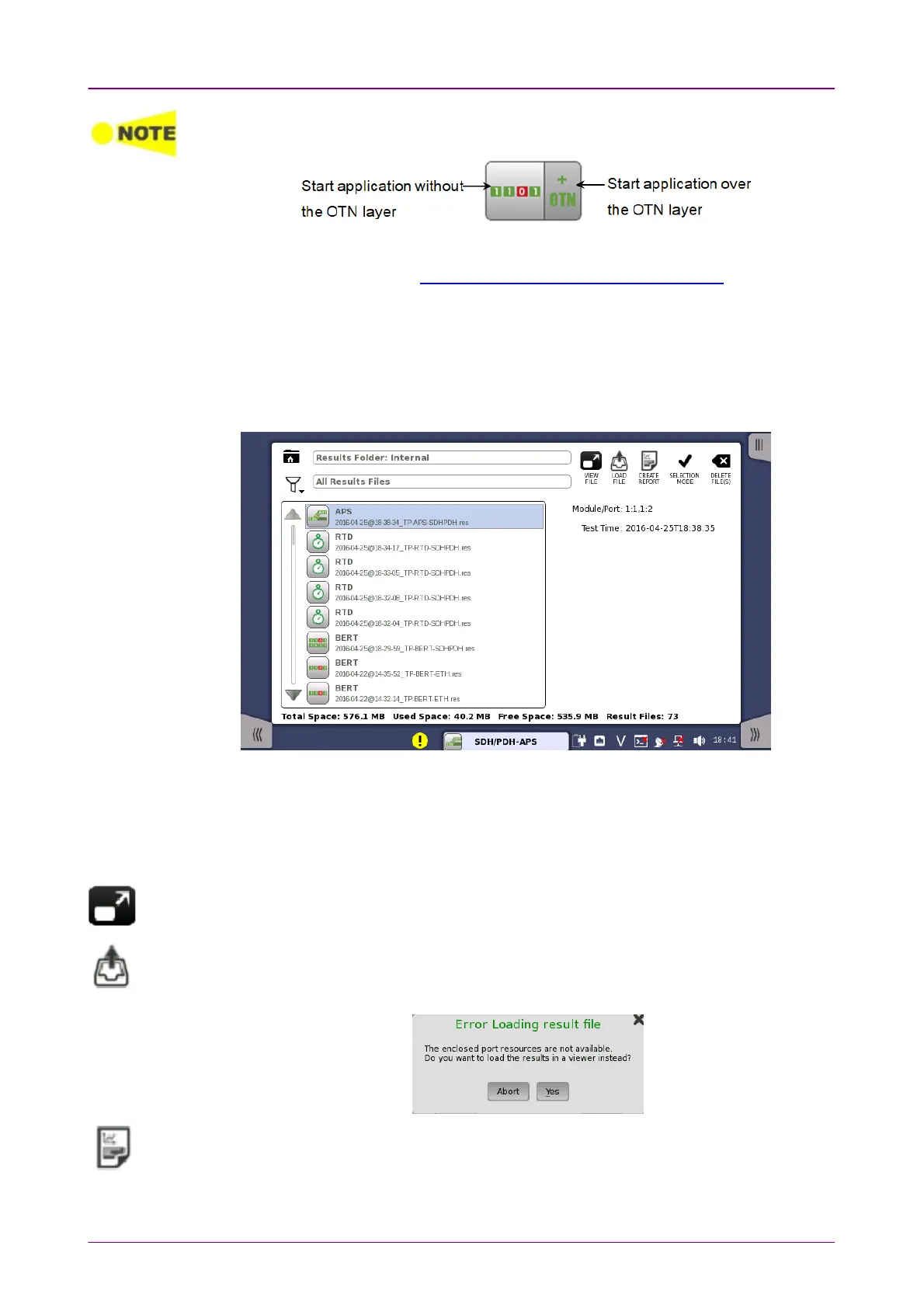
Some application icons are "double-icons", allowing you to start the application with an
OTN signal layer. Carefully touch the correct part of the icon when starting the
application.
You can also start an application by selecting the result file on the
Report File
Browser
screen. Refer to Accessing Previous Tests and Test Results.
44..33..33 Accessing Previous Tests and Test ResultsAccessing Previous Tests and Test Results
When you select test result files on the
Report File Browser
screen, you can
choose to create either a report from the results or a
workspace
containing the
test setup data and its results.
Creating a
workspace
for a previous test allows you to view the test results in
the GUI and also to rerun the test if required (either with the same setup or
with changed parameter settings). You are brought directly to the
Test Results
screen when you touch the VIEW FILEVIEW FILE/LOAD FILELOAD FILE button, but can navigate to
the other screens in the workspace from there.
When you touch the VIEW FILEVIEW FILE button, an application starts in
Viewer
mode. In this
mode, you cannot start measurement. This mode is used to view the test result.
When you touch the LOAD FILELOAD FILE button, an application starts using the setting in the
file. If other application is using ports, the following message appears. You can start
the application in
Viewer
mode by touching YesYes.
When you touch the CREATE REPORTCREATE REPORT button, the file manager dialog box is
displayed, allowing you to name and save the report (in PDF format).
44..33..44 Closing an ApplicationClosing an Application


 To Next Page