33..88 File Access via Ethernet InterfaceFile Access via Ethernet Interface
33..88..11 Accessing files in Network Master from the PCAccessing files in Network Master from the PC
The mass storage of the Network Master can be shared with your PC via
Ethernet interface.
1. Connect an Ethernet network cable to the LAN connector on your Network
Master and link this to a Local Area Network.
2. Assign an IP address to the Network Master. This is done in the
Ethernet
available in the Network screen as described in the
Graphical User Interface
chapter.
3. Select Share File SystemShare File System in the File Sharing settings.
4. Start
Explorer
on your PC.
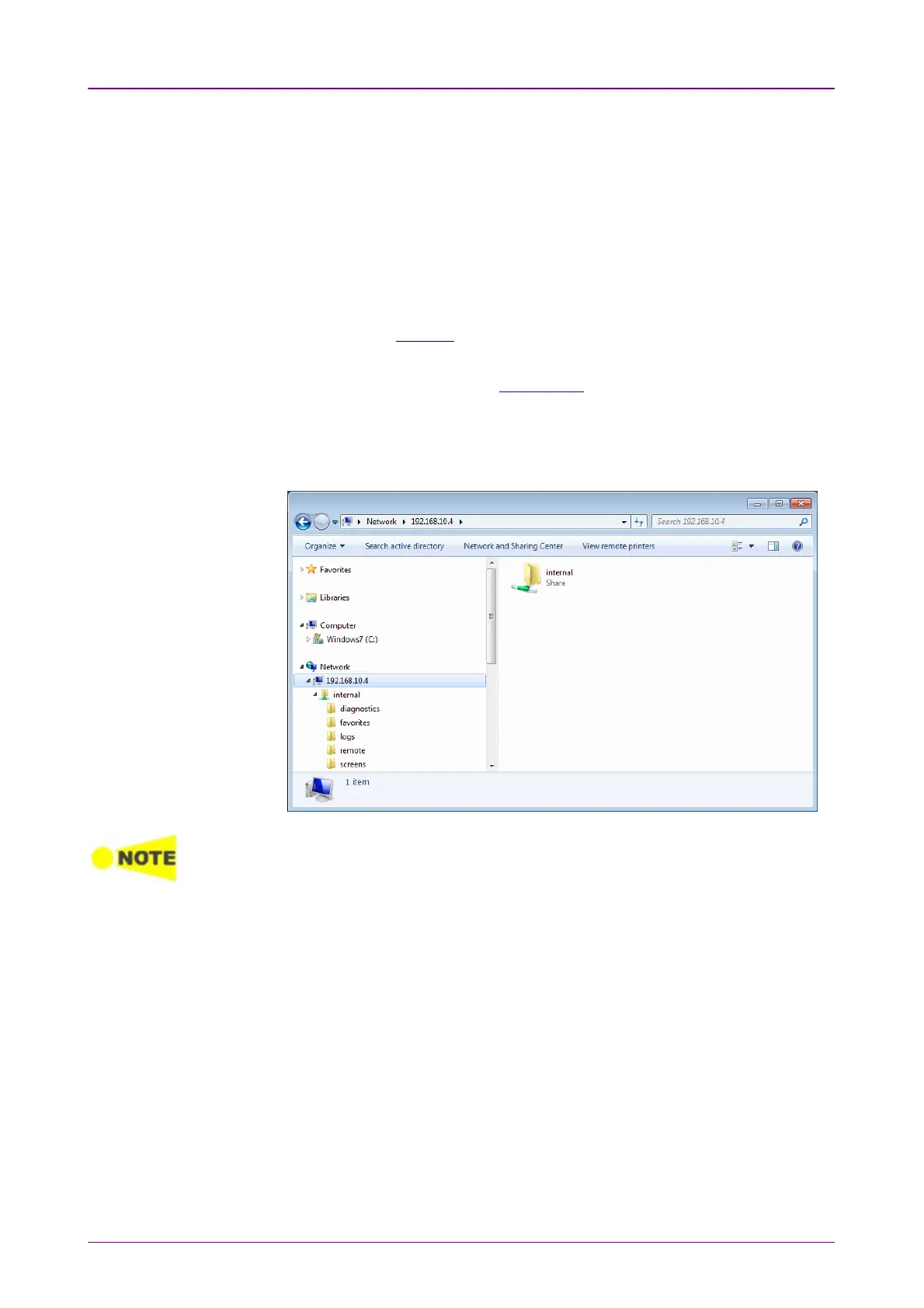
5. Enter the IP address of Network Master into the address bar.
For example, enter like \\192.168.10.4\. The shared folder appears.
If applications are running on the Network Master, you cannot access the mass storage.
33..88..22 Mounting the Shared Folder of Networked PC to the Network MasterMounting the Shared Folder of Networked PC to the Network Master
A Network Master can mount the shared folder of the networked PC. The
following procedure is explained, assuming "test" folder is created on the PC.
1. Create the folder in the PC.
2. Right-click on the folder and click PropertiesProperties.
3. Click the Sharing tab, and click ShareShare to set shared.


 To Next Page