33..22 Key OperationKey Operation
The only physical operator key (the Power button) is described in this section.
33..22..11 Power ButtonPower Button
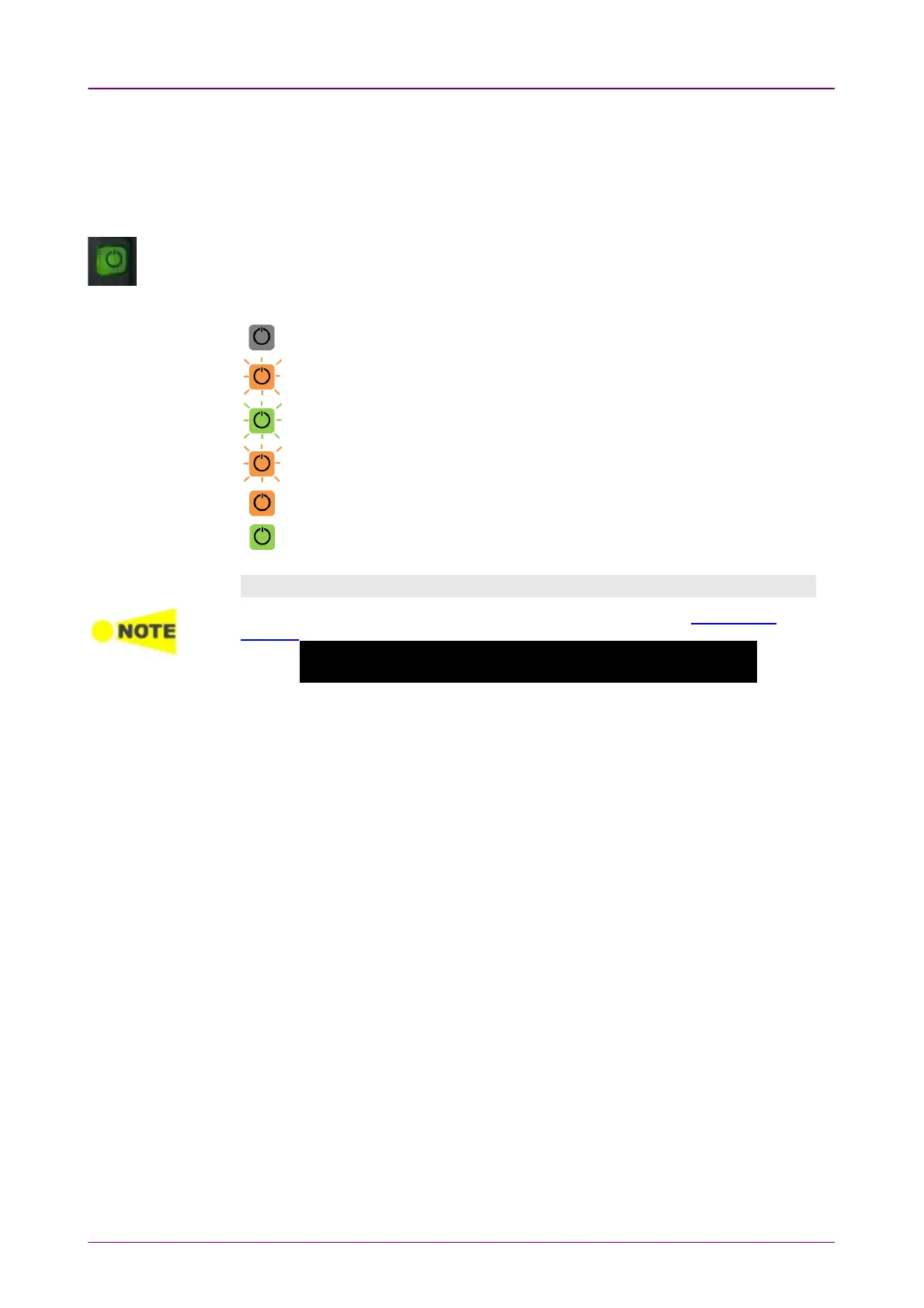
The Power button on the front panel of the instrument is used to switch power ON
and OFF. In addition, the menu used for power-off also contains a few extra options
(e.g. to lock the screen).
Gray: Power off
Orange flashing (fast): Booting in case of AC operation
Green flashing: Booting in case of the battery operation
Orange flashing (slow): Charging
Orange: Stand by
Green: Operating
Switching power ONSwitching power ON
When the following message appeared, install the software referring "Updating the
Software".
The system failed to boot.
Please re-install software for recovery.
AC OperationAC Operation
Connect the AC adapter to the Network Master. The Network Master flashes the
power button in orange during booting. The power button lights in orange after
booting.
To start your test, press the power button. The power button lights in green.
After a model name is displayed, the Network Master enters Operating status
and shows the Application Selector.
If the module configuration is not supported combination, a message will be
displayed.
If two transport modules are installed in the Network Master, the MT1040A-020
Activate for 400G Dual/100G Quad option and a G0419A AC adapter (400W)
are required.
Battery OperationBattery Operation
Press the power button. The Network Master shows a model name and flashes
the power button in green during booting.
Then, the Network Master enters Operating status and shows the Application
Selector.


 To Next Page