SW Version 2.04 30-January-2009 Page 45 of 128
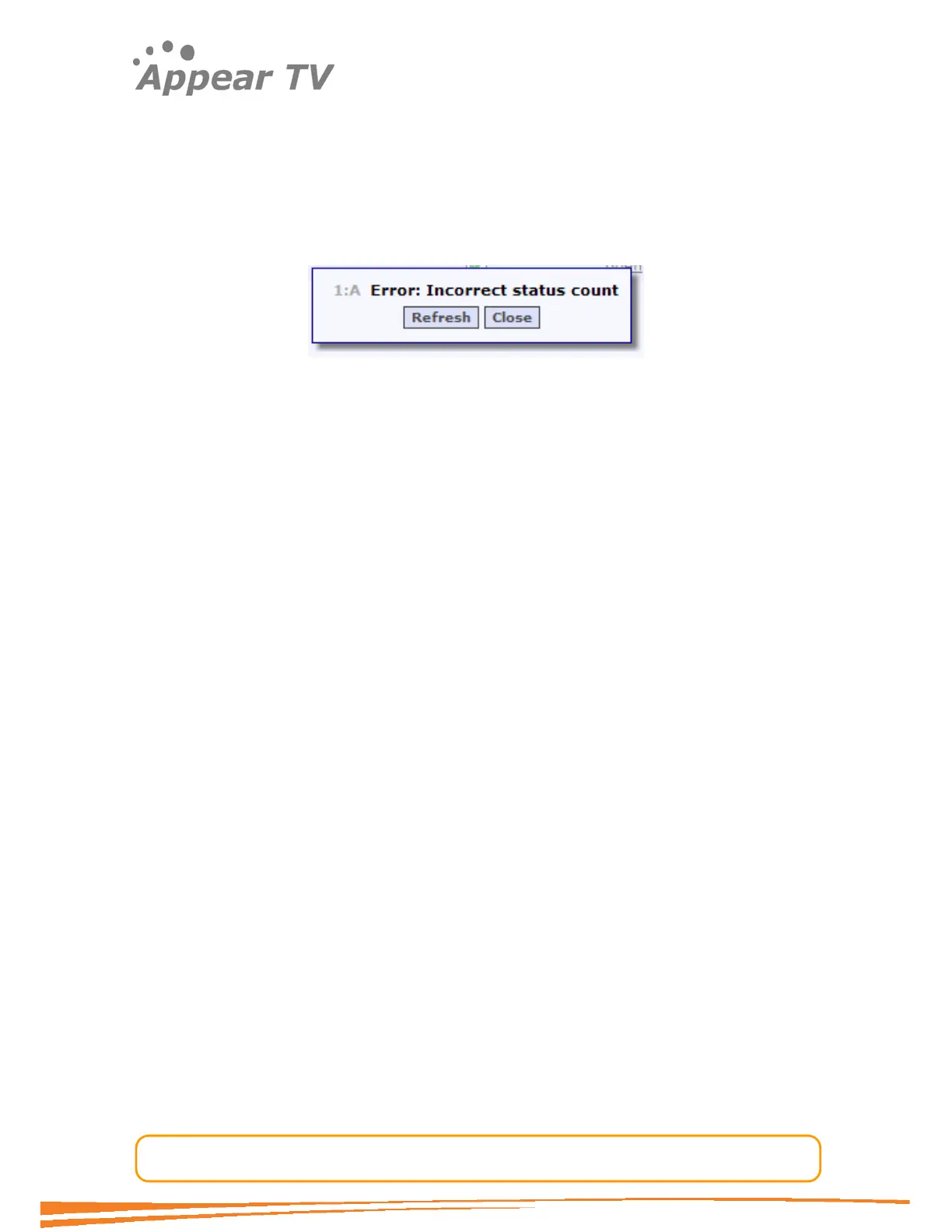
When an error message is displayed, the Back/Exit button is replaced by a
Refresh button while the Close button remains (Figure 31). The operator can
just close the CAM Interface, or can try to refresh the session. The latter is the
ideal solution if a synchronization error occurs. Alternatively, the operator can
just wait for the CAM Interface to request a Refresh automatically.
Figure 31 – Error message.
4.4.2.1.3 CAM Reset
There could be situations when resetting the CAM module is necessary. For example,
if the CAM is not responding. To solve this kind of problems the operator can reset a
CAM from the GUI. The operator can reset the CAM with the Reset button located in
the CAM Configuration page.
4.4.2.1.4 Max TS Rate [Mbps]
The Maximum transport stream rate allowed for the CAM is the last element listed in the CAM
Configuration page. The user can choose among three values: 43 (default), 58 and 68 Mbps.
4.4.3 Scrambling
This section gives a brief overview of how scrambling is performed within the unit. It
introduces the different modules required and their purpose. It explains how to do the
initial setup of the CA cards required for establishing the ECM and EMM channel
connection to the CA system, and what to do to set up the actual ECM streams and
the EMMs. This chapter does not explain how to start scrambling, or how to add an
EMM to an output transport stream. For details regarding output configuration please
refer to section 4.7 Configuring Transport Stream Outputs.
4.4.3.1 Overview
Version 1.09 of the software introduces a new scrambling card with both the SCS and
the scrambler functionality on one single card, whilst the previous GBIO_SCS/DDM-
SCR platform has these two modules on dedicated cards. The functional overview
shown below describes both platforms.



 To Next Page