SW Version 2.04 30-January-2009 Page 42 of 128
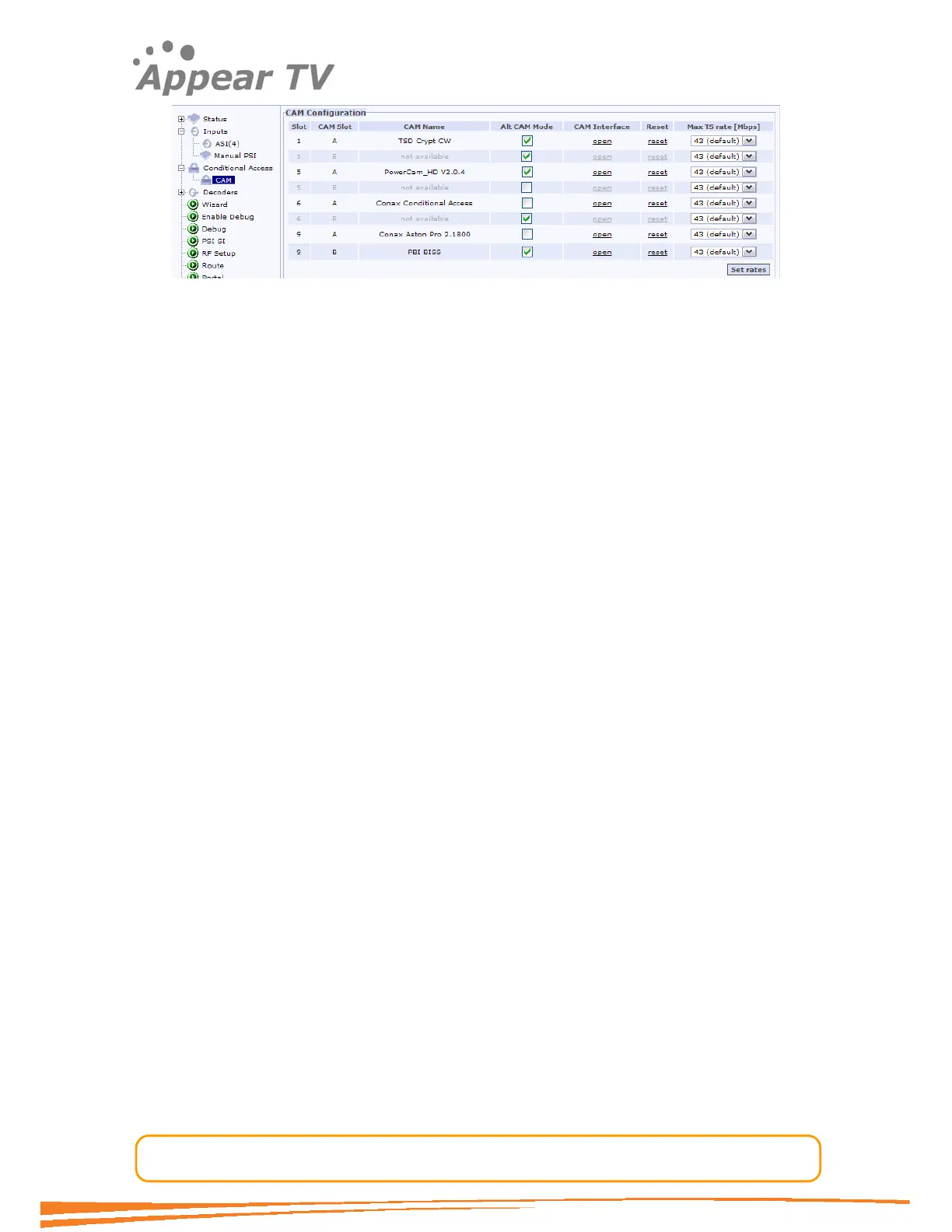
Figure 27 – CAM Configuration page
4.4.2.1.1 Alt CAM Mode
The operator can enable/disable the Alt CAM Mode from this page (Figure 27).
Normally a single PID is sent to the CAM, but with the Alt CAM Mode the whole input
stream is sent directly without doing any PID filtering.
4.4.2.1.2 CAM Interface
Each CAM Module has its own menu structure defined by its manufacturer to
access module information such as subscriptions status and to insert
configuration data such as a new PIN Code, maturity rate, or even a key to
descramble a service.
The CAM Interface feature allows the operator to access and interact with these
menus with ease through the Web GUI. By clicking on Open under the CAM
Interface column, a pop-up box appears over the CAM Configuration page. This
is the CAM Interface dialog.
Navigation
As can be seen on
Figure 28, the standard CAM Interface dialog provides two
buttons in the bottom and a list of clickable menu options. The Back/Exit button
cancels the current menu and shows the previous menu. If the Back/Exit button
is pressed on the top-level menu, the same menu screen will be returned. The
Close button stops the interaction with the CAM Module, closes the CAM
Interface dialog, and makes the CAM Configuration page controls available
again.



 To Next Page