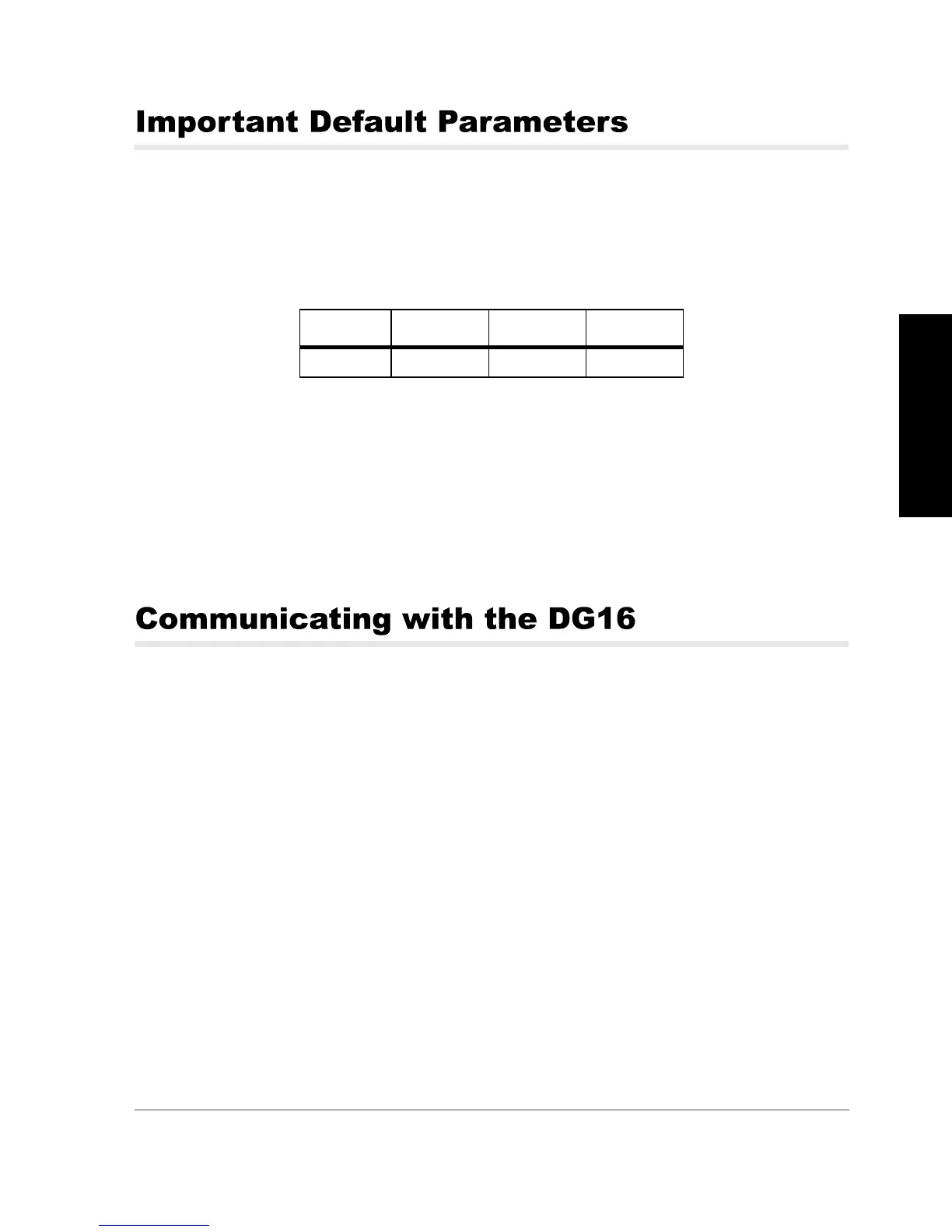
Getting Started 25
Getting Started
Communication Port Setup
Table 2.3 lists the default communication parameters of the DG16:
When first establishing communications with the DG16, the communications
interface must use this protocol.
Data Output Options
All the default data output commands are set to OFF. The DG16 does not output
any data until you command it to do so.
After the DG16 is powered and running, you must send commands in order to
receive data (such as antenna position). The following procedure describes how
to send commands to and receive information from the DG16 using an IBM-
compatible PC. You can interface with the DG16 using Evaluate Software™, RCS
(Receiver Communication Software™), or standard communication programs
such a ProComm or Hyperterminal. To begin, simply connect the standard 9-pin
serial cable between port A on the DG16 and COM1 on the computer. When you
are using other applications to communicate with the receiver, such as ProComm
or HyperTerminal, verify that the <CR>/<LF> outgoing is enabled.
After setting up the interface for establishing communications with the DG16, you
can send commands. The letters in the command can be typed in either UPPER
or lower case. If you sent the command correctly, the DG16 responds.
The commands used with the DG16 are divided into two groups: set commands
and query commands.
Use Set commands to change the DG16’s operating parameters or turn on or off
output messages. Set commands begin with the command string $PASHS.
Table 2.3. DG16 Communication Parameters
Baud Data Bits Parity Stop Bits
9600 8 None One


 To Next Page