84
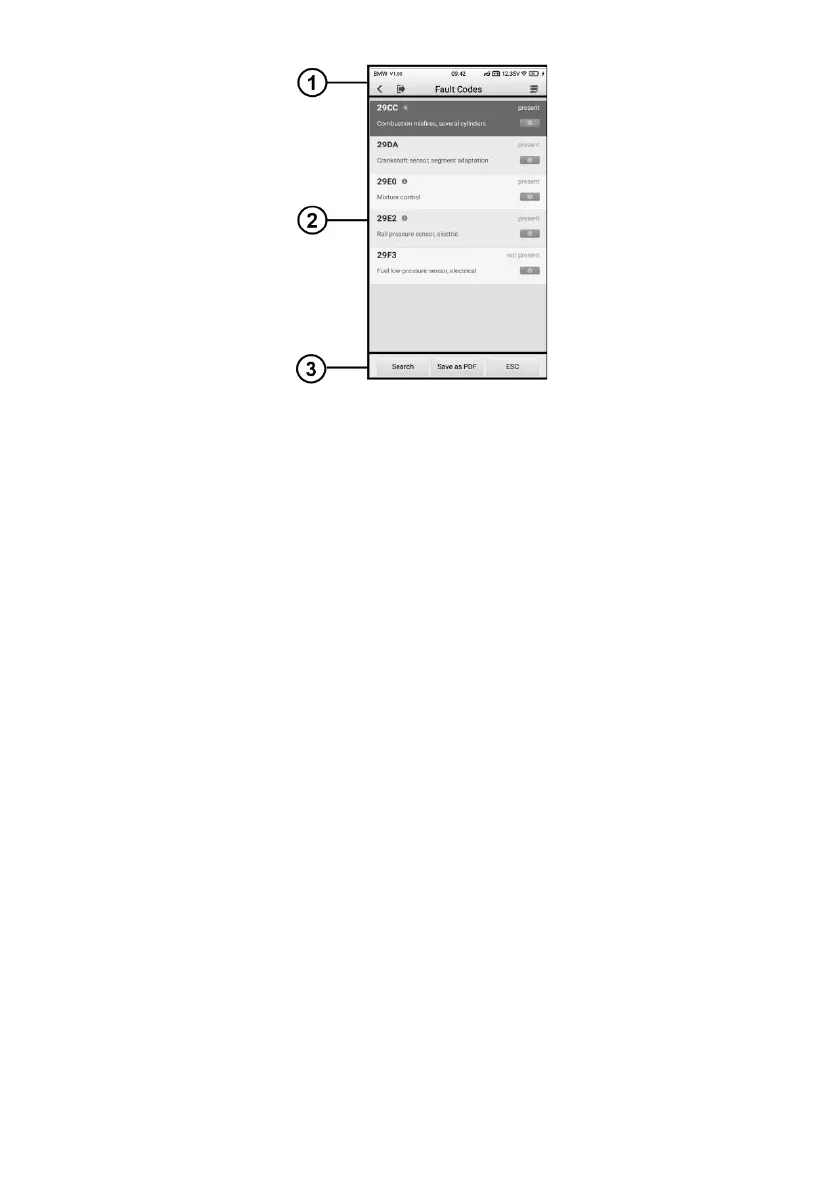
Figure 8-12 Read Codes Screen
1. Diagnostics Toolbar Buttons – see Table 4-2 Top Toolbar Buttons on Service Menu
for details.
2. Main Section
⚫ Code Display Area — displays the retrieved codes from the vehicle.
⚫ Description — detailed descriptions of the retrieved codes.
⚫ Status — indicates the status of the retrieved codes.
⚫ Information Icon — tap to view fault code information, including fault description,
condition for fault identification, driver information.
⚫ Snowflake Icon — displays when freeze frame data is available for viewing;
Selecting this icon will display a data screen.
3. Function Buttons
⚫ Search — tap search for related fault code information on Google.
⚫ Save as PDF — tap to save the data in PDF format.
⚫ ESC — tap to return to the previous screen or exit the function.
8.4.3 Erase Codes
After reading the retrieved codes and making appropriate vehicle repairs, use this
function to erase vehicle codes.
Before performing this function, make sure the vehicle’s ignition key is in the ON (RUN)








 To Next Page