52 User’s Manual—SNAP™ 700 Printer
Classification: Avery Dennison - Public
5.3.4 Selecting the Printer Language
The SNAP 700 printer has the capability of presenting both text and voice
messages in multiple languages.
The printer is shipped with several languages installed. When performing an upgrade,
however, the Operating System (OS) upgrade file contains only the English language
messages. A separate language upgrade is required to add any new prompts in other
languages.
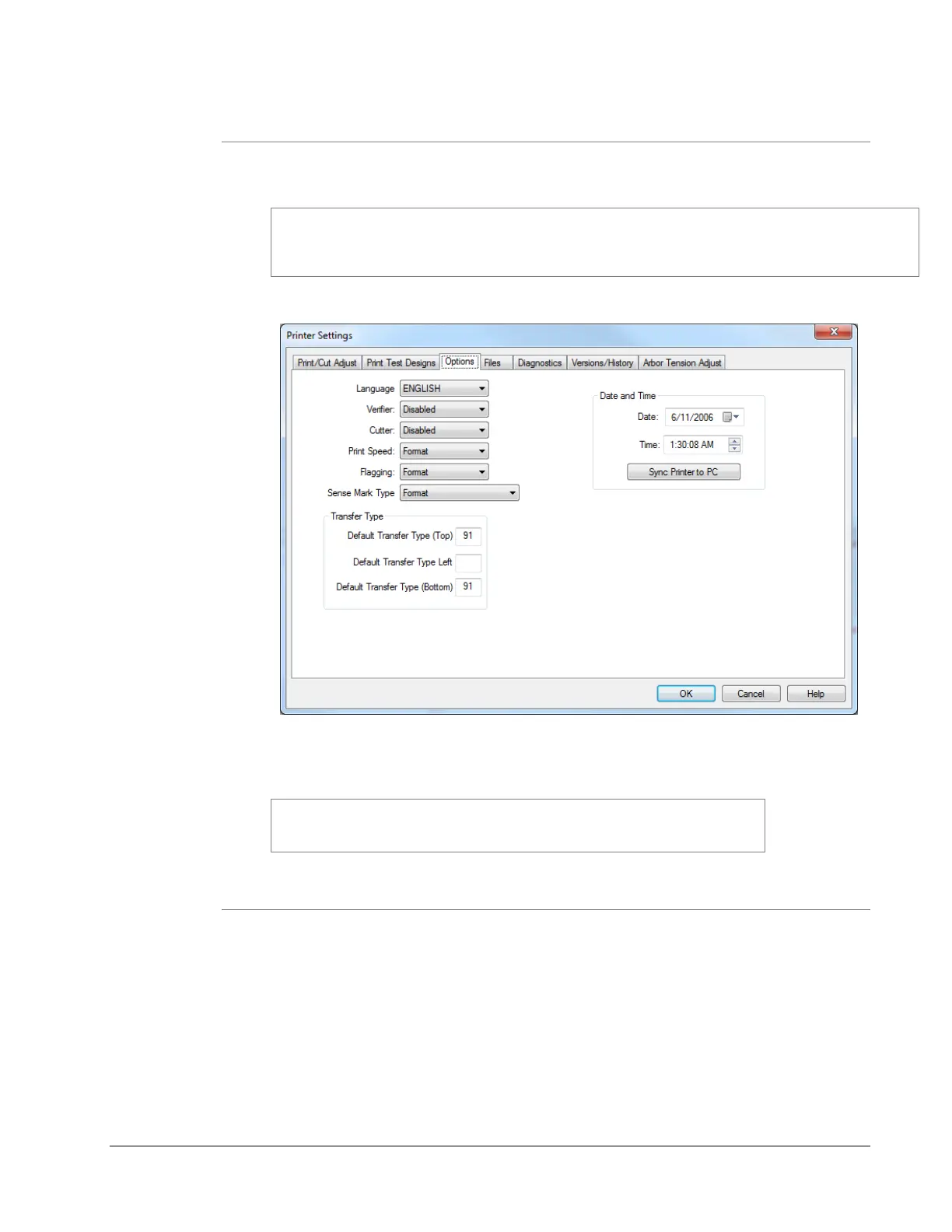
In the Virtual Control panel, click on the “Options” tab.
To select the printer language, click on the arrow in the Language box to drop
down a list of available languages. Click on the desired language. Then click on
Apply or Close to activate the selected language.
Selecting the printer language does not change the PCMate Platinum
language. See the PCMate Platinum manual for information about
changing languages.
5.3.5 Setting the Date and Time
The SNAP 700 printer has a built-in clock and calendar. You may change the
date and time as follows:
In the Virtual Control Panel, click on the Options Tab. The current printer date
and time is shown. You may change the values in the Date or Time box, or you
can simply click on the Sync to PC button to set the printer to the same date and
time as the PC. Click on Apply or Close to set the printer date and time.









 To Next Page