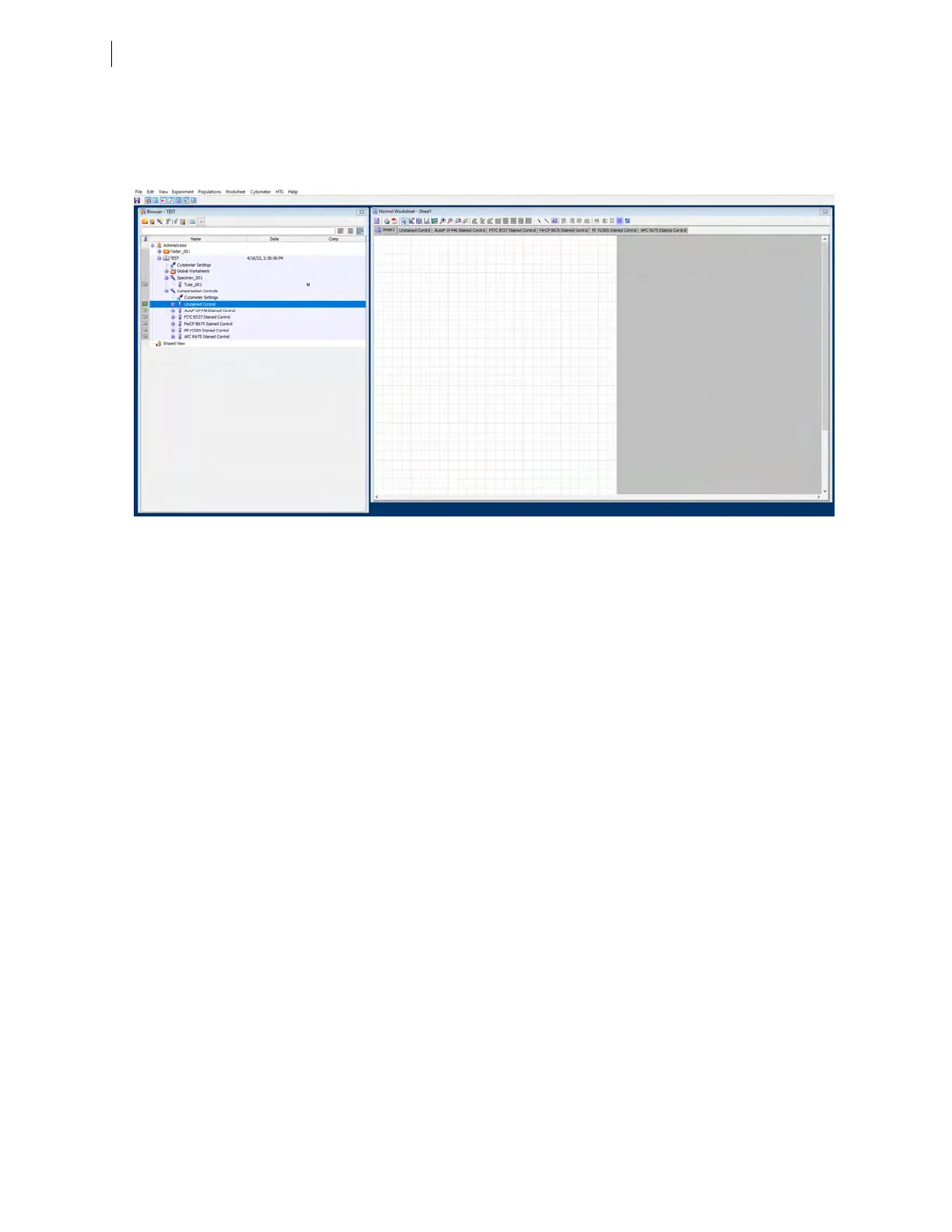
3. Click OK to create the controls. This adds the controls to the experiment Browser window, under
Compensation Controls, and creates a tab for each control on the worksheet. If you assigned AutoF to a
detector in the experiment layout, an AutoFcontrol tube will display here too, as shown in the following
example.
4. If you have a separate tube for your unstained control, record the unstained control as follows:
a. Select the Unstained Control tab on the worksheet.
b. In the experiment Browser, set the run pointer on Unstained Control.
c. On the Acquisition Dashboard, click Acquire Data.
d. Move the P1 gate to cover the events of interest.
e. (Optional)Right-click the gate and select Apply to All Compensation Controls from the context menu.
f. In the Acquisition Dashboard, click Record Data.
The acquisition and recording automatically stops when the number of events in the Events to Record list
box is reached (default value is 5000 events).
5. Record each of the single-color controls as follows:
a. Load the single-color control tube. If you are using an autofluorescence control in your experiment,
record your autofluorescence tube using your unstained cell sample.
b. Select the tab for the single-color control on the worksheet.
c. In the experiment Browser, set the run pointer on the corresponding control.
d. On the Acquisition Dashboard, click Acquire Data.
e. If necessary, move the P1 gate on the left dot plot to include the events of interest.
f. In the Acquisition Dashboard, click Record Data.
g. When the recording completes, remove the control tube.
60 BD FACSymphony™ A5 SE User's Guide



 To Next Page