Alphabets
101
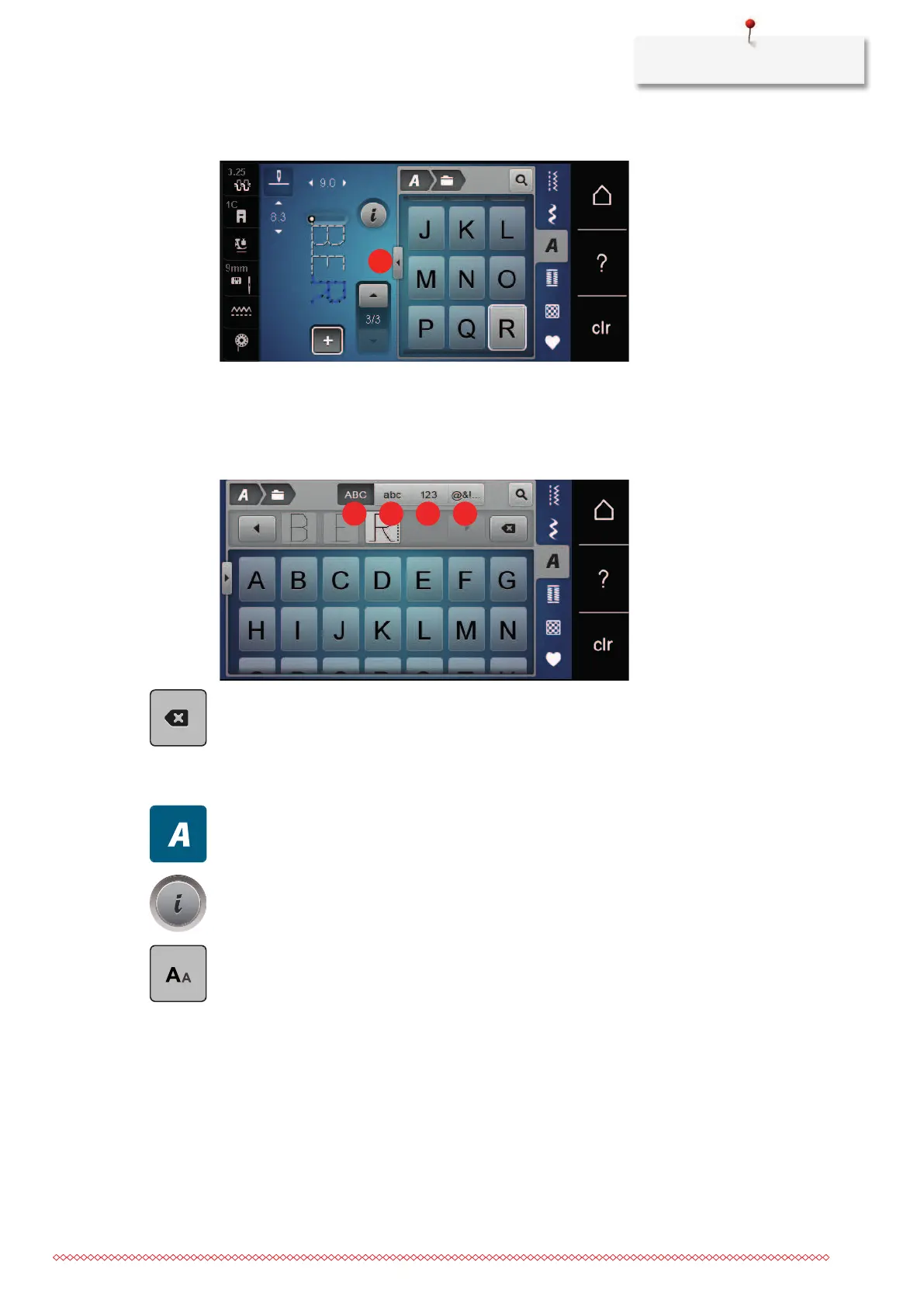
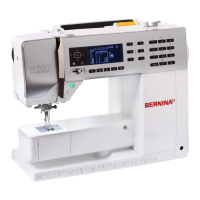
> Touch the icon «Display alphabets» (1) to open an extended enter mode.
> Select the letters.
> Touch the icon (2) (standard setting) to use upper case letters.
> Touch the icon (3) to use lower case letters.
> Touch the icon (4) to use figures.
> Touch the icon (5) to use special characters and mathematical symbols.
> Touch the icon «DEL» to delete single letters of the entered text.
> Touch the icon «Display alphabets» again to close the extended enter mode.
8.3 Altering font size
Block, Double block, Script and Comic alphabets as well as as Cyrillic can be downsized.
> Touch the icon «Alphabets».
> Select the font.
> Select the letters.
> Touch the icon «i»-Dialog.
> Touch the icon «Altering font size» to downsize the lettering.
> Touch the icon «Altering font size» again to to scale up the lettering to 9mm.


 To Next Page