Creative embroidering
143
> Touch the icon «i»-Dialog.
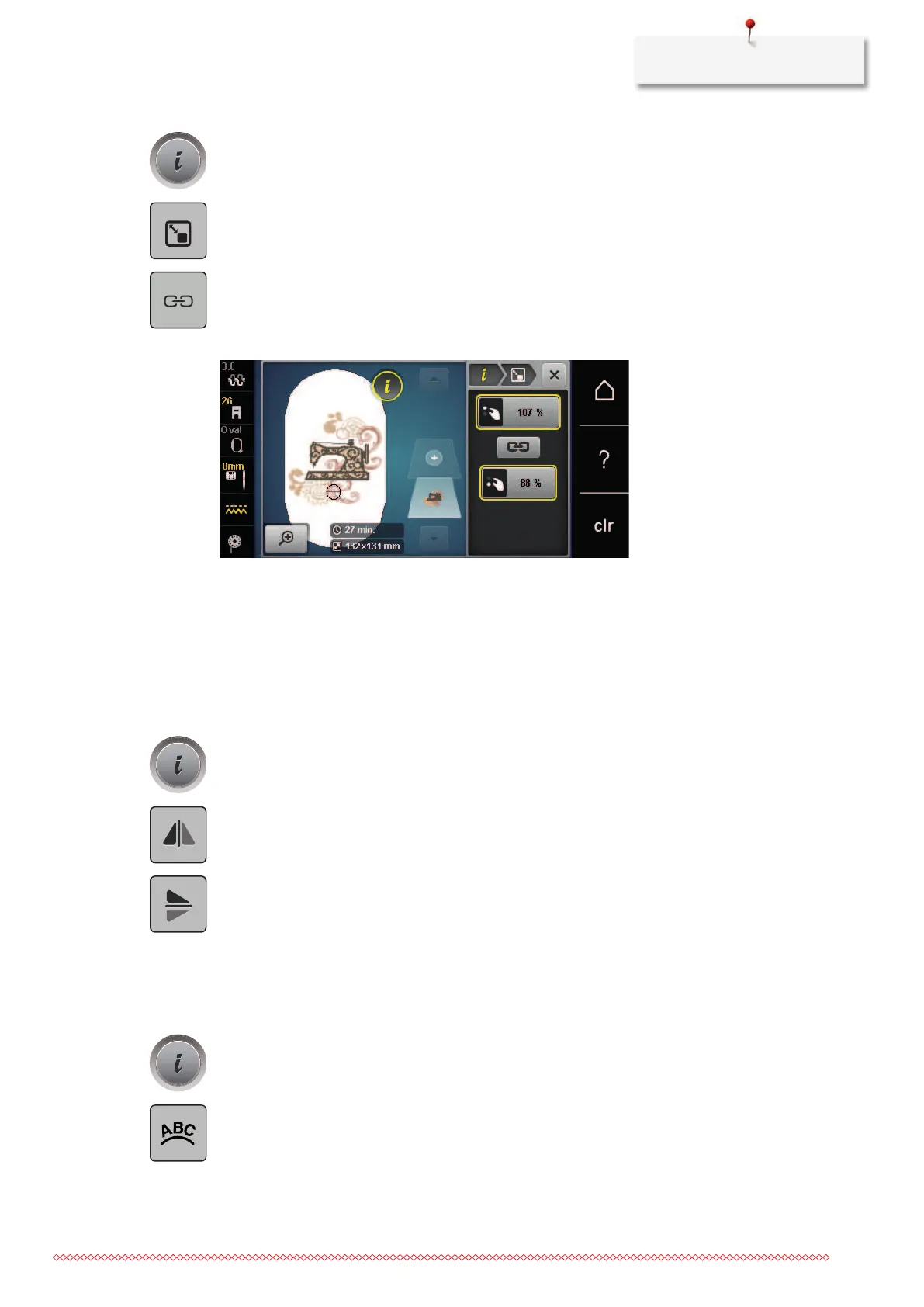
> Touch the icon «Alter the embroidery size».
> To change the embroidery motif size disproportionally, the icon «Retain proportions» must not have a
white frame.
Only touch the icon «
Retain proportions» when the icon has a white frame.
– The icon «Retain proportions» does not have a white frame.
> To make the embroidery motif wider, turn the «Upper multifunction knob» clockwise.
> To make the embroidery motif narrower, turn the «Upper multifunction knob» anti-clockwise.
> To make the embroidery motif longer, turn the «Lower multifunction knob» clockwise.
> To make the embroidery motif shorter, turn the «Lower multifunction knob» anti-clockwise.
Mirroring embroidery motifs
Embroidery motifs can be mirror-imaged both vertically and horizontally.
> Select an embroidery motif.
> Touch the icon «i»-Dialog.
> Touch the icon «Mirror image left/right» to mirror the embroidery motif vertically.
> Touch the icon «Mirror image up/down» to mirror the embroidery motif horizontally.
Bending the text
Texts can be arranged and designed arc-shaped.
> Create an alphabet embroidery motif.
> Touch the icon «i»-Dialog.
> Touch the icon «Bend text».
> Turn the «Upper Multifunctional knob» to alter the distance between the characters in millimeter-steps.
> Turn the «Lower Multifunctional knob» to the left or to the right to bend the lettering upwards or
downwards.


 To Next Page