Creative embroidering
145
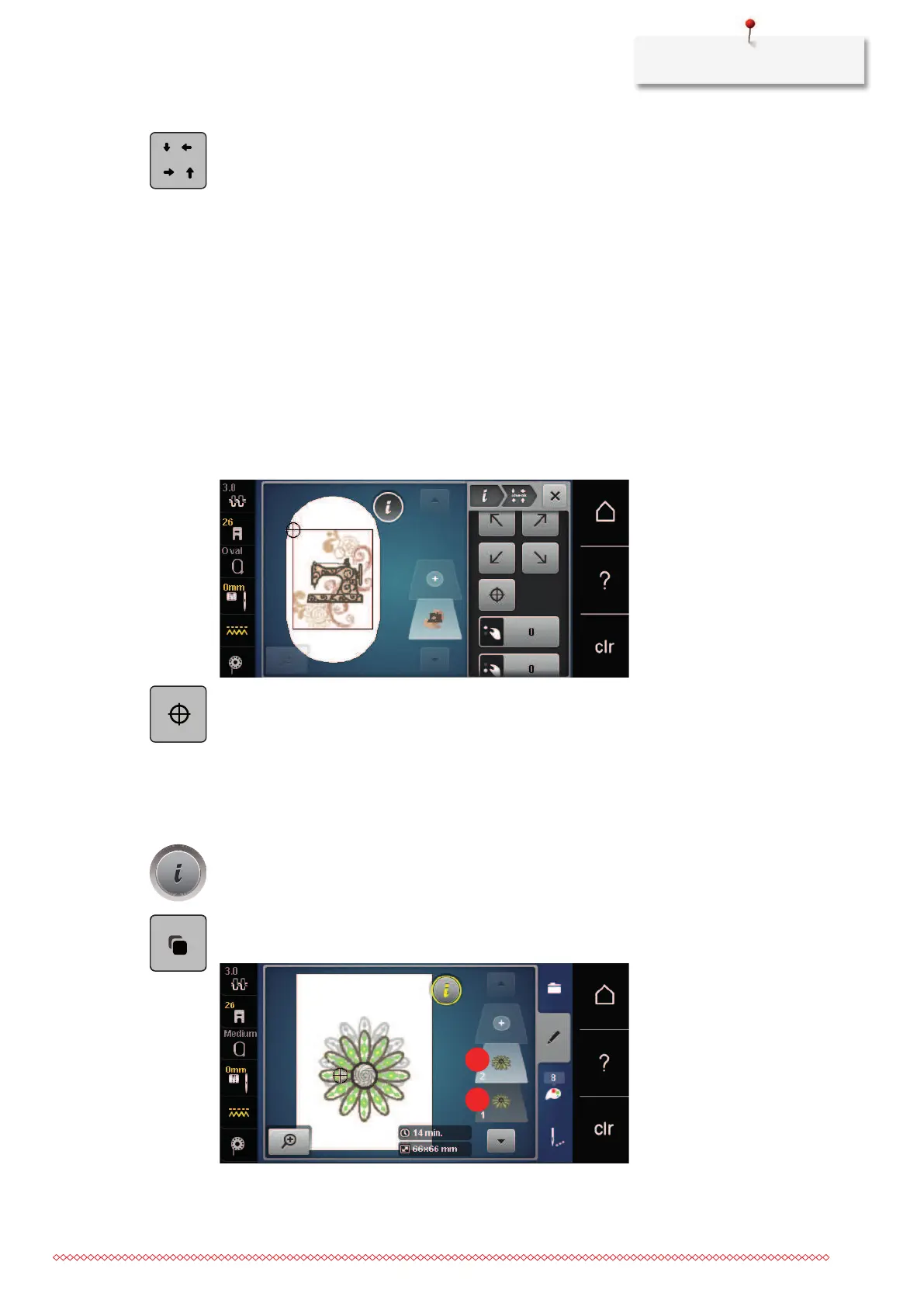
> Touch the icon «Check embroidery motif size».
– The embroidery hoop travels all the way until the needle is at the position as it is indicated in the
display.
> Touch the icon «Corner top left» to select the top left corner of the embroidery motif.
– The embroidery hoop travels all the way until the needle is at the position as it is indicated in the
display.
> Touch the icon «Corner top right» to select the top right corner of the embroidery motif.
– The embroidery hoop travels all the way until the needle is at the position as it is indicated in the
display.
> Touch the icon «Corner bottom left» to select the bottom left corner of the embroidery motif.
– The embroidery hoop travels all the way until the needle is at the position as it is indicated in the
display.
> Touch the icon «Corner bottom right» to select the bottom right corner of the embroidery motif.
– The embroidery hoop travels all the way until the needle is at the position as it is indicated in the
display. If the embroidery motif hasn't been positioned correctly yet, the position can be altered via
the«Upper/Lower Multifunction knobs» and the complete embroidery positions can be checked again.
> Touch the icon «Embroidery motif center» to bring the needle to the center of the embroidery motif.
> Turn the «Upper Multifunctional knob» to move the embroidery motif horizontally.
> Turn the «Lower Multifunctional knob» to move the embroidery motif vertically.
Duplicating the embroidery motif
The active embroidery motif is duplicated.
> Select an embroidery motif.
> Touch the icon «i»-Dialog.
> Touch the icon «Duplicate».
– The embroidery motif (1) is duplicated (2).


 To Next Page