411829-L, Operation April 2012 Page 4-11
4
TLC to Step Gradient
The software’s TLC to Step Gradient editor is used to enter the following parameters:
• The R
f
value for each compound of interest, for each TLC plate.
• The percentage of the strongest solvent in the TLC solution, for each TLC plate.
• The crude sample mass.
The software uses these values to calculate a purification gradient and recommend a cartridge type.
Note the following when using the TLC to Step Gradient editor:
• At least two TLC plates with R
f
values greater than 0.04 are necessary to predict the mobility
of the compounds.
• Accuracy of prediction can be reduced if using alcohols, such as methanol and ethanol, very
volatile modifiers such as diethyl ether, or additives that permanently alter the properties of
the silica.
• Reversed-phase chromatography is currently not supported.
• Store the TLC plates in a dry and dark place.
• Use only freshly prepared TLC solutions.
• Slight variation in migration rates will be observed if samples are applied too near to the
edge of the TLC plate. Apply samples at least 10 mm from the edge to avoid the edge effect.
To create a purification gradient using the TLC to Step Gradient editor:
1. Select the Method tab in the right-hand panel.
2. Press Optimize.... The Optimize... dialog opens.
3. Press Open TLC to Step Gradient Editor. The TLC to Step Gradient editor opens.
4. Enter the percentage of the strongest solvent in the TLC solution, for each TLC plate, by
pressing the “0%” table headers.
To add a plate, press Add Plate....
To delete a plate, select its table header and press Delete Plate. Note that two plates are
required to predict the mobility of the compounds.
5. Enter the R
f
value for each compound of interest, for each TLC plate, by pressing the
corresponding table cells. Valid range is 0.05 to 0.95.
To add a compound, press Add Compound....
To delete a compound, select its table header and press Delete Compound.
6. If desired, enter the name of each compound by pressing the compound table headers.
7. To view and modify (if desired) the predicted step gradient, select the Gradient and Peaks tab.
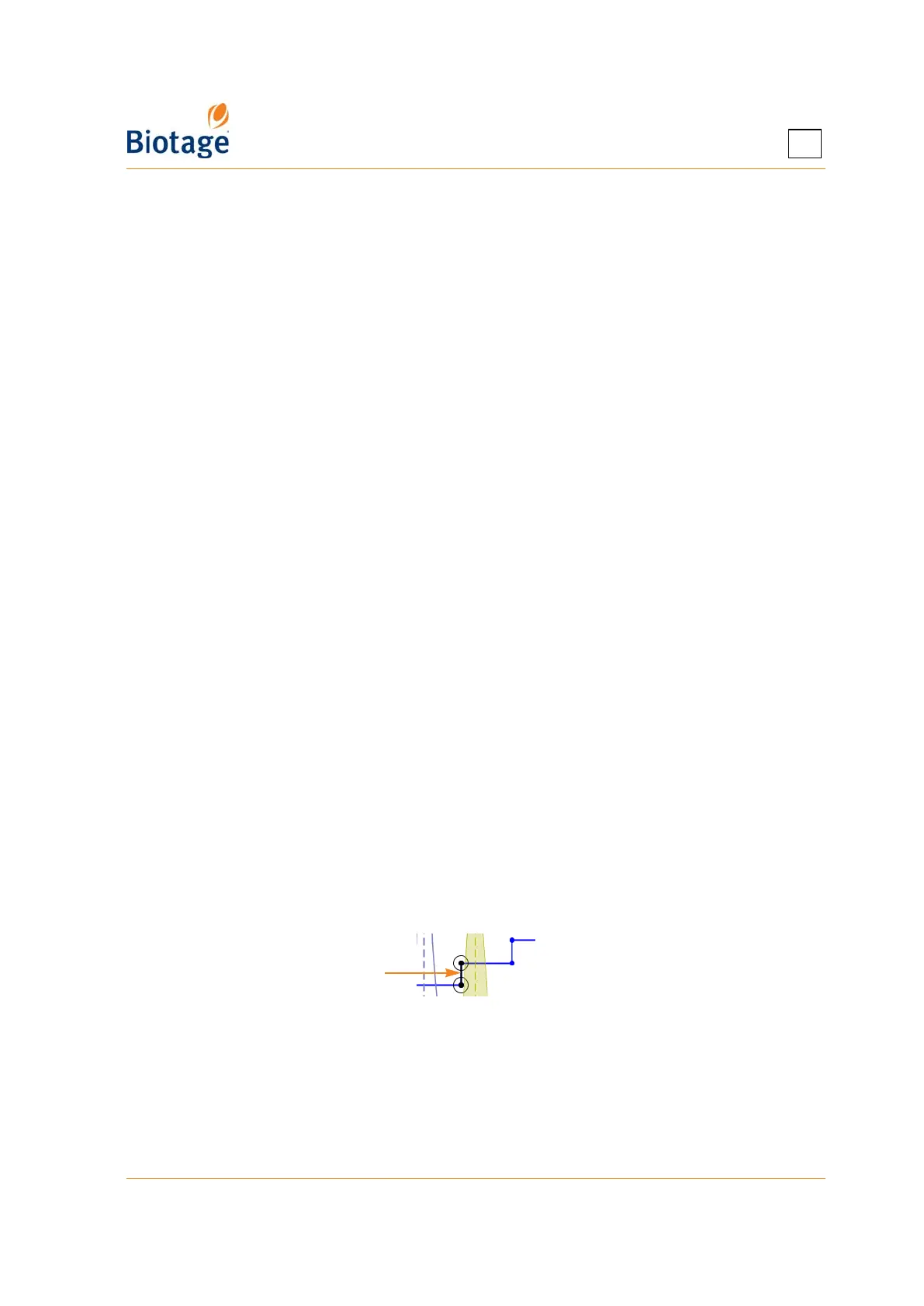
• To exclude e.g. the last compound, select the second last compound by pressing on its
label and then press End Gradient At Selected Peak.
• To modify the outcome, drag a peak (by dragging the compound label) or a gradient
segment to the desired position.
8. If desired, select the compound of interest by pressing on its label and press Set Peak of
Interest.
9. When satisfied with the gradient, select the Cartridge Selection tab.
10. Select the Sample Mass text box and enter the crude sample mass.
11. Select the Cartridge text box and select a cartridge type with a loading capacity exceeding
your crude sample mass. If a peak of interest has been set (see step 8), the load capacity is
calculated according to the smallest CV between the peak of interest and the peak before and
Selected segment



 To Next Page