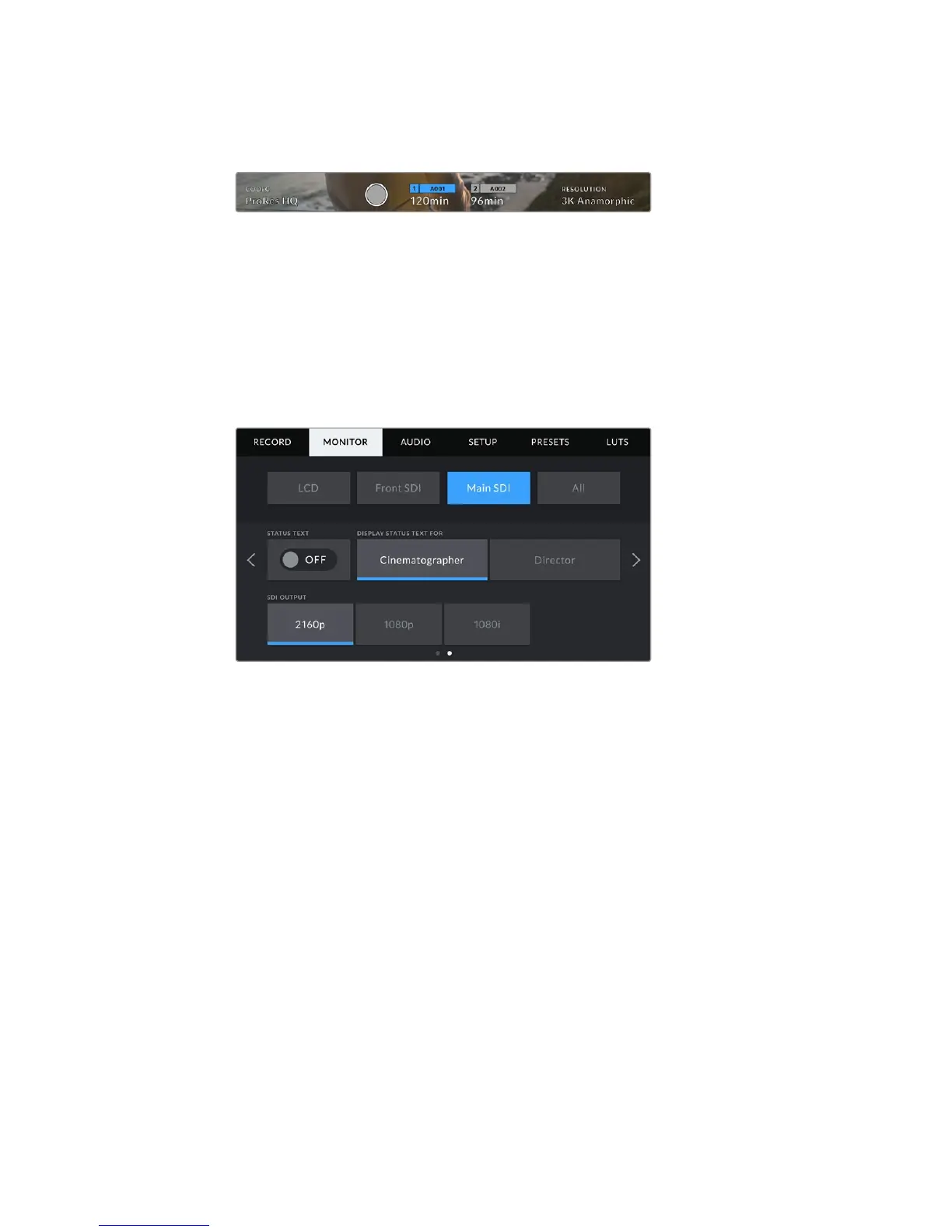
Simply tap ‘meters’ or ‘codec and resolution’ in the ‘LCD’ menu to select your
preferred view.
Your URSA Mini can display codec and resolution information
in place of the histogram and audio meters
Screen Brightness
Drag the ‘screen brightness’ slider in the ‘LCD’ menu left or right to adjust the
brightness of your URSA Mini’s LCD touchscreen.
Front SDI and Main SDI Monitor Settings 2
The second page of your URSA Mini's 'front SDI' and 'main SDI' monitor tab contains settings
unique to your front and main SDI outputs.
2160p and 1080p resolutions are available on your main SDI output as all times
when shooting at resolutions above 3K anamorphic. 1080i is only available for your
camera's main or front SDI output when shooting at framerates of 50, 59.94, or 60.
Status Text
It can be useful to hide the status text and meters on your front SDI or main SDI output,
leaving only the information necessary to compose or direct a shot. Tap the ‘status text’
switch icon in the ‘front SDI’ or ‘main SDI’ monitor menus to toggle the appearance of
status text and meters for that output. Overlays such as frame guides, grids, focus assist
and zebra will remain visible, if enabled.
Swiping up or down on your URSA Mini’s LCD touchscreen has the same effect for
thetouchscreen.
Display Status Text For Cinematographer or Director
Your URSA Mini’s LCD touchscreen displays information such as ISO, white balance,
and aperture that is useful to a camera operator or cinematographer setting up
individual shots on that camera. URSA Mini’s front and main SDI outputs, however, can
also show information useful to a director or script supervisor who is keeping track of
multiple shots or cameras.
99Settings










 To Next Page