106
4.5 "Configuration" menu
4.5 "Configuration" menu
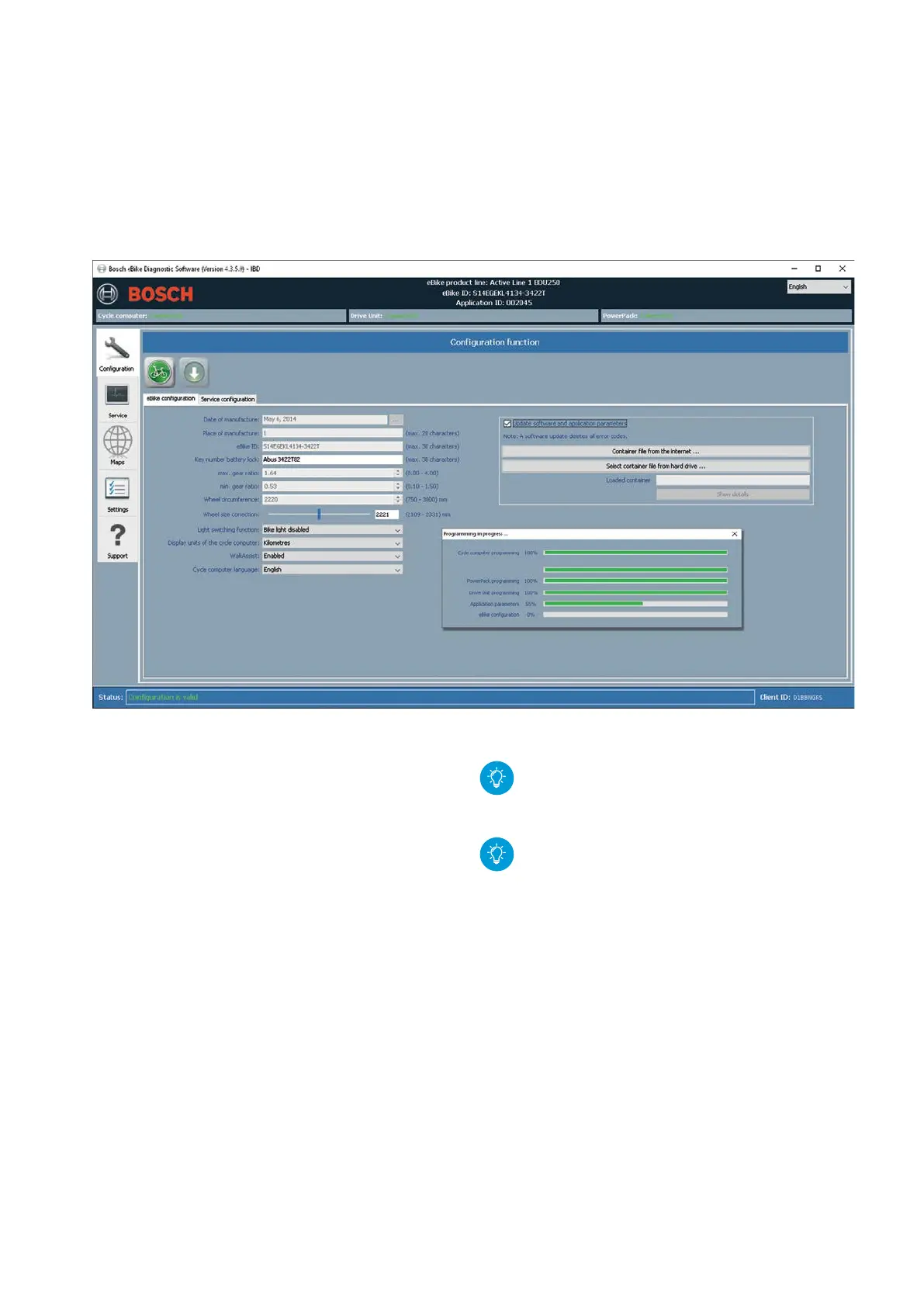
Manual update of the eBike software
1. Make sure an active Internet connection exists
2. Activate the check box "Perform software and appli-
cation parameter update".
3. Click on the "Get container file from Internet" but-
ton.
4. Select whether the container is to be saved on the
computer or transferred directly to the eBike. The
container is downloaded.
5. Click the "Show details" button in order to display
information on the software versions contained in
the container file.
6. Click on the button with the green arrow to transfer
the software update to the eBike.
7. The currently programmed component is displayed
in status bar in FBL (Flash Boot Loader) mode.
8. Click on the "Done" button after the transfer is
completed.
If automatic updates is activated (see p. 114),
then a message about available new software
versions appears at the program start.
On eBikes with Nyon, you will save time by
updating the drive unit and battery via the Intu-
via on-board computer
(container file for Nyon is
very large).
Update of DualBattery PowerPacks prior to
Model year 2017
1. Insert PowerPack 1 and execute the software
update.
2. Remove PowerPack 1 and insert PowerPack 2.
3. Execute the software update for PowerPack 2.




 To Next Page