Page 19© 2002 Radionics
D6412/D4412 Installation Guide
45349D
D6412/D4412
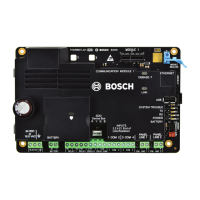
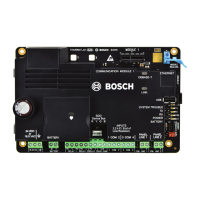
3.6.4 Install Modules
1. Power Down First: Power down the unit by unplugging the transformer and disconnecting the battery.
Radionics recommends that you power down the unit when installing modules, or when making wiring
connections to the panel.
2. Install and wire any modules required for your installation as described in the module’s installation
instructions.
Instructions for the DX2010 Point Expansion Module and the DX3010 Output Expansion Module are included in
this manual.
See Section 8.0, Off-board Sensor Loops, for DX2010 instructions. See Section 10.0, Off-Board Outputs for
DX3010 instructions.
3.6.5 Make the Telephone Connections
If you are connecting the panel to a ground start phone system, you need to install a D133/D134 Relay. See
Section 6.0, Telephone Connections, for complete instructions.
3.6.6 Connect the On-Board Points and Command Centers
Connect the on-board points and Command Center wiring to the system. See Section 7.0, On-Board Sensor
Loops, and Section 11.0, Arming Devices, for instructions.
3.6.7 Power Up
Reconnect the battery and then plug in the transformer.
Leave the Installer Switch in the CLOSED position for now (see Figure 3). The following sequence of events
occurs:
1. “System Fault” appears on the Text Command Center(s) and all Command Centers emit a single tone for
approximately 10 seconds.
2. A screen showing the panel model number (D6412 or D4412), firmware revision number and a “Please
Wait...” message appears for approximately 10 seconds.
D6412 Rev
X.XX
Please Wait...
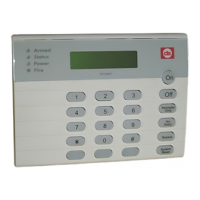
3. “Trouble! Press Cmd 4 to View” appears. Press [Cmd] + [4] key. A new message appears: Date/Time lost!
Press 5 to set.” Press the [5] key to enter the Date/Time window and set accordingly.
To reduce the occurrence of false alarms upon panel power-up (or restoration of power after a complete
loss of primary and secondary power), the panel ignores all point faults for approximately 60 seconds while
the devices stabilize. This process is part of the panel’s start-up process, and it occurs at power-up. This
60-second period begins when the “Please Wait...” screen appears.
The “Trouble! Press Cmd 4 to View” message reappears, indicating that the Installer Switch is closed. To
return the system to normal (disarmed, no fault/trouble conditions), open the Installer Switch (unless you
are ready to program the panel).
3.7 Programming the Panel
If you have not created a program for the panel, review the D6412/D4412 Program Entry Guide (P/N: 45351).
Check to be certain you have all the required accessory modules installed for the features you want to use. The
Installer Switch must be in the closed position to program the panel from a keypad.
You can enter your custom program at a text keypad, or send it to the panel from the Remote Account Manager
(RAM IV). There is a connector provided on the panel for quick connection of an ‘installers’ keypad to the
system for programming. See Section 13.0, Installer’s Keypad and Installer Mode, for complete instructions for
the installer keypad.
After you finish programming, move the Installer Switch to the open position (see Figure 3). If it is programmed
for reporting, the panel transmits a reboot report to the receiver when you move the Installer Switch to the open
position.
Installation


 To Next Page