M410 User Manual 26
General Operation
Using the Keyboard
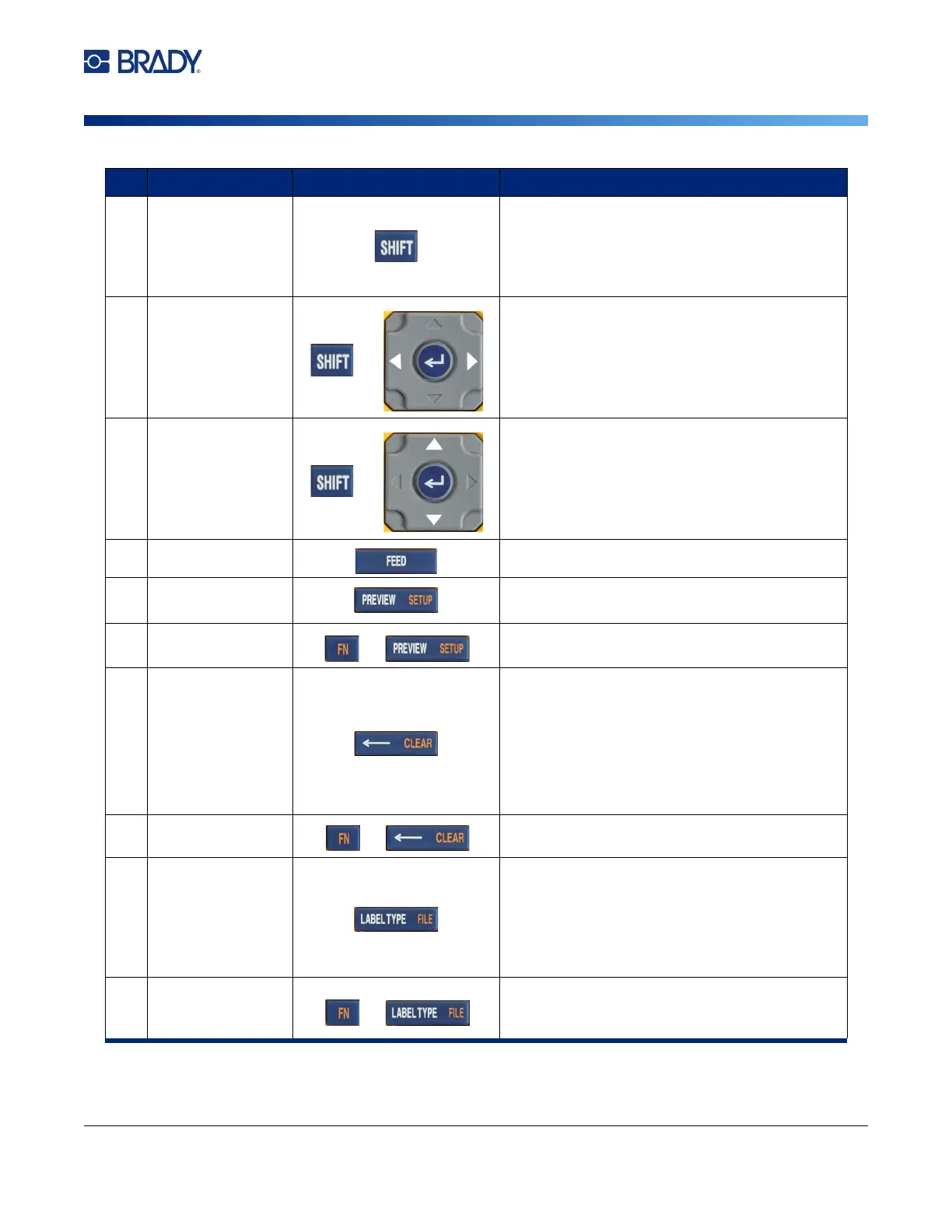
19 Shift
When Caps Lock is turned off, used in
conjunction with a single letter to enter that
letter in uppercase. When Caps Lock is turned
on, click shift prior to the letter to make it
lowercase.
Highlight Text
Highlights (selects) text on the editing screen,
left or right a character at a time, enabling you
to add font attributes (bold, italics, underline) to
text already entered. Hold the SHIFT key wile
pressing the left or right navigation key. See
“Existing Text” on page 37.
Font Size
Increment
On the editing screen, increases or decreases
the font size, a point at a time. Hold the [SHIFT]
key while pressing the up or down navigation
key.
5Feed
Feeds the label supply through the printer.
6Preview
Previews the label as it will look when printed.
See “Preview” on page 30.
Setup
Opens the menu to configure printer settings.
See “Printer Settings” on page 8.
7 Backspace
• Removes characters one at a time, moving to
the left.
• Backs out of menu options and functions, one
screen at a time.
Note: Depending on how deep you are into
menus and functions, you may have to press
Backspace multiple times.
Clear
Clears data or all menus from the screen.
8 Label Type
Opens a menu to select the type of label that
you want to create. This sets up the label with
the proper layout for the application (for
example, wire marking, flags, or terminal
blocks). See Chapter 5: “Label Types” on
page 52.
File
Saves, opens, or deletes a label or set of
labels. See Chapter 6: “File Management” on
page 63.
Function Key Description



 To Next Page