M610 Label Printer User Manual 24
General Operation
Using the Keyboard
Function Key Description
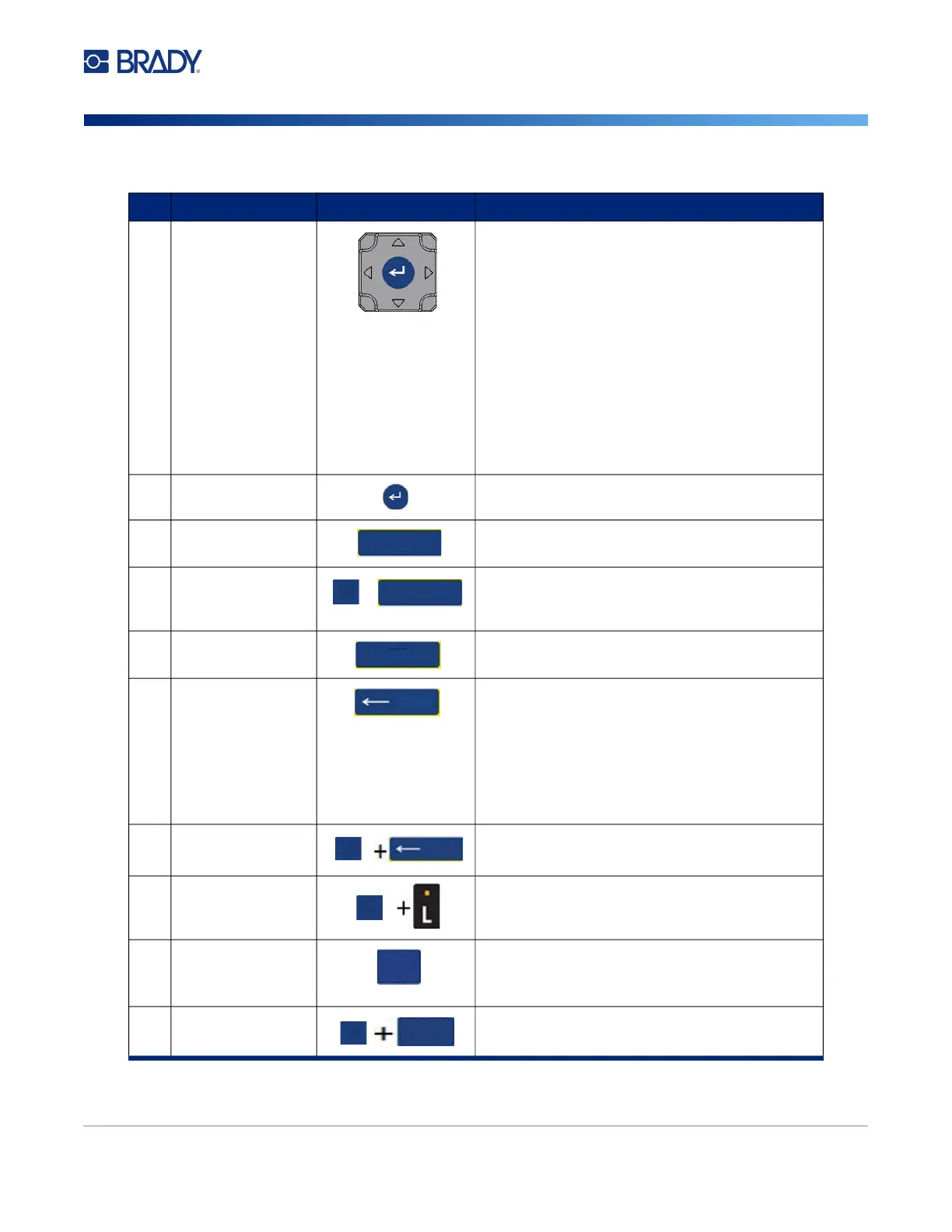
1 Navigation Navigation keys:
• In a line of text, move the cursor left or right a
character at a time, or up and down a line at
a time.
• In menus, move the selection left or right in a
primary menus; up or down through a
secondary, or sub-menu.
• In a dialog box, move up/down or left/right
through the fields. In a field with a drop down
list, after pressing OK, moves the cursor up or
down through the list.
• In Print Preview, scrolls left or right through
multiple areas on a label.
2 ENTER
• Adds a new blank line to a label.
• Accepts menu items and attributes.
3 Print Prints all labels in a label file.
Multi-Print Brings up options to set various print
parameters (such as number of copies, print
range, and mirror print) before printing.
4 Feed Feeds the label supply through the printer.
(Refer to “Loading Labels” on page 15).
5 Backspace
• Removes characters one at a time, moving to
the left.
• Backs out of menu options and functions, one
screen at a time.
Note: Depending on how deep you are into
menus and functions, you may have to press
Backspace multiple times.
Clear Clears data or all menus from the screen.
6 Decimal Point Adds a decimal point or period (full stop).
7 Move to Next
Area
On a multi-area label, moves to the next area
from the current area.
(Refer to “Go to Label or Area” on page 37)
Move to Previous
Area
In a multi-area label, moves to the previous
area from the current area.
PRINT MULTI
FN
+
PRINT MULTI
FEED
CLEAR
FN
CLEAR
FN
PREV AREA
NEXT AREA
FN
PREV AREA
NEXT AREA



 To Next Page