M610 Label Printer User Manual 25
General Operation
Using the Keyboard
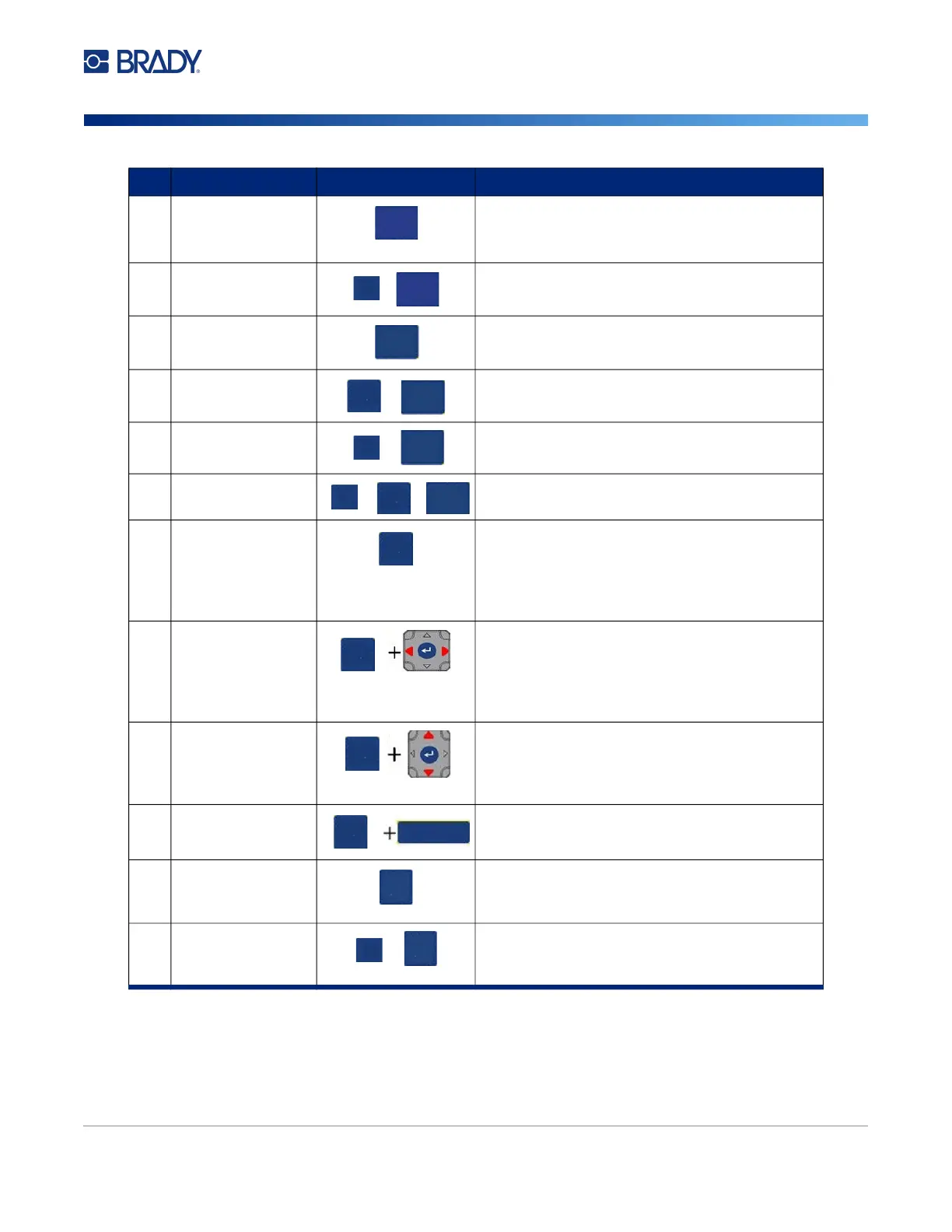
8 Move to Next
Label
In a multi-label file, moves to the next label from
the current label.
(Refer to “Go to Label or Area” on page 37)
Move to Previous
Label
In a multi-label file, moves to the previous label
from the current label.
9 Label Adds, removes, and formats labels in a file.
(Refer to “Add Label or Area” on page 36.)
Adds a label.
Area Adds, removes, and formats areas on a label.
(Refer to “Add Label or Area” on page 36.)
Adds an area on a label.
10 Shift When Caps Lock is turned off, used in
conjunction with a single letter to enter that
letter in uppercase. When Caps Lock is turned
on, click shift prior to the letter to make it
lowercase.
Highlight Text Highlights (selects) text on the editing screen,
left or right a character at a time, enabling you
to add font attributes (bold, italics, underline) to
text already entered. (Refer to “Existing Text”
on page 35.)
Font Size
Increment
On the editing screen, increases or decreases
the font size, a point at a time. Hold the [SHIFT]
key while pressing the up or down navigation
key.
Print History Brings up Print History menu. (Refer to
“Preview” on page 28.)
11 Font Provides font sizes and attributes (such as bold
and italics). (Refer to “Formatting Text” on
page 33.)
Caps Lock Acts as a toggle to lock text into uppercase as
data is entered. Press once to turn Caps Lock
on; press again to turn Caps Lock off.
Function Key Description
PREV LABEL
NEXT LABEL
FN
+
PREV LABEL
NEXT LABEL
AREA
LABEL
+
SHIFT
AREA
LABEL
FN
+
AREA
LABEL
+ +
FN
SHIFT
AREA
LABEL
SHIFT
SHIFT
SHIFT
SHIFT
PRINT
MULTI
CAPS
FONT
FN
+
CAPS
FONT



 To Next Page