Right-click the lower-left corner of the screen select [Control Panel].
Windows 8.1/Server 2012 R2
Right-click [Start]
select [Control Panel].
Windows 10
Proceed to step 2.
2
Display [System].
Windows Vista/7/8/Server 2008 R2/Server 2012
Click [System and Maintenance] or [System and Security] [System].
Windows 10
Click [ ] select [Settings] [System] [About].
Windows Server 2008
Double-click [System].
3
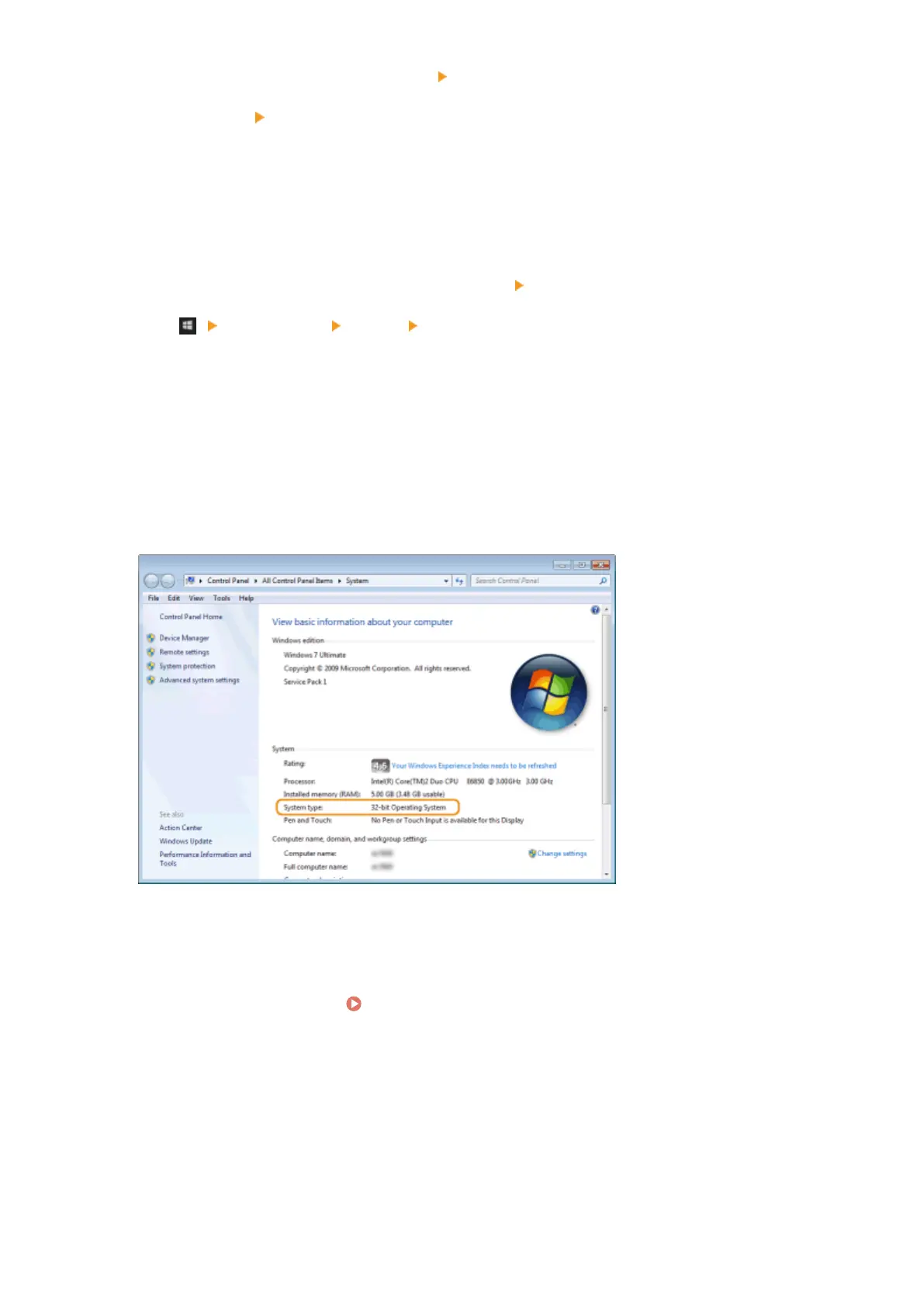
Check the bit architecture.
For 32-bit versions
[32-bit Operating System] is displayed.
For 64-bit versions
[64-bit Operating System] is displayed.
◼ Checking the Printer Port
1
Open the printer folder. Displaying the Printer Folder(P. 661)
2
Right-click your printer icon and click [Printer properties] or [Properties].
Appendix
664



 To Next Page