Printing a Document Stored in the Machine (Stored Job
Print)
0YSF-02C
The data printed from a computer can be saved on the SD card installed on the machine. Since the saved data can be
directly printed from the machine, you can eliminate the need to operate the computer every time you print. It is
convenient to save a document that will be printed many times such as a fax cover sheet. Installing an SD
Card(P. 633)
Storing a Document in the Machine(P. 136)
Printing a Document Stored in the Machine(P. 138)
● Up to 1,000 documents can be stored in the machine.
● The data saved on the SD card is not deleted even when the power is turned OFF, but the machine is set to
automatically delete the data three days later. When you want to change the data storage period or prevent
the data from being automatically deleted, change the applicable settings from the Remote UI (
Changing
the Storage Period for Documents(P. 140) ). The saved data can also be deleted manually ( Manually
Deleting Documents(P. 141) ).
Storing a Document in the Machine
1
Open a document in an application and display the print dialog box.
● How to display the print dialog box differs for each application. For more information, see the instruction
manual for the application you are using.
2
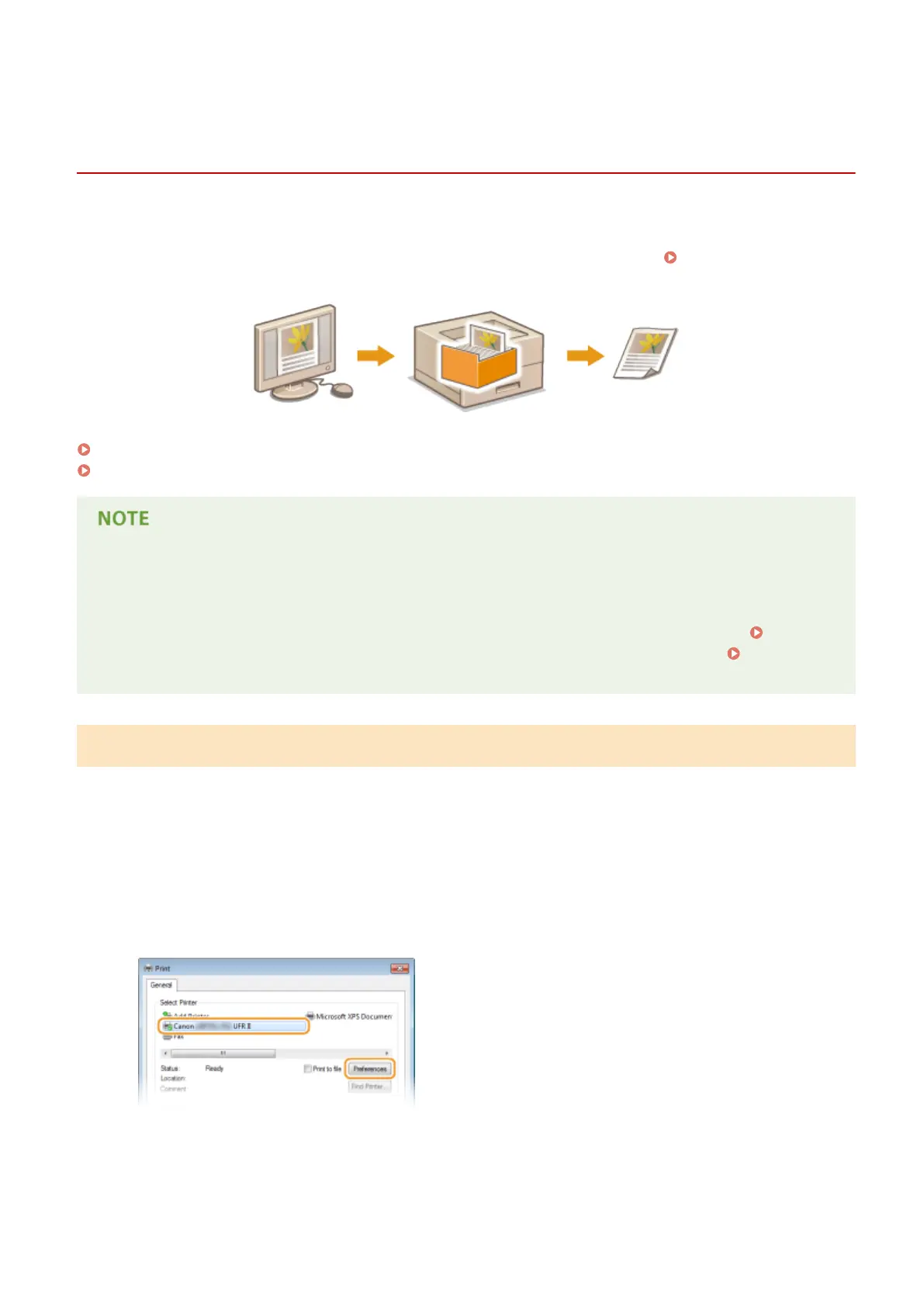
Select this machine, and click [Preferences] or [Properties].
● The screen that is displayed differs depending on the application you are using.
3
Select [Store] in [Output Method], and click [Yes].
Printing a Document
136



 To Next Page