4
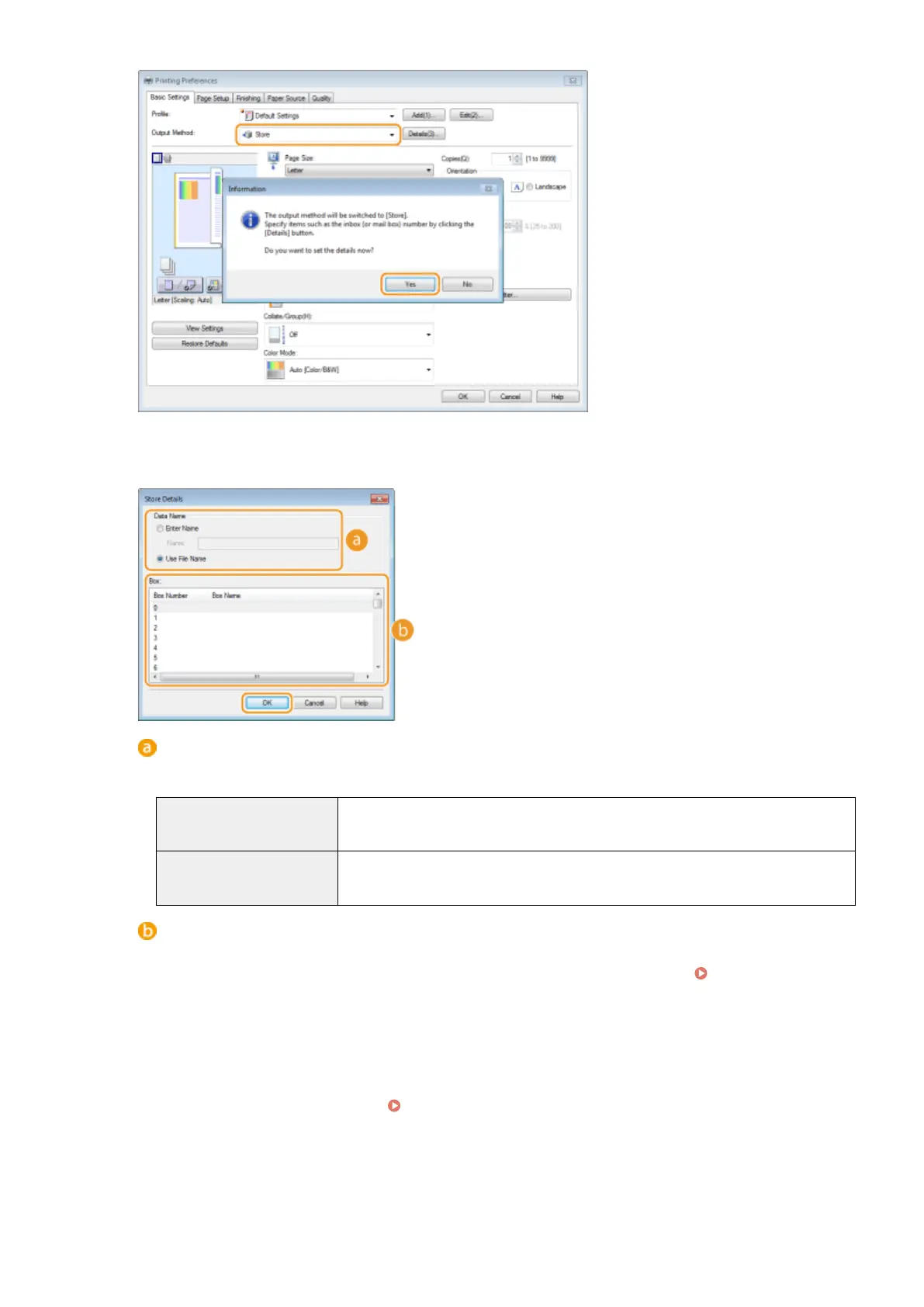
Specify the settings for storing documents, and click [OK].
[Data Name]
Assign a name to print data to store in the SD card.
[Enter Name]
Manually set a name. Enter up to 24 characters for the name of the print data. Specify
a friendly name that can be easily identied on the display of the machine.
[Use File Name]
A name is automatically set based on the le name of print data to store and the
information of an application that you are using.
[Box]
A place used to store print data in the SD card is called a box. Select the number of the box to store the
document. You can assign a name to the box to facilitate identication of the box.
Setting a Name or
PIN to a Box(P. 143)
5
Specify the print settings, and click [OK].
● Click the [Basic Settings], [Page Setup], [Finishing], [Paper Source], or [Quality] tab to specify the print
settings on each screen as necessary. Various Print Settings(P. 80)
● The settings changed here are stored with the document. When the document is printed next time, it is
printed with the stored settings.
Printing a Document
137



 To Next Page