Setting Up Print Server
0YSF-03A
With a print server, you can reduce the load on the computer that you print from. The print server also enables each
computer to install printer drivers over the network, which saves you the trouble of installing printer drivers on each
computer by using the DVD-ROM. To set up a computer on the network as a print server, congure the settings for
sharing the printer.
● To perform the following procedure, log on to your computer with an administrator account.
● You may be unable to install printer drivers over the network depending on the operating system and the bit
architecture (32-bit or 64-bit) of the print server and client computers.
● When implementing a print server in a domain environment, consult your Network Administrator.
To carry out Department ID Management when using a print server
● Canon Driver Information Assist Service must be added during the printer driver installation. For more
information, see the Printer Driver Installation Guide.
1
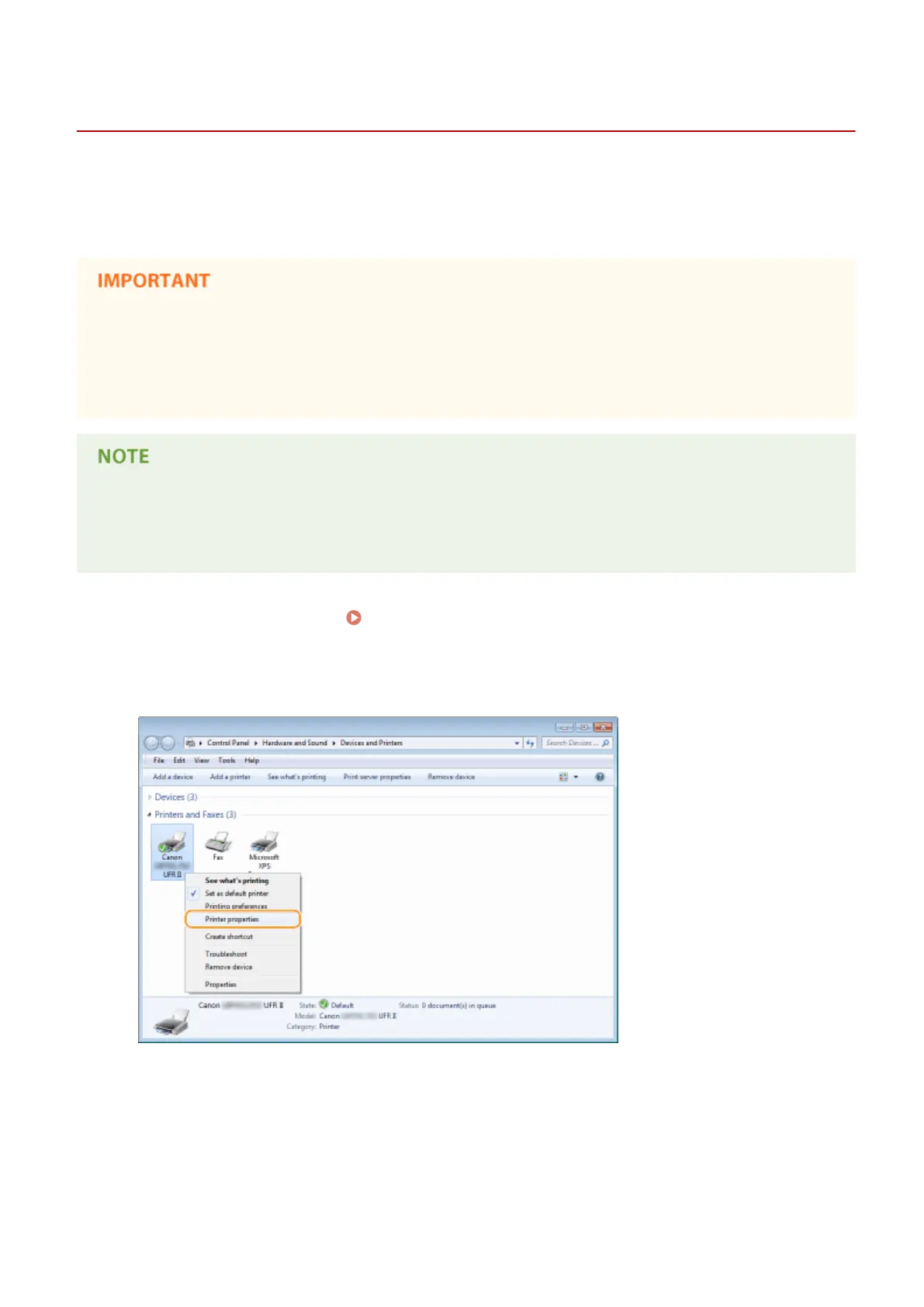
Open the printer folder. Displaying the Printer Folder(P. 661)
2
Right-click your printer icon and click [Printer properties] or [Properties].
3
Click the [Sharing] tab, select [Share this printer], and enter the share name of the
machine.
Network
215



 To Next Page