Admin Tools
207
Configure Settings With the Panorama Screen Preview Frame
To delete view restriction settings, clear the [Apply the view restriction] check box and click [Save settings].
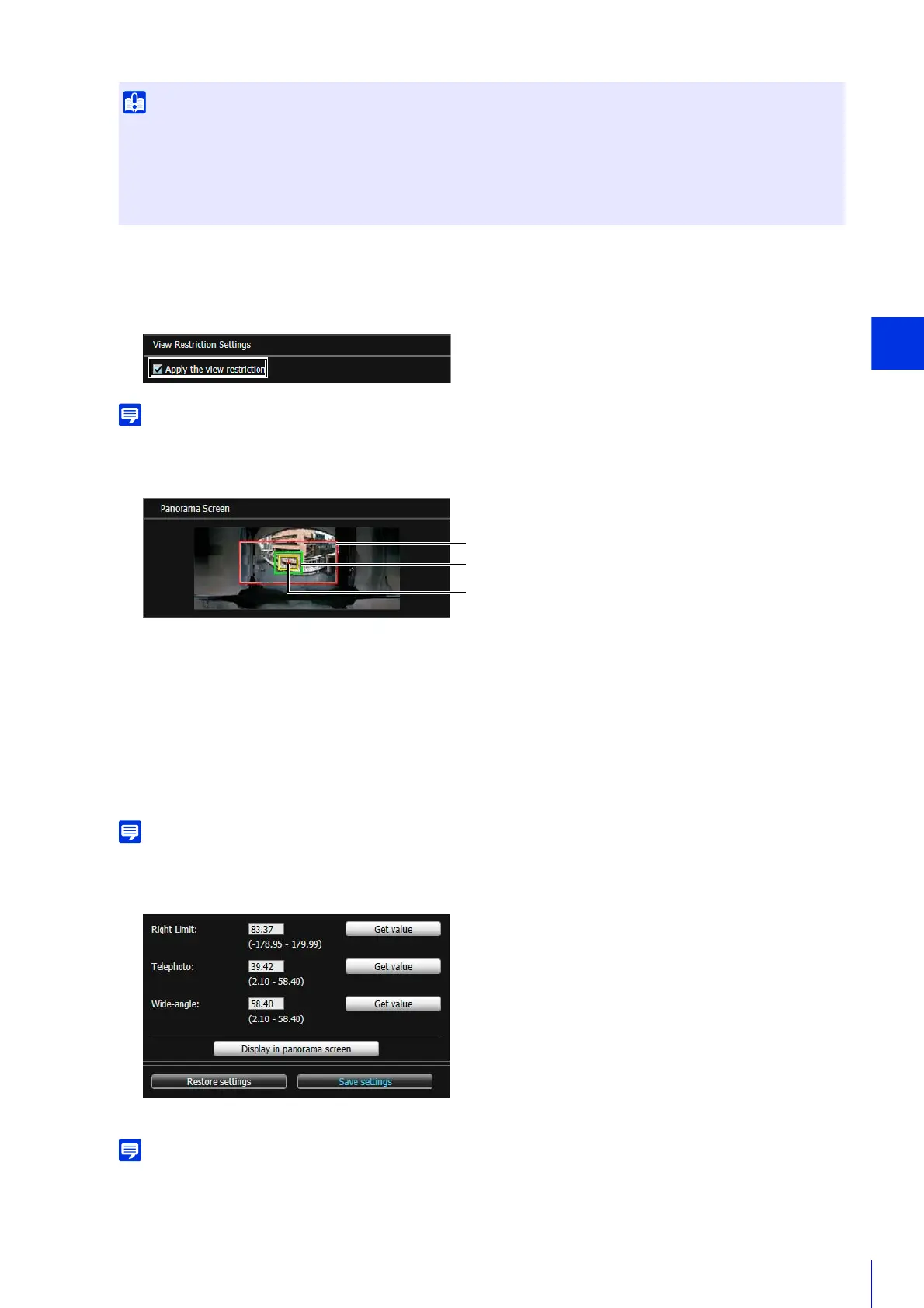
(1) Pan/Tilt Preview Frame (Red Frame)
Displays the vertical and horizontal range the camera can move.
(2) Wide-Angle Preview Frame (Green Frame)
Indicates the maximum wide-angle view possible within the pan/tilt preview frame. You cannot change the
aspect ratio.
(3) Telephoto Preview Frame (Yellow Frame)
Indicates the maximum telephoto view possible within the wide-angle preview frame. You cannot change the
aspect ratio.
If you resize the preview frames, the view restriction setting values will be updated in the value entry fields.
The settings are saved to the camera.
The panorama screen may be slightly different from the actual image. After you have configured view restrictions, be sure to use the
VB Viewer to confirm they have been reflected correctly. View restrictions are not applied to the video display area of this tool nor in
the Admin Viewer.
• If you have changed how the camera is installed, recapture the panorama image and register it again.
• Check view restriction settings again if you change the [Basic Settings] > [Video Settings] > [All Videos] > [Video Size Set]
settings on the Setting Page.
• When [Camera] > [Camera Settings] > [Camera Control] > [Digital Zoom] or [Image Stabilizer] are changed in the setting
page, check restriction settings again.
1
Select [Apply the view restriction].
2
Drag or resize the 3 types of preview frames displayed on the panorama screen to configure the view restrictions.
3
Click [Save settings].



 To Next Page