29 CHC i83 User Manual
The title
Repeat Observations
is misleading, the title should be
Single Observations
. Set this to
No
to enable multiple
observation files.
Downloading, Processing and Archiving Static Data
Your i83 GNSS receiver is compatible with a download, preprocessing and archive tool called:
iGx Download
This tool simplifies RINEX file generation and submission to NGS OPUS, RTX and exporting general files for external use.
iGx_Download runs on Windows PC’s and is available by web download.
Installing the Download Tool
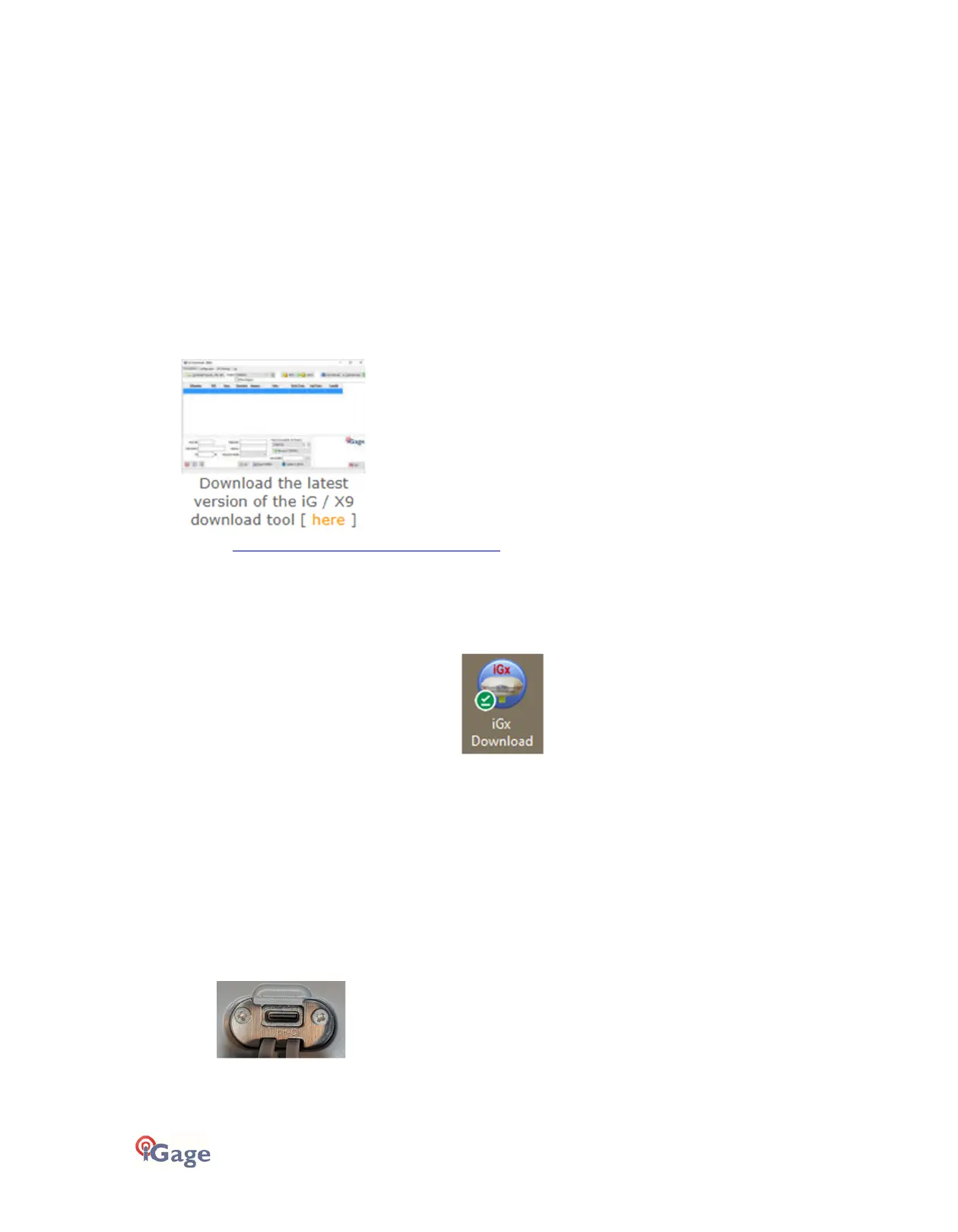
Download the latest version of the iGx_Download tool from the iGage.com website and install it on your computer.
From the main iGage page, look for this link:
Or use this link: https://www.igage.com/iGx_Download.htm
Follow the on-screen instructions to install the iGx Download tool on your computer.
Starting the iGx Download Tool
You can start the iGx download tool by clicking on the iGx shortcut on your desktop:
Downloading Data
Data can be downloaded using the included USB Type-C to Type-A cable, or via the Wi-Fi connection.
USB Cable Download
Summary: Turn on the GPS, plug the USB Cable into your computer.
The receiver mounts just like a USB thumb drive (flash drive) on your computer. No special drivers are required.
To download data from your receiver:
1. Turn on the GPS receiver.
2. Plug the USB-C connector into the USB hole on your receiver:
and the other end into a USB port on your computer.


 To Next Page