CHC i83 User Manual 30
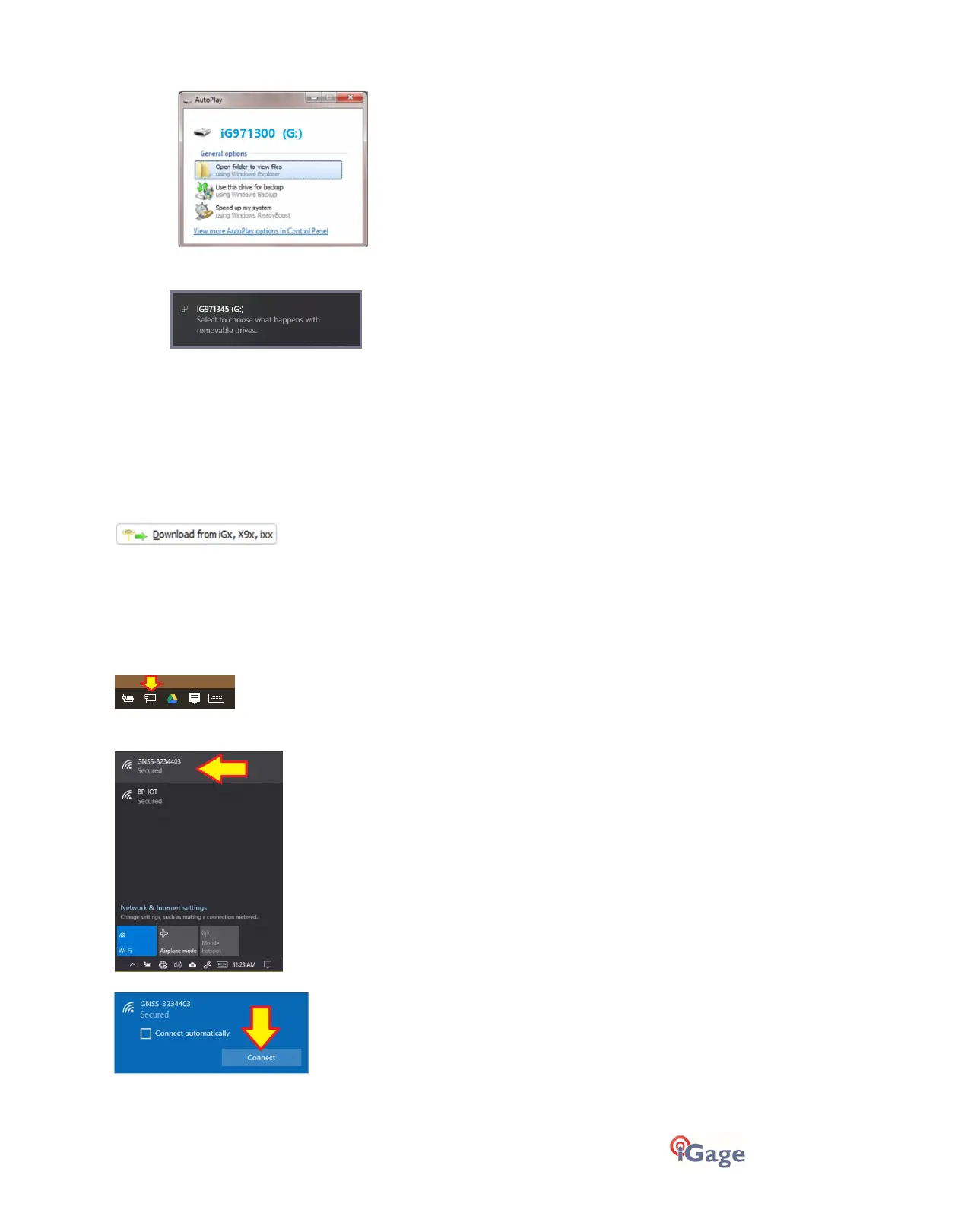
3. If you see the Windows AutoPlay screen:
click on the red ‘X’ button on the upper-right corner to close it.
If you see the Windows AutoPlay screen:
ignore it.
The first time you attach a receiver, you may need to wait for a few minutes for standard device drivers to be
downloaded / installed.
Since the drive connects as a standard USB thumbdrive the drivers are built into Windows XP, Windows Vista, Windows
7, Windows 8, Windows 10 and Windows 11.
If your receiver does not mount or an error message is displayed, you can usually unplug the receiver, wait a moment,
then plug it back in.
Assuming the receiver is plugged in and has mounted (as a lettered drive) just press:
The program will automatically switch to the '_New' project and download every new file from your receiver. As files are
downloaded, they are marked on the receiver as ‘Downloaded’ however they are not deleted from the receiver and may
be manually downloaded again later if needed.
Wi-Fi Download
Connect to the receiver from your computer using Wi-Fi.
Click on the Network icon in the System Tray
Find the receiver, it will be named ‘GNSS-xxxxxxxx‘ followed by the full serial number of your device:
Click on the receiver, then click on
Connect
:


 To Next Page