43 CHC i83 User Manual
For new OPUS users, the ‘Format Extended’ includes one important addition: State Plane coordinates are shown in both
Meters and US Survey Feet (or International Feet) at the bottom of the report. We recommend keeping ‘Extended’
checked by default for this reason.
Prior to submitting an observation, you can modify any of the Option settings, checking this box results in the extended
output initially being checked.
We recommend that you check the ‘Format Extended’ box.
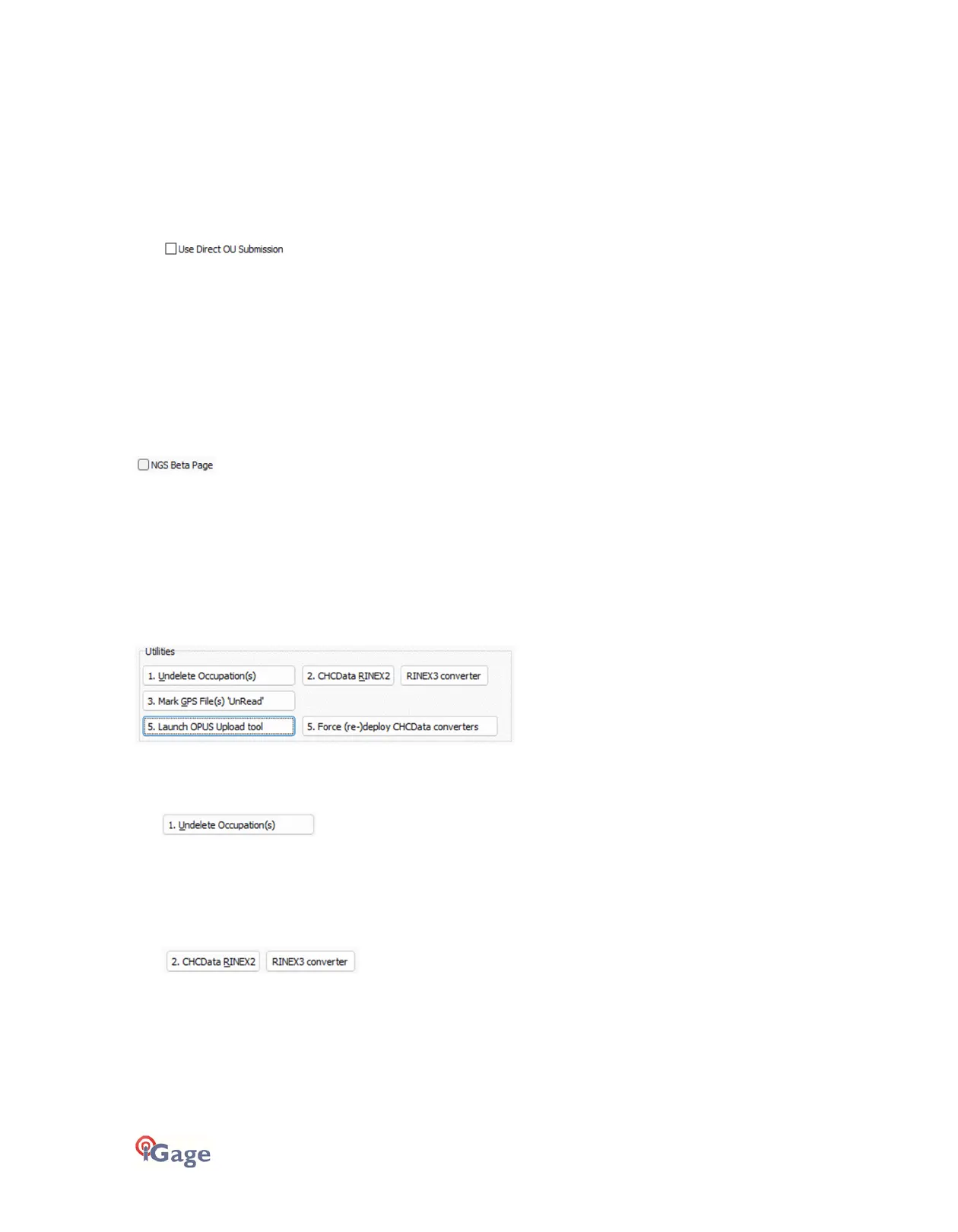
Use Direct OU Submission
Checking this box allows the program to skip displaying the NGS submission web page. All information is uploaded
automatically without operation intervention.
If you use direct submission, then you will not be able to specify CORS stations to include and exclude. OPUS Projects
and extended outputs are supported.
We recommend that you enable the ‘Use Direct OU Submission’ checkbox if you are not an expert user. It greatly
simplifies the submission process.
‘NGS Beta Page’
(Hidden when Simple)
When checked the NGS OPUS Beta submission is used:
https://beta.ngs.noaa.gov/OPUS/
when unchecked:
https://www.ngs.noaa.gov/OPUS/
Utilities
(Hidden when Simple)
Additional utilities for working with observations are included.
“1. Undelete Occupations”
When you delete an observation, it is moved to a special “_Deleted” folder.
Clicking the
Undelete Occupation
button allows you to specify a deleted observation to restore. When an occupation is
undeleted, it is always returned to the _New project folder.
“2. CHCData RINEX2/3 Convertor”
Files are stored on the receiver in an ‘.HCN’ extension binary file. When the iGx download tool downloads a file, it is
automatically converted to standard RINEX2 or RINEX3 using the CHCData tool.
‘CHCData RINEX2’ launches the CHCData tool in RINEX2 manual mode. The ‘RINEX3 Converter’ button launches the
converter in RINEX3 mode.
Clicking this button runs the CHCData tool in manual mode. You can browse for HCN files and manually convert them to
standard RINEX files. Results are always placed in a subfolder named ‘RINEX’ under the file to be converted.


 To Next Page