31 CHC i83 User Manual
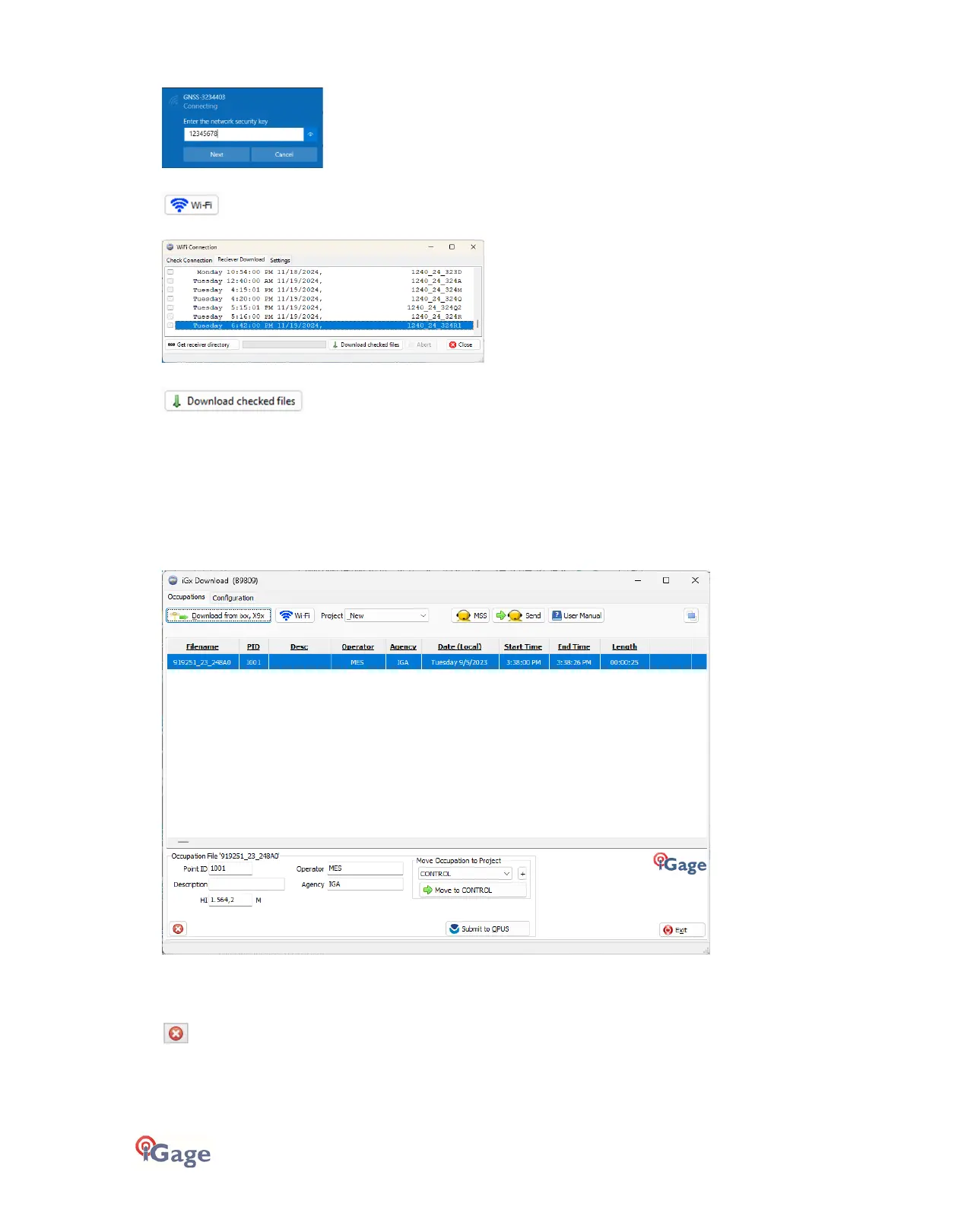
If a password is requested, try
12345678
, then click on
Next
.
Click the Wi-Fi download button:
iGx will build a list of all observation files available on the receiver:
Check the files you want to download, then click the Download checked files:
The program will automatically switch to the '_New' project and download the selected files from your receiver. As files
are downloaded, they are marked on the receiver as ‘Downloaded’ however they are not deleted from the receiver and
may be manually downloaded again later if needed.
After downloading by cable or Wi-Fi
As the ‘.HCN’ binary files are downloaded from the receiver they are automatically converted to RINEX and added to the
'_New' project and displayed in the occupation grid.
You can sort the grid by Filename, PID, Description, Operation, Agency, Start Date/Time, End Date/Time and Length by
clicking on the column header. Clicking twice on the header will reverse the grid sort order.
If you have any short or unneeded occupations, you can select and delete them with:
<- the ‘Delete Occupation’ button.
For each required observations, enter the values you recorded in your field book:


 To Next Page