39 CHC i83 User Manual
Receivers have different amounts of internal memory available to store observations. Some receivers will automatically
delete older files to make room for new observations. Other receivers like: X91+, X900+, X90, X900S, iG3, iG4 will
eventually fill up.
Clicking the:
Will analyze the attached receiver and aid in cleaning up older files. Only files that have previously been downloaded
(this can be overridden) and are older than 6-months are eligible for deletion. All files are backed up to a special folder
on your computer prior to deletion.
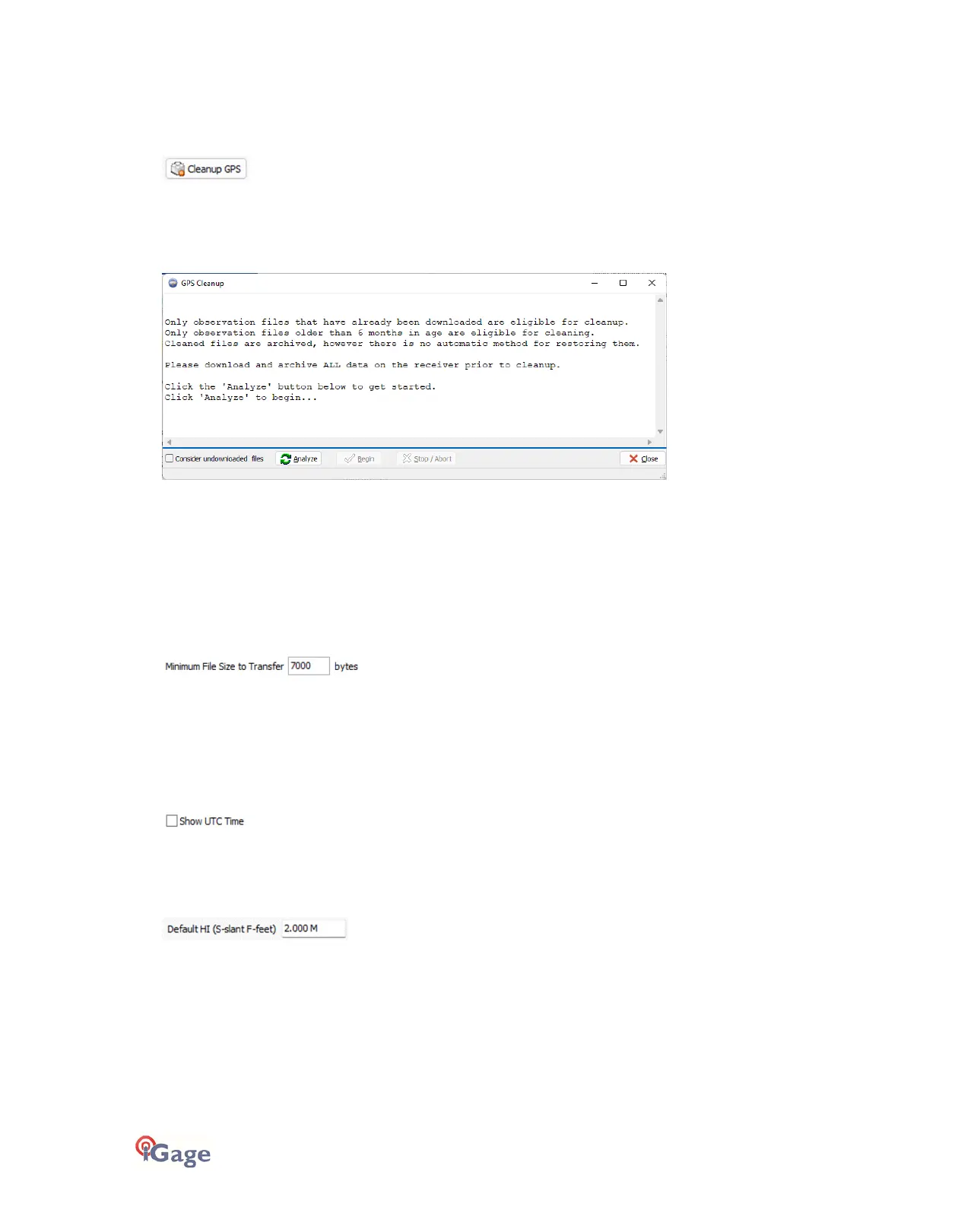
After clicking ‘Cleanup GPS’ this dialog will be shown:
Click the ‘Analyze’ button. The cleanup tool will display a summary of the space used, space available and the space that
will be recovered if cleaned.
Click the ‘Begin’ button to start the cleanup process. Each cleaned file will be copied to the ‘__GPSBackup’ folder under
the ‘Base Project Folder’. After all files eligible for cleaning are copied and removed from the receiver, all empty folders
on the receiver will be removed.
‘Minimum File Size to Transfer’
(Hidden when Simple)
Every time you turn on the GPS receiver, it may try to track satellites and open a new occupation file. Often several
small junk files will be created that don't have any meaningful data and are of no value.
The download tool will automatically ignore files smaller than this minimum value. This keeps useless files from
cluttering your computer.
‘Show UTC Time’
When unchecked (the default,) the download tool will show the observation start and end times in your local time zone.
If you check 'Show UTC Time', then the times are displayed in UTC time.
'Default HI'
When you download an occupation from the receiver, this HI will be the default associated with every occupation. You
can change the HI for each individual occupation later, this is just the default.
If you ALWAYS use a 2-meter range pole, then this value will always be 2.000 M and you won't have to worry about HI
blunders.
FEET
: If you measure up in feet, you can enter the height in decimal feet and put an 'F' after the measurement. The
program will automatically convert to Meters for you.
SLANT HEIGHT in Meters
: If you measure a slant height in meters, enter an ‘S’ after the measurement and the program
will compute the vertical height for you.


 To Next Page