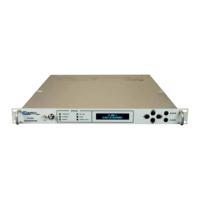
DT-4500 Series C- and Ku-Band Down Converters MN/DT4500.IOM
Firmware Update Revision 2
5–11
5.3.1.1 Use Windows Desktop to View Folder Contents
From the Windows Desktop:
1. Double-left-click the Windows Explorer icon, and then double-left-click as
needed to locate, and then open, the “temp” folder (directory) created
earlier on the Windows Desktop.
2. Use the Browse window (Start > ...Run > Browse) to locate, and then
double-click to open, the “temp” fo lder.
5.3.1.2 Use Windows Command-line to View Folder Contents
From Command-line or Command Prompt:
1. Type “cd c:\temp” at the Windows Command-line prompt to change to
the temporary folder (directory) created earlier using Command-line.
2. Type “dir” to list the files extracted to the temporary folder from the
downloaded archive file.
5.4 Upload the Firmware Files and Update the
DT-4500 Unit
5.4.1 Important Considerations
Before you proceed with the firmware update, make sure that:
• You connect the DT-4500 ‘Ethernet’ port to a Windows-based PC
Ethernet port with a CAT5e Ethernet cable.
• Your PC is running a terminal emulation program for operation of the
DT-4500 Telnet or serial interfaces.
• You have noted your DT-4500 Management IP Address.
• Your PC is running a compatible Web browser for operation of the
DT-4500 HTTP Interface.
• You download or otherwise have Comtech’s latest firmware files and the
“CReflash” utility available on the User PC in an accessible temporary
fo l d e r.


 To Next Page