1-7
1010PVNFM-3ASection 1
Use the <Right and Left Arrows> to move through the character positions. If you wish to use
numbers in your string, you can type them directly from the keypad. After you finish selecting
your string, press <ENT> to register it.
1.7.3 THE METER TYPE MENU
This is the first list presented upon entering the Installation Menu. Select the type of meter
required for your application. The meter automatically conditions Installation Menu choices to
suit the selected meter type.
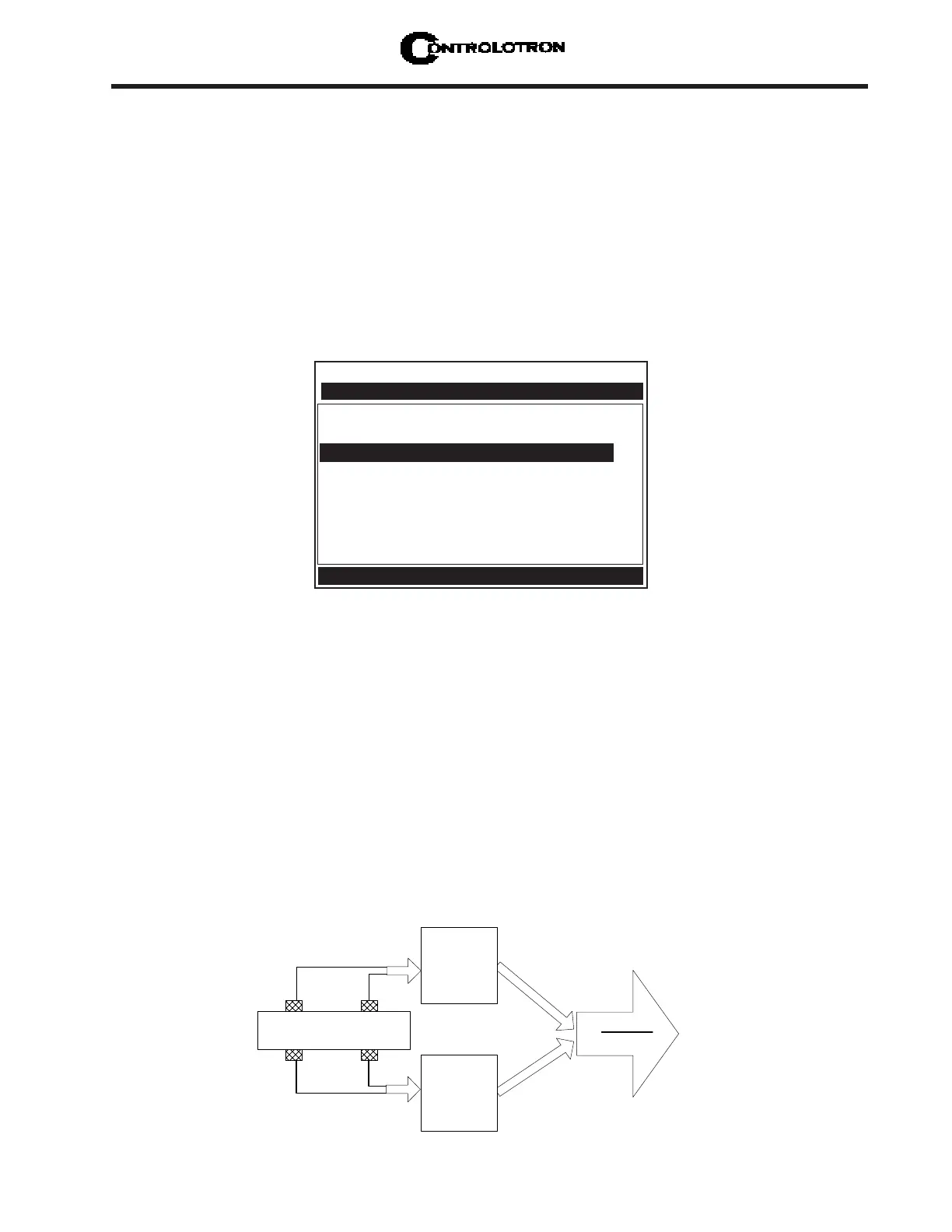
Dual Path
Dual Path uses two measurement channels to achieve a single output via a “virtual” third
channel. The resultant data is the average of the two channels. Benefits include highest avail-
able precision and enhanced immunity to distorted flow profile conditions.
Channel 1
Flow
Channel 2
Flow
Ch1 + Ch2
2
Output
(average of
Ch 1 & Ch 2)
Pipe
Controlotron Dual Path SITE 1
Recall Site Setup No Sites
Channel Enable No
Create/Name Site ?A
nn
nn
n
Site Security Off
Delete Site Setup No Sites
Save/Rename Site
Right Arrow & Enter Creates a new Site
Channel/Path Setup
Entering Alphanumeric Strings
An alphanumeric string is a series of numbers and letters; and also the Quotation Mark and the
Pound Sign symbol. You can also use a space. The meter uses these to identify a specific site
setup or user-modified table. The 1010PVN keypad does not provide letter keys. However,
when you access a menu cell that requires an alphanumeric string answer, the menu cell
right-hand column provides an eight-character entry field. Press the <Right Arrow> to access
the field. This selects the first character position. Note that the prompt changes to a question
mark (?). With the cursor at the first character position, use the <Up or Down Arrow> to scroll
through a single-character list. For example, as shown below, an <Up Arrow> at the first
character position produces the letter: upper-case [A]. Pressing the <Right Arrow> moves the
cursor to the second position.


 To Next Page